Step 1
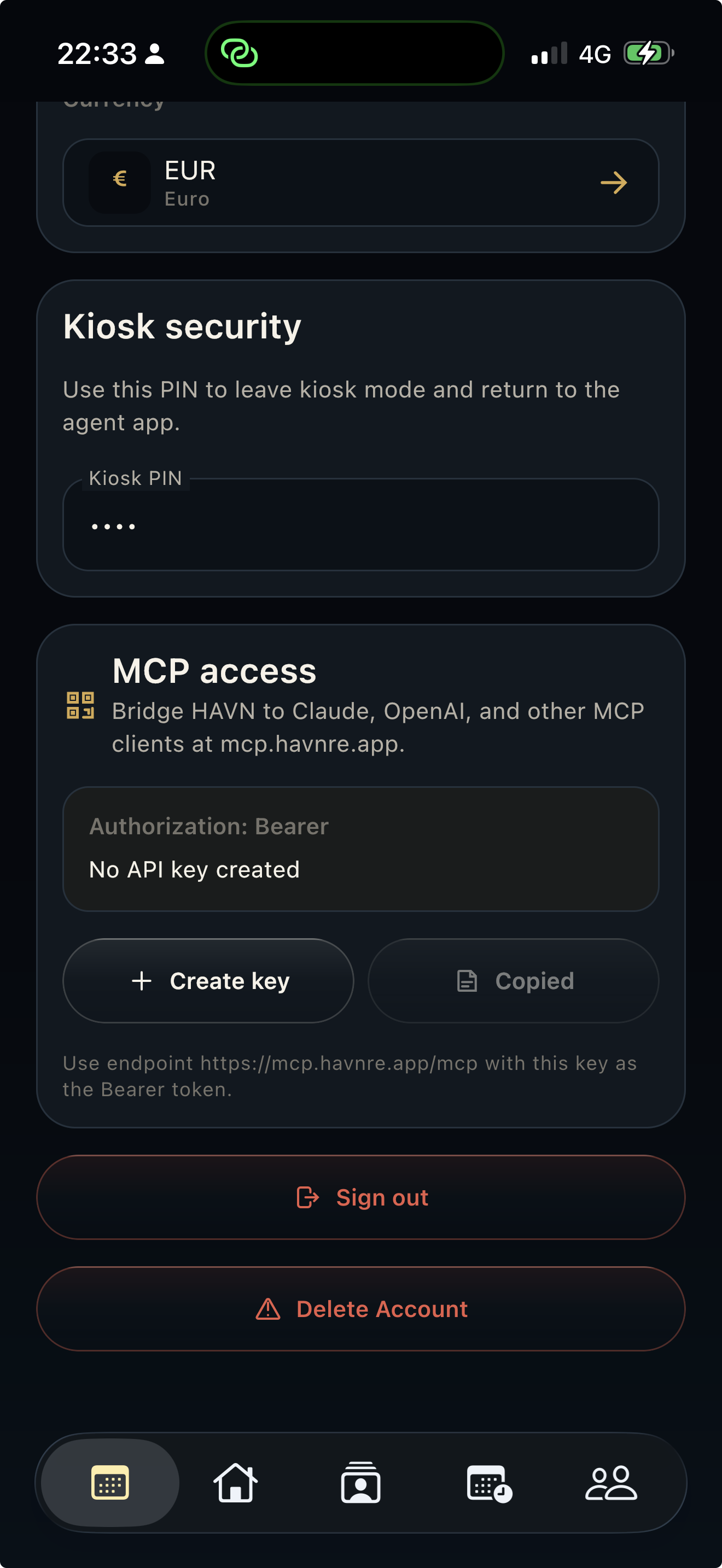
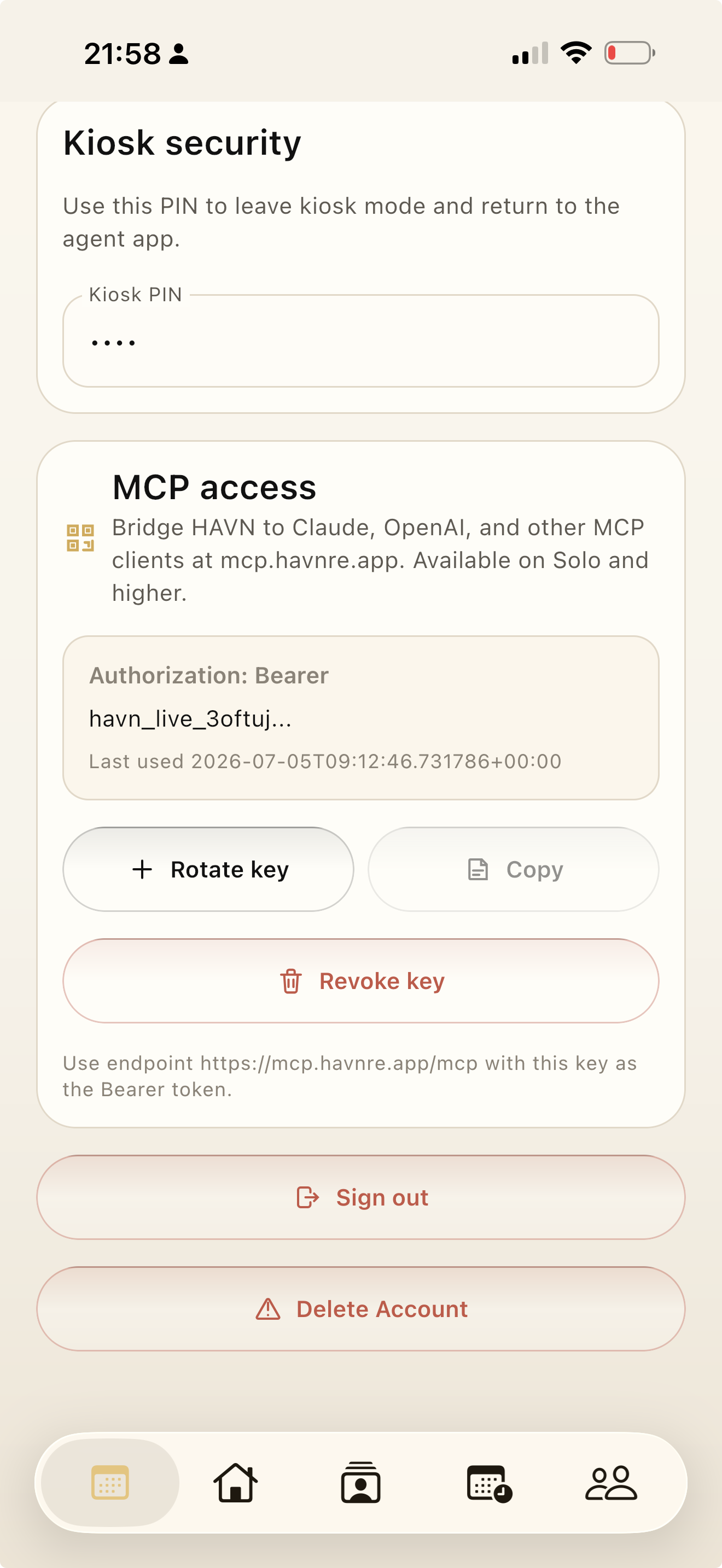
Create your HAVN MCP key
- Open HAVN on iPhone, iPad, Android, or the web app.
- Go to Settings and find MCP access.
- Tap Create key. HAVN shows the full key once so you can reveal and copy it.
- Use the key as a Bearer token with the HAVN MCP endpoint.
Video guides
Watch the connection flow
Use these short walkthroughs to connect HAVN to ChatGPT or Claude through MCP.
Connect ChatGPT to HAVN
Choose the official HAVN app in ChatGPT, open HAVN authorization, paste the MCP key, and finish the connection.
Connect Claude to HAVN
Add HAVN as a remote MCP connector in Claude and complete the HAVN authorization flow.
Step 2
Connect common AI clients
Connect ChatGPT to HAVN
- Open ChatGPT and go to Apps or Connectors.
- Find HAVN in the official app list and choose Connect.
- When HAVN authorization opens, paste your HAVN MCP key from HAVN Settings and approve.
- Return to ChatGPT and use HAVN when you need property, lead, open-house, task, contact, media, or report context.
Connect with Claude remote MCP
- Open Claude settings for integrations or connectors.
- Add a custom integration that points to the HAVN endpoint.
- Complete HAVN authorization with your MCP key when Claude opens the OAuth flow.
- For Claude Code, use the HTTP command below instead.
claude mcp add --transport http havn https://mcp.havnre.app/mcp \
--header "Authorization: Bearer YOUR_HAVN_MCP_API_KEY"Add the HTTP MCP server
- Open the MCP server configuration for VS Code.
- Add HAVN as an HTTP MCP server.
- Set the Authorization header to Bearer YOUR_HAVN_MCP_API_KEY.
{
  "mcpServers": {
    "havn": {
      "type": "http",
      "url": "https://mcp.havnre.app/mcp",
      "headers": {
        "Authorization": "Bearer YOUR_HAVN_MCP_API_KEY"
      }
    }
  }
}Use the standard remote MCP pattern
Most MCP-capable coding assistants accept either a remote MCP URL with headers or a JSON mcpServers configuration. Use the same endpoint and Bearer token shown above.
{
  "mcpServers": {
    "havn": {
      "type": "http",
      "url": "https://mcp.havnre.app/mcp",
      "headers": {
        "Authorization": "Bearer YOUR_HAVN_MCP_API_KEY"
      }
    }
  }
}
What AI can read and do
Available HAVN MCP tools
workspace_summary A compact overview of the user's HAVN workspace.
search_properties Find properties the user can access.
get_property_media Fetch permission-checked property image links and metadata for HTML pages, brochures, and AI-generated drafts.
search_contacts Search contacts connected to the user's role or agency.
search_open_houses Find open houses and showing activity.
search_leads Search open-house leads, property inquiries, general inquiries, and buyer requirements.
search_tasks Search accessible tasks with property, contact, lead, and open-house links.
search_seller_reports Search seller reports with property context, report metrics, and AI summary data.
analytics_summary Fetch scoped analytics with inquiry mix, lead sources, buyer requirements, conversions, and open-house metrics.
search_files Search accessible uploaded files and return signed URLs for private attachments.
search_media Search property photos, contact media, agent avatars, agency icons, and contact pass assets.
create_task Create reminders and work items connected to properties, contacts, leads, or open houses.
update_task Update task title, status, priority, due date, assignment, notes, or completion.
create_property Create a new property/listing with address, price, seller, location, and notes.
update_property Update an existing property/listing, including status, pricing, seller details, and map location.
add_property_photos Import real listing photos from public image URLs into HAVN property photos.
add_attachment Import a document from a public URL and attach it to a property or task within plan storage limits.
create_open_house Schedule an open house, viewing, showing, or tour for an existing property.
update_open_house Update open-house timing, status, host, title, access notes, or internal notes.
add_open_house_lead Add or check in a buyer/prospect as a lead for an existing open house.
create_inquiry Create a property inquiry or a general buyer inquiry without a matched property.
update_inquiry Update an inquiry, its matched property, buyer requirements, status, intent, or contact.
create_contact Create a new buyer, seller, visitor, or client contact.
update_contact Update contact name, email, phone, status, preferred channel, or notes.
add_contact_photo Import a real contact avatar from a public image URL into HAVN contact photos.
add_contact_note Append a timestamped note to an existing contact.
update_lead_status Update lead status, temperature, and optional notes.
create_follow_up Create a call, SMS, email, broker note, or follow-up linked to a lead or visitor.
update_follow_up Update follow-up status, subject, body, channel, due date, or assignment.
draft_seller_report_summary Save a draft seller-report summary for a property or open house.
update_seller_report_summary Update seller-report summary text, next steps, feedback, AI data, or status.
Security model
Role-scoped access, not a database login
How HAVN limits access
- Every user gets a separate MCP key.
- Keys are validated by HAVN before any tool reads or writes data.
- Results are scoped to the user and agency role stored in HAVN.
- Write tools require a write-enabled MCP key and a clear user request before creating or updating records.
- Property media links are returned only for properties visible to that user or agency role.
- Private attachment links are short-lived signed URLs generated only after HAVN confirms access.
- Keys can be rotated or revoked from Settings.
How to handle your key
- Treat the key like a password.
- Do not paste it into public chats, tickets, screenshots, or source code.
- Rotate the key if a device or AI account is shared with someone else.
- Remove unused connectors in each AI client.
Legal and privacy
Important terms for MCP access
Does the AI get my full database?
No. HAVN checks the user's API key, role, and agency access before returning data. Tools return scoped results rather than a raw database connection.
Can I revoke access?
Yes. Open Settings in HAVN, revoke or rotate the MCP key, then remove the connector from the AI client.
Is the API key shown again later?
No. The full key is shown only when it is created. After that, HAVN stores only a hash and a short prefix for identification.
Does MCP change my HAVN subscription?
No. MCP is an access bridge. It may increase normal usage of HAVN infrastructure when AI clients call tools more often.
By connecting HAVN to an AI client, you authorize HAVN to send scoped account, property, contact, open house, lead, task, file, media, report, and workspace data to that client, and to create or update HAVN records when you explicitly ask it to use write tools.
The AI provider may process that data under its own terms, privacy policy, and workspace settings. Review HAVN policies and each AI provider's policies before connecting production client or brokerage data.
Provider docs