Steps
- Sign in with the agent account assigned to the workspace. HAVN waits for the initial property, open-house, lead, entitlement, and hero-image data before the signed-in workspace is ready.
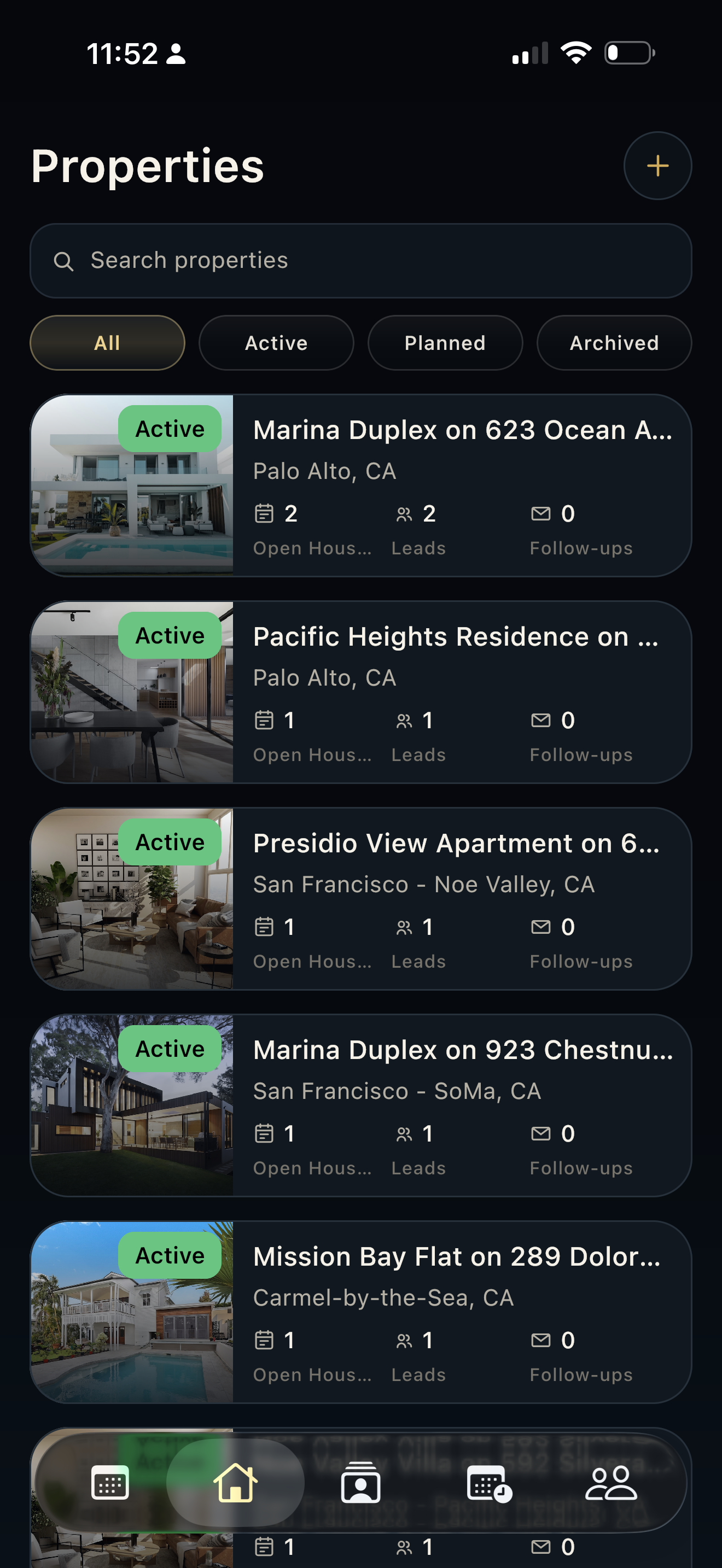
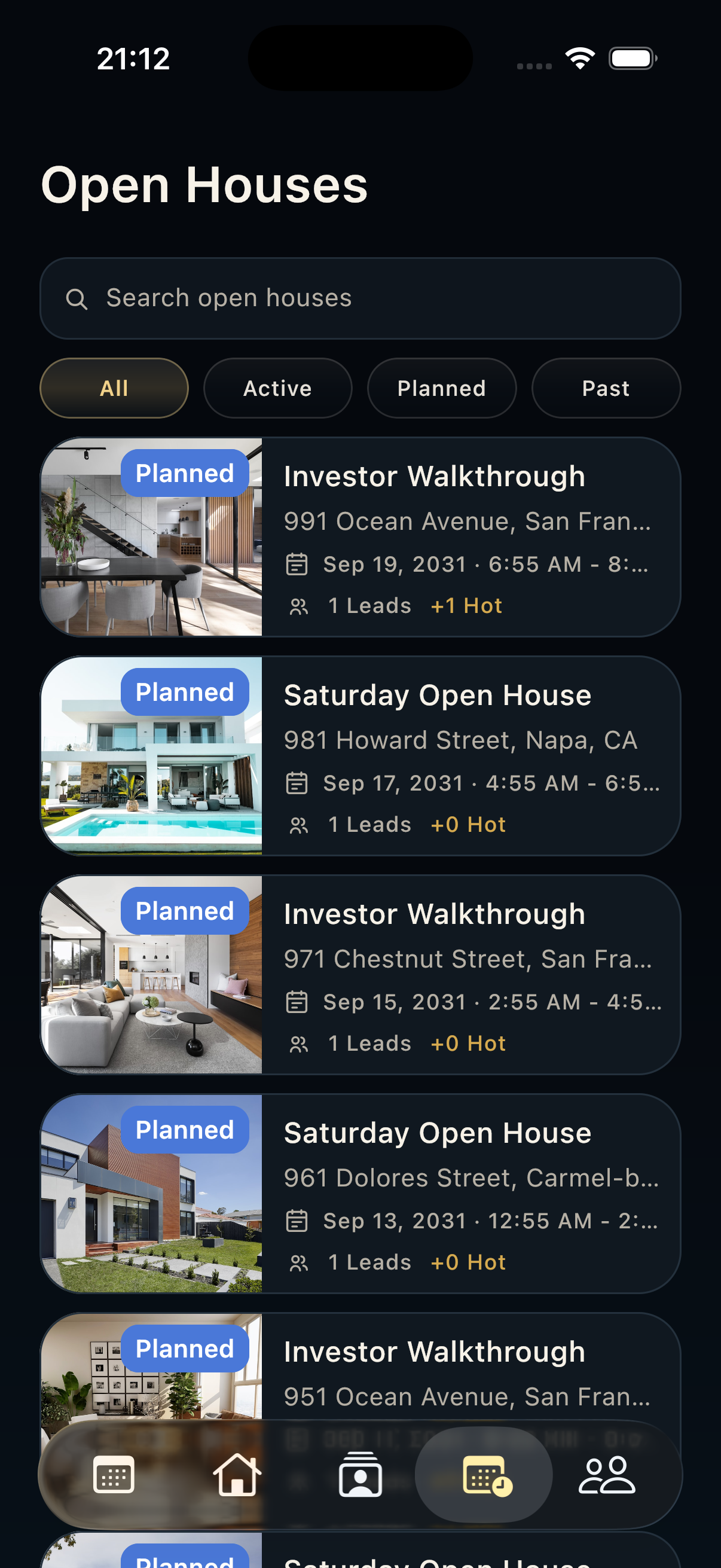
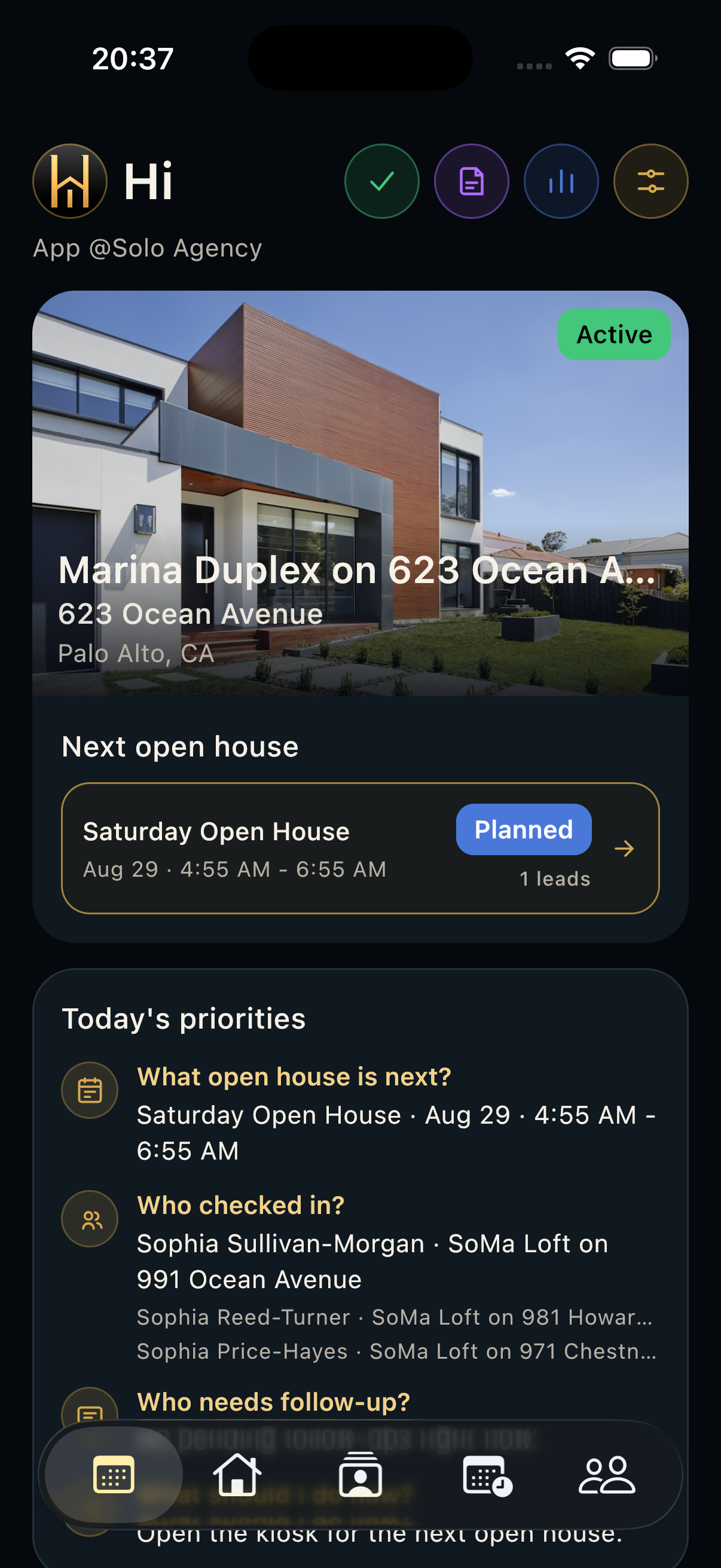
- Use the phone bottom toolbar for the core field workflow: Today, Properties, Contacts, Open Houses, and Leads.
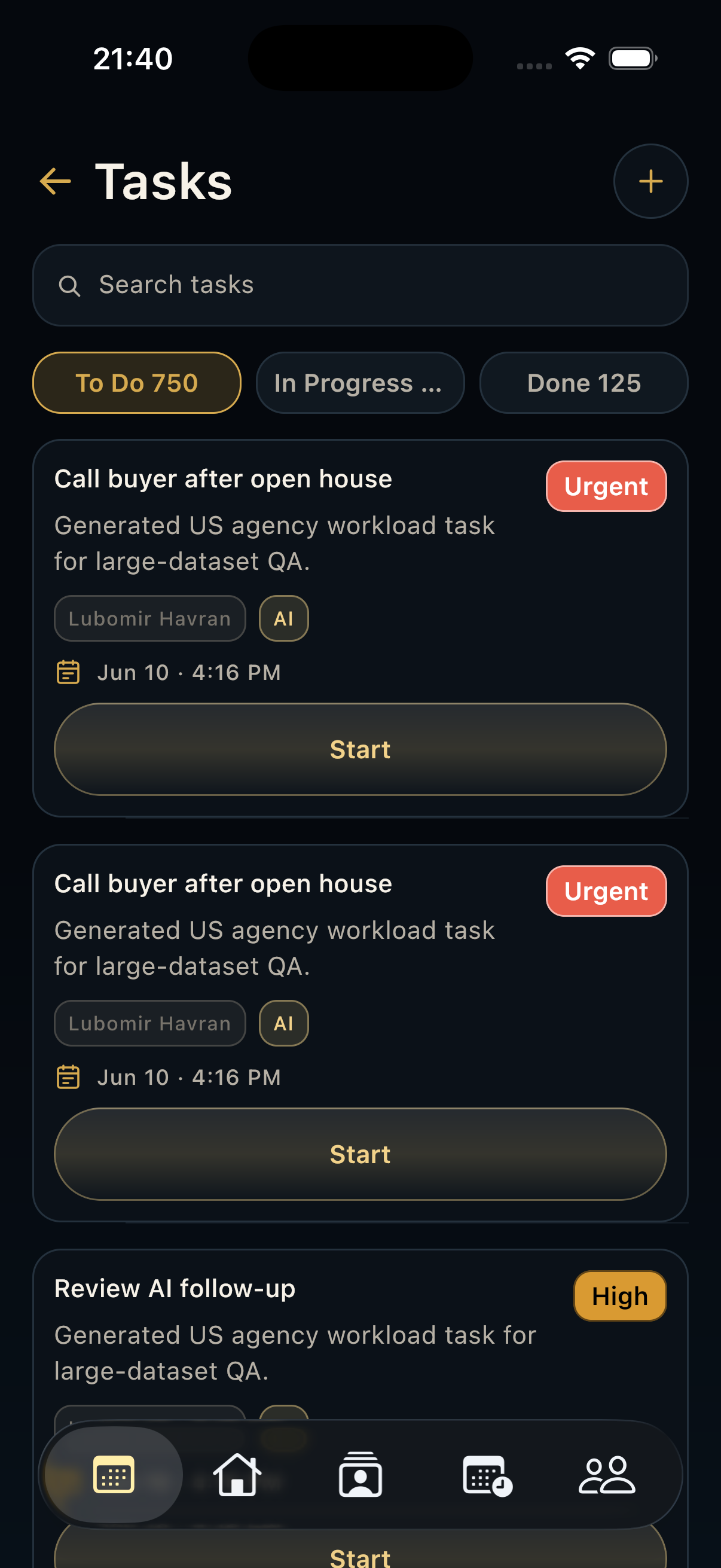
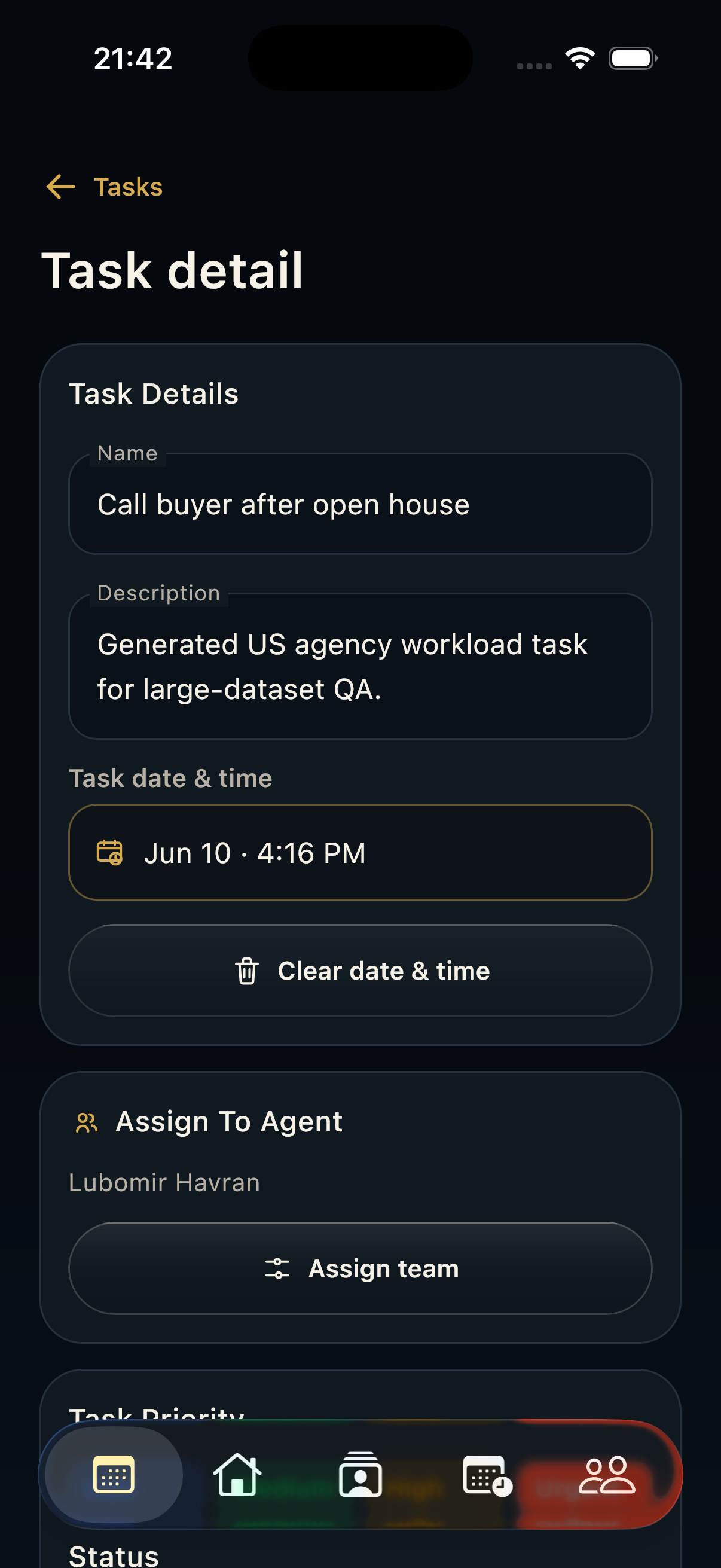
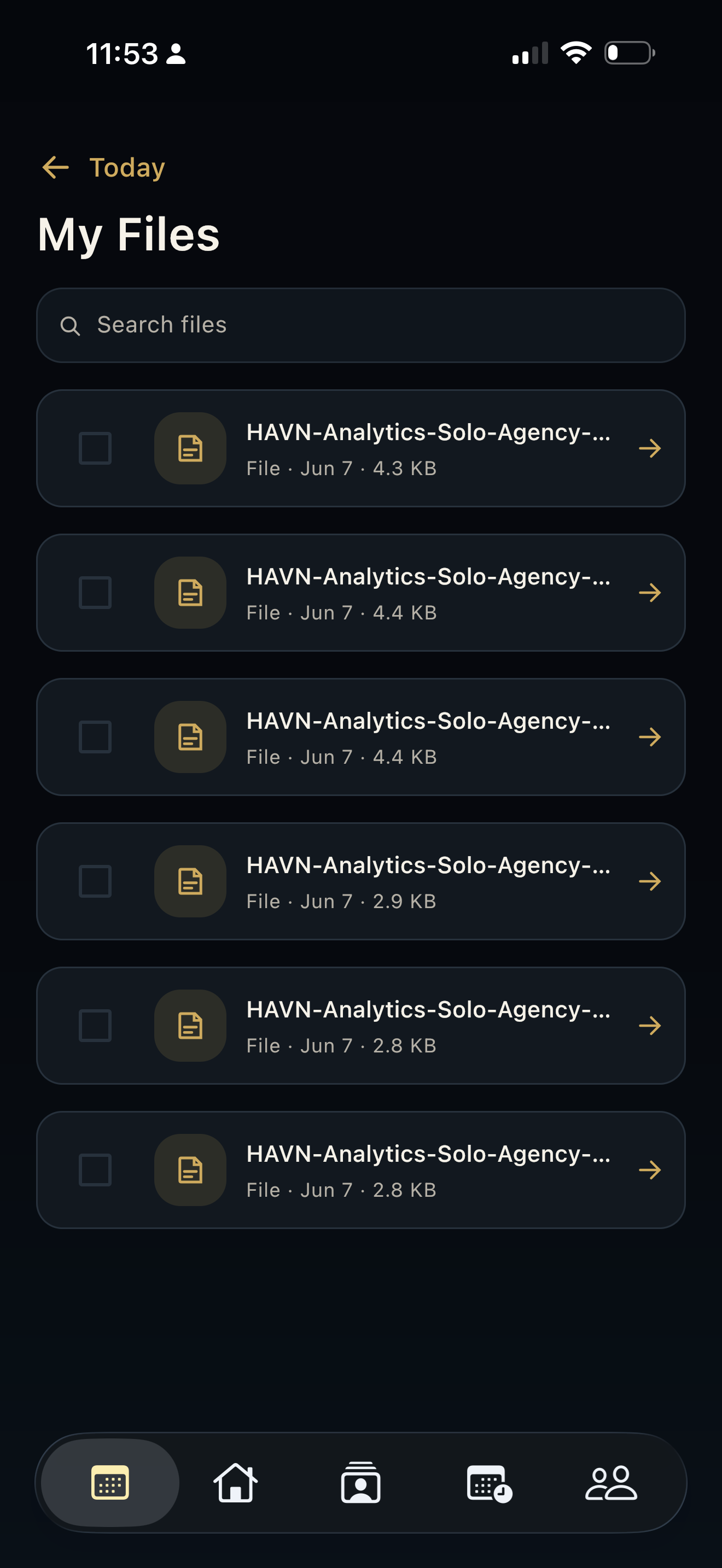
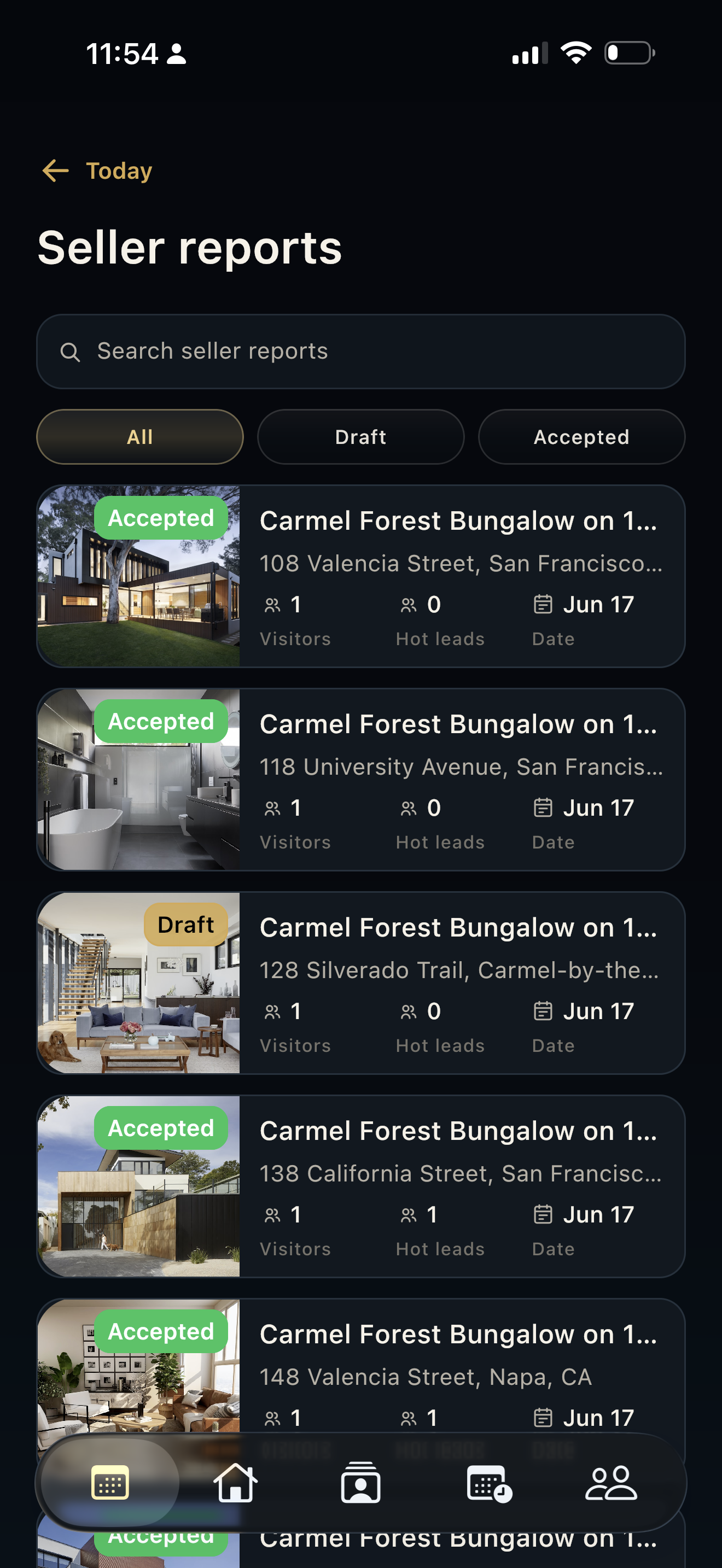
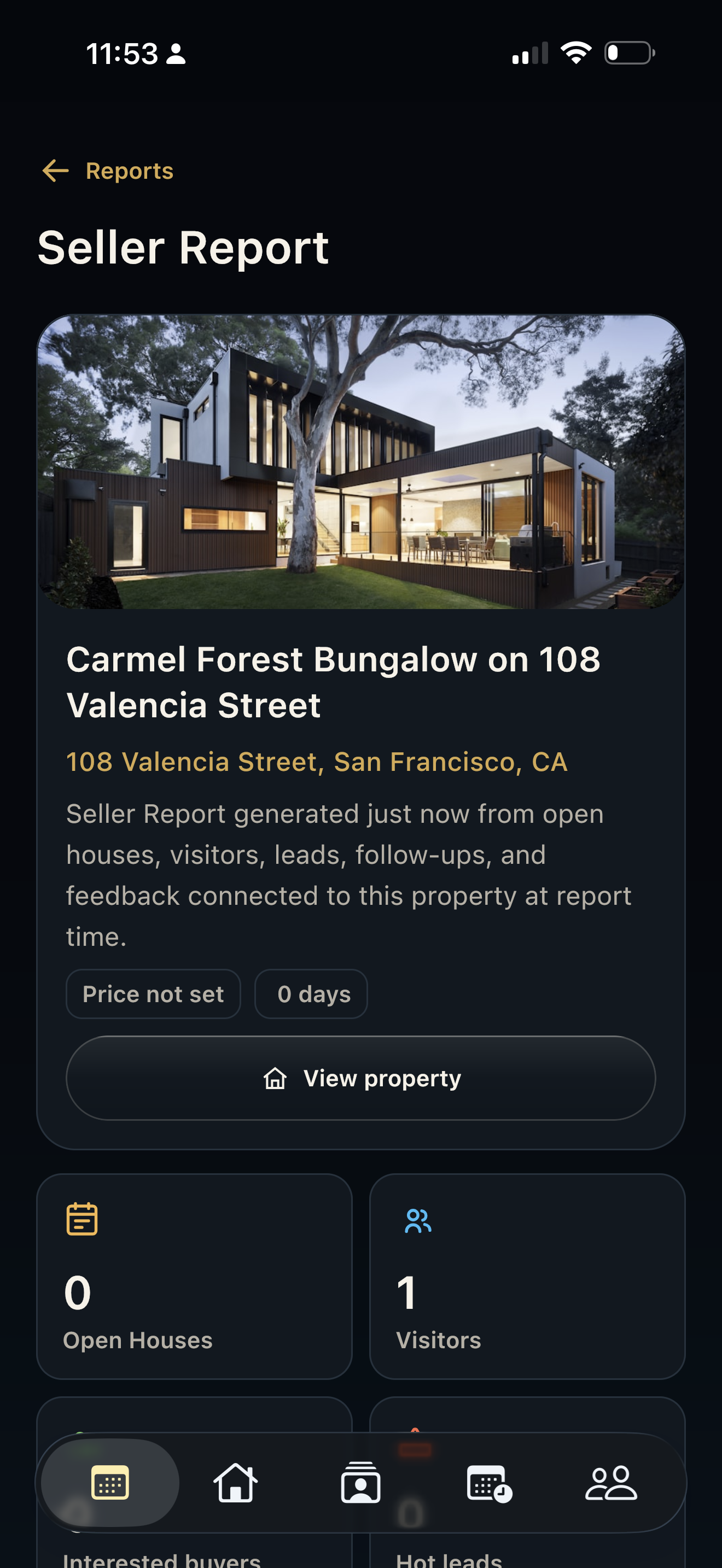
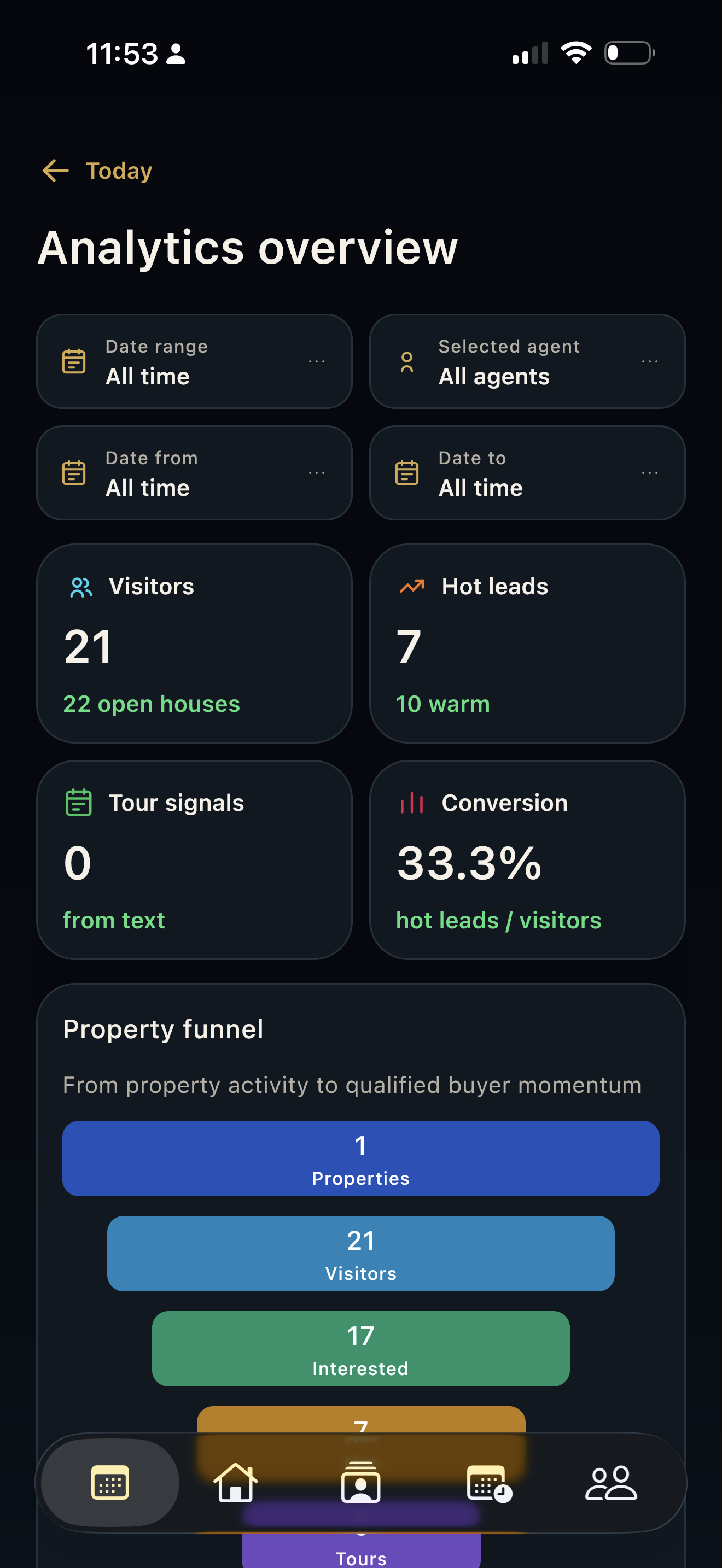
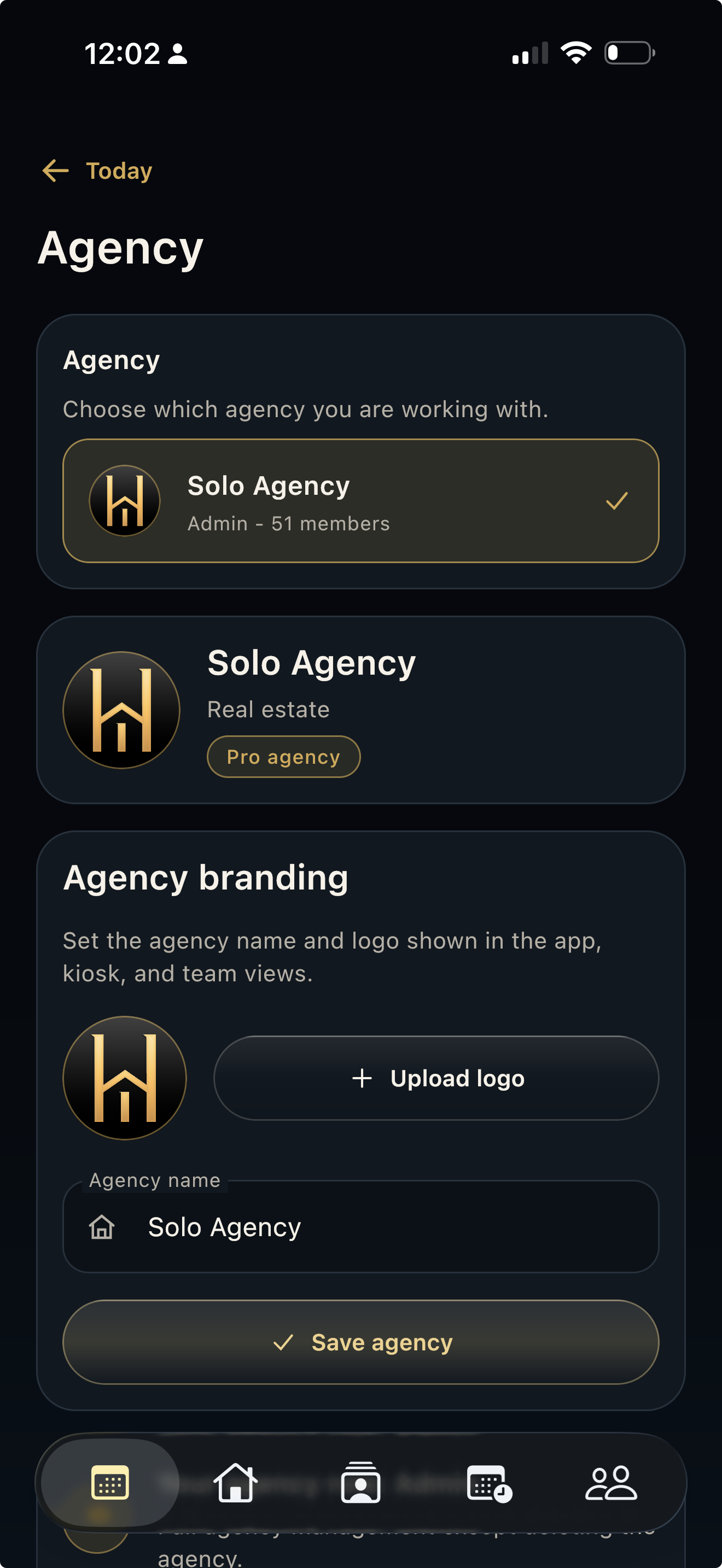
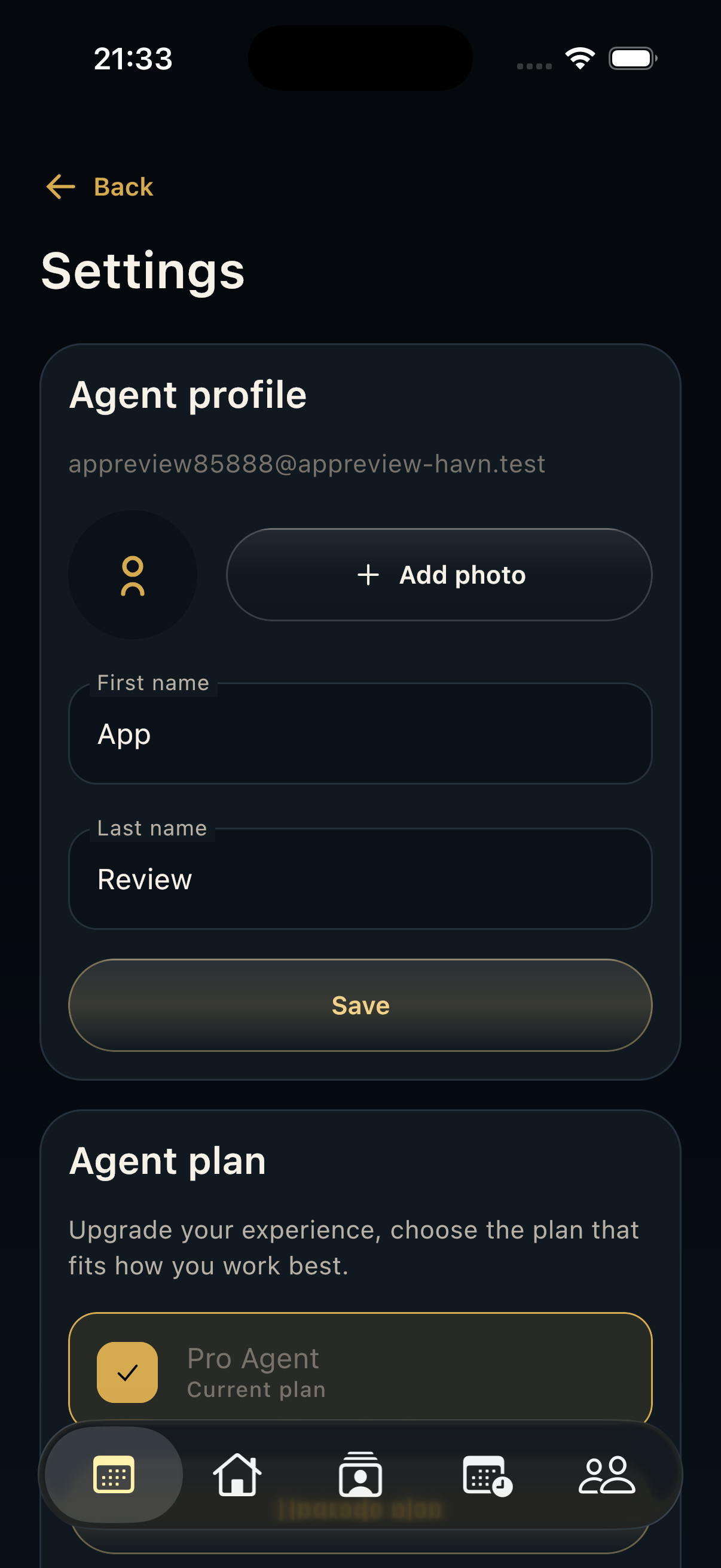
- Open Tasks, Files, Seller reports, Analytics, Agency, and Settings from Today actions, detail-screen actions, or the top-right action buttons when those modules are available for the plan.
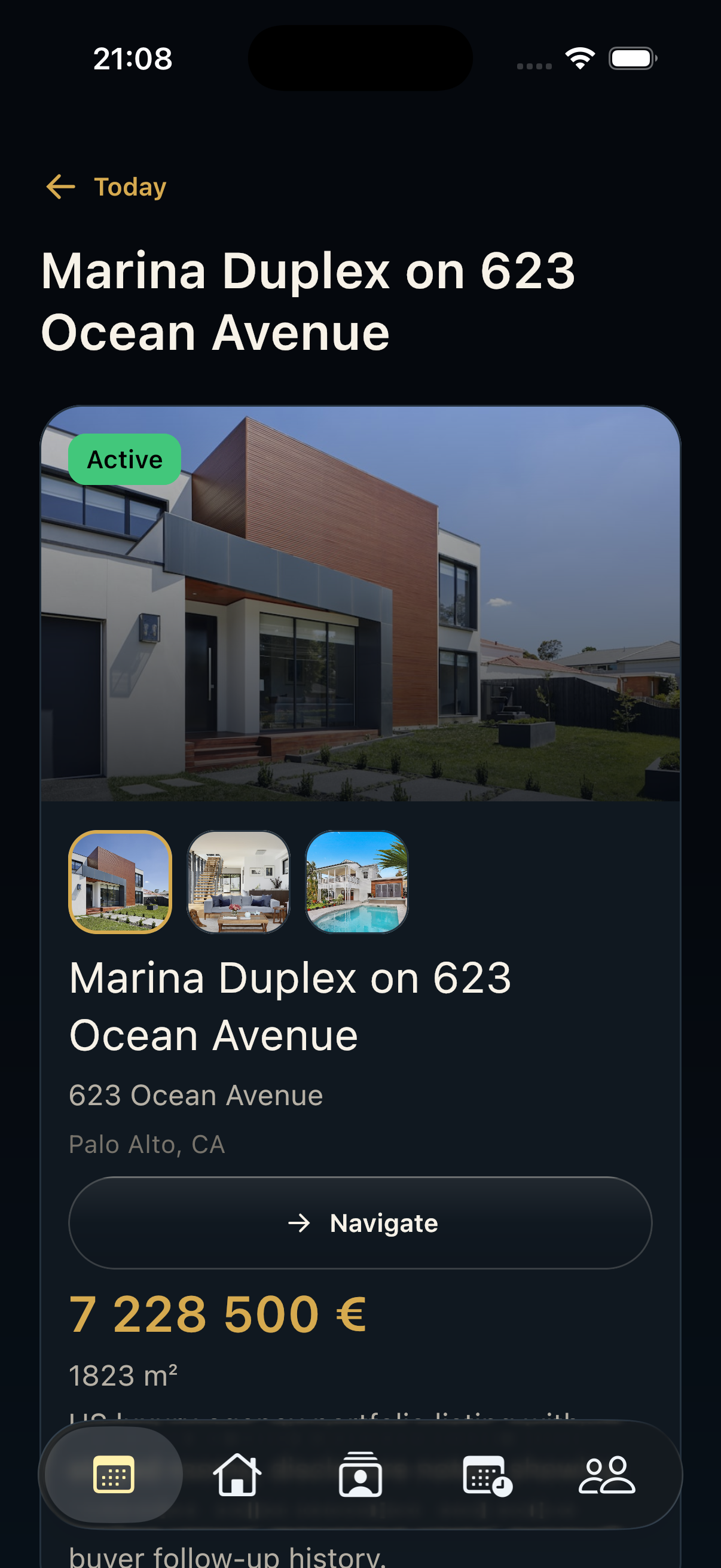
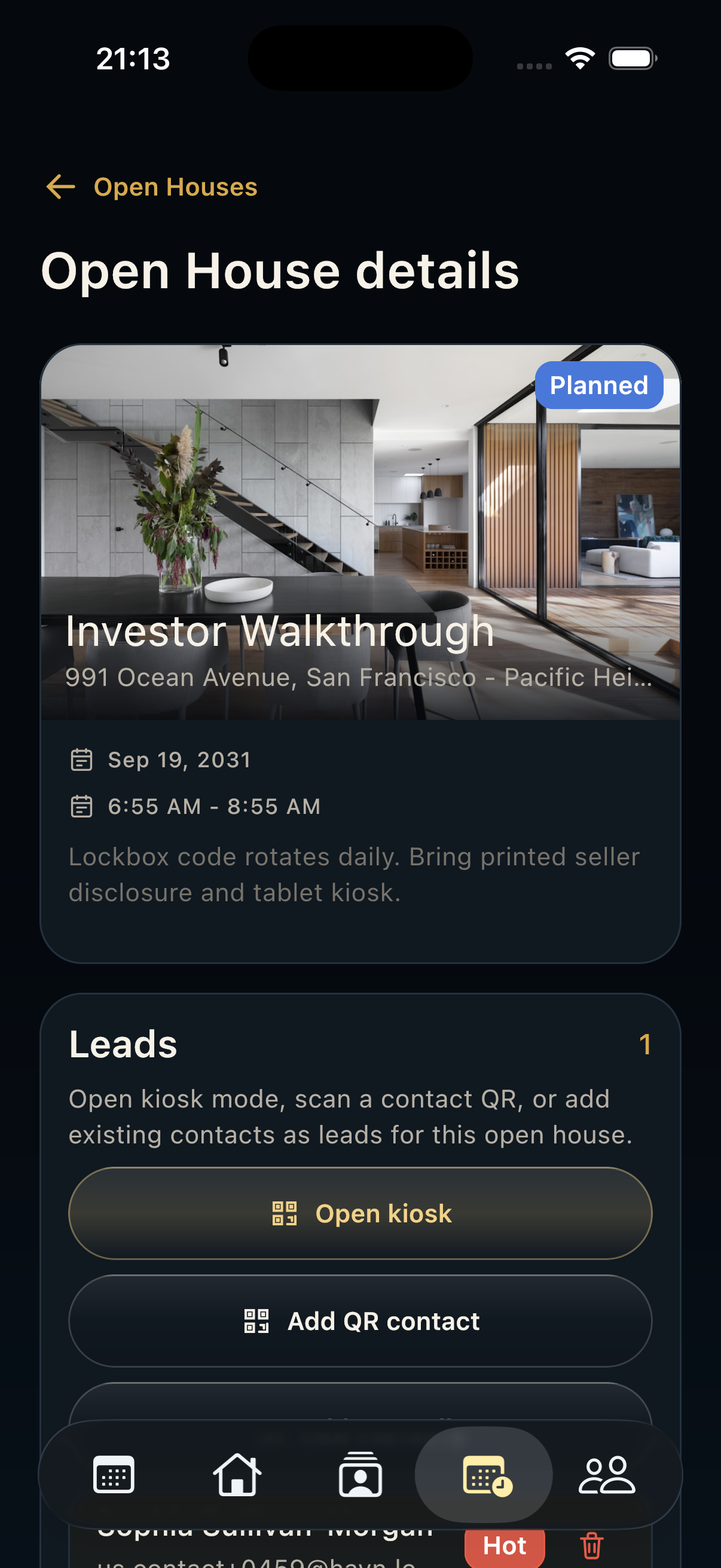
- During a showing, confirm the property and open-house record first, then use kiosk, QR, or manual visitor collection from Open house detail.
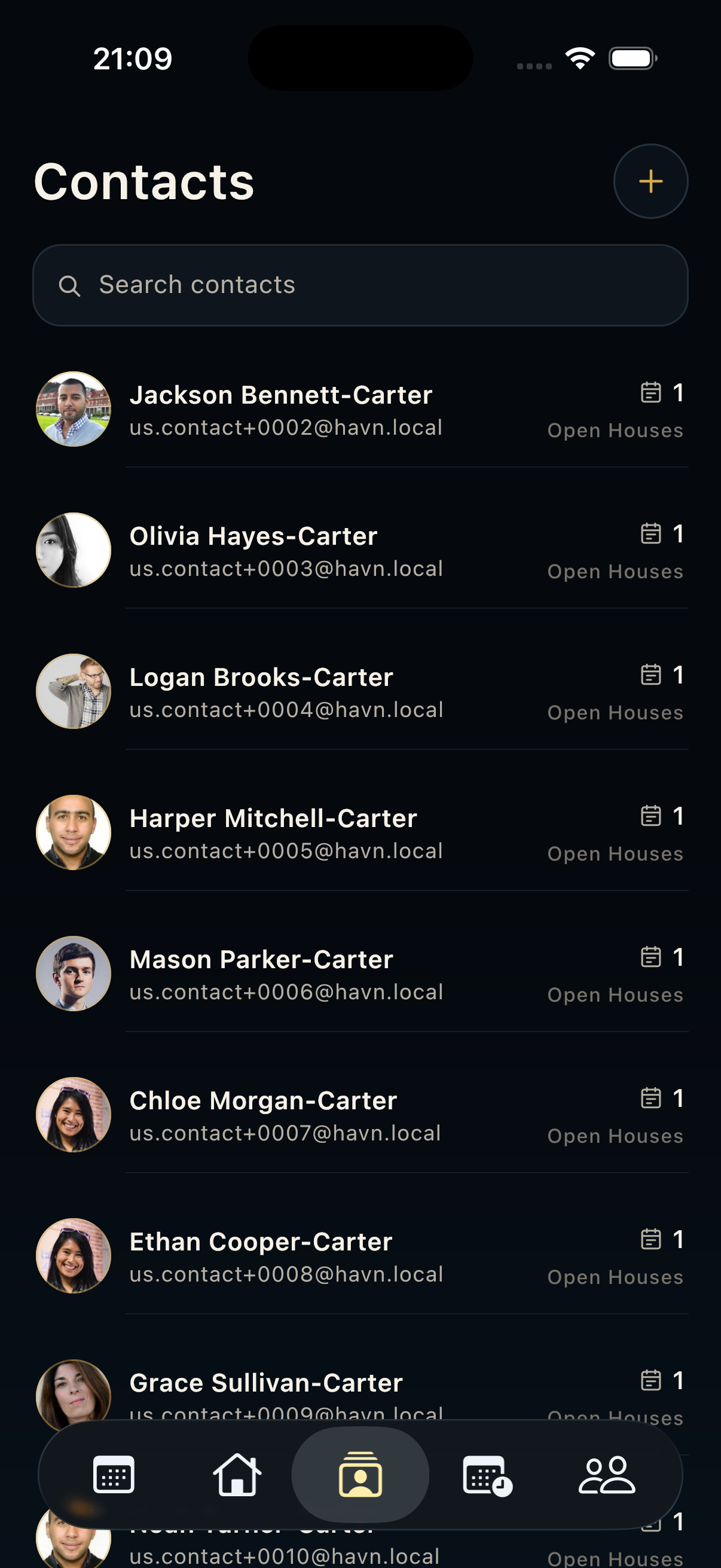
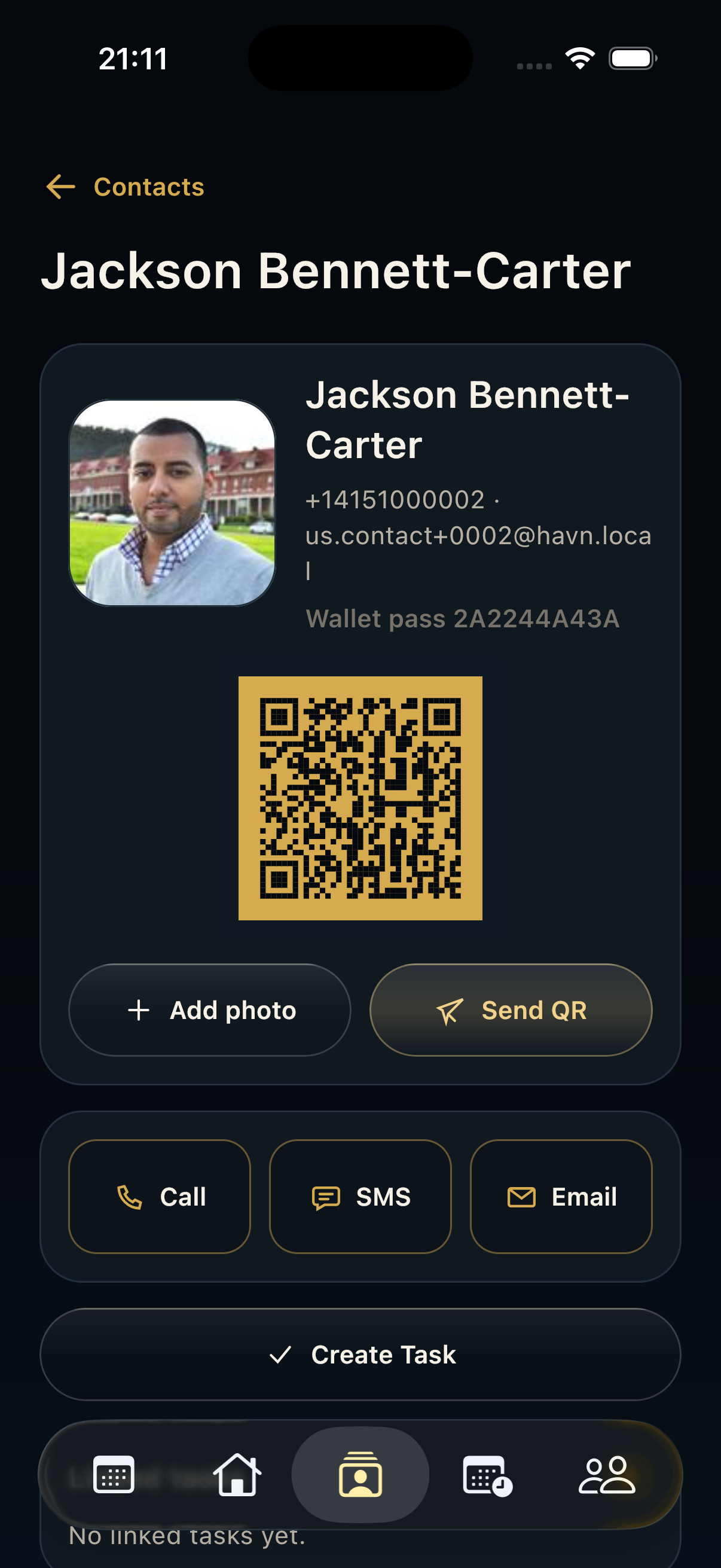
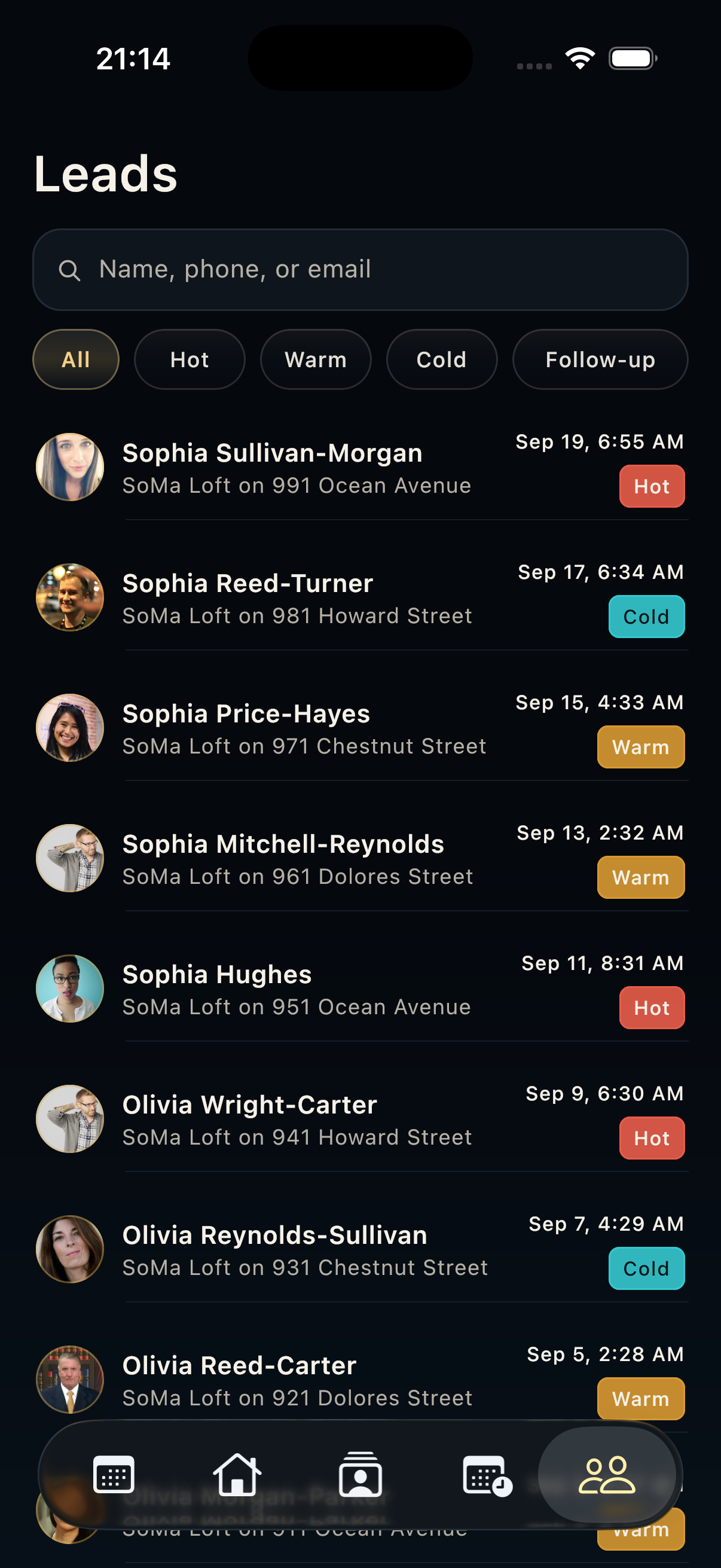
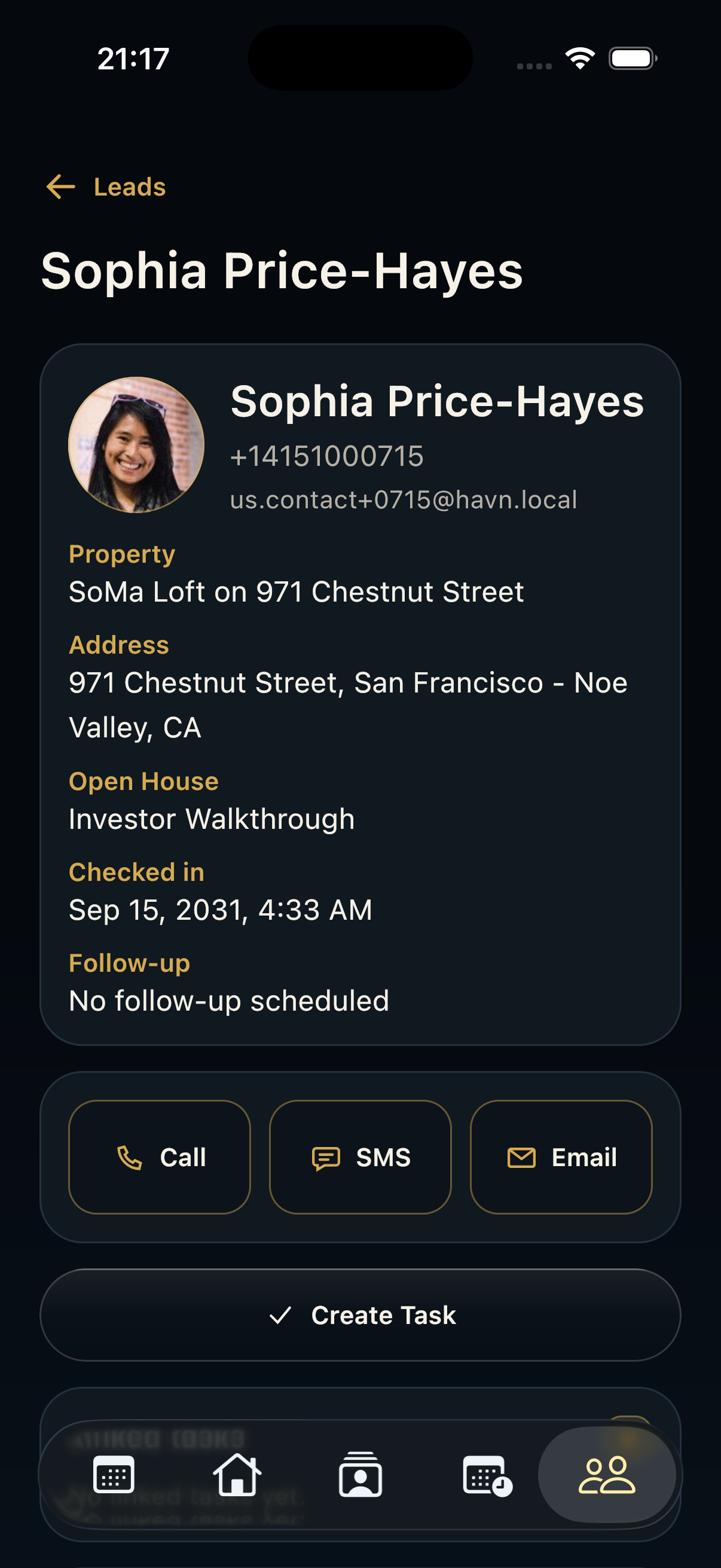
- After the event, review Contacts, Leads, Tasks, Files, Seller reports, and Analytics before sending seller or buyer follow-up.
- If a module opens Settings instead of the module screen, review the current plan because Files, Tasks, Reports, and Analytics are plan-gated.
Good to know
- The phone is best for field work: quick checks, visitor capture, notes, lead qualification, and fast follow-up.
- The app uses the same records on mobile, tablet, and web, so updates made on one device feed the same reports and analytics.
- Keep each visitor, lead, task, and file tied to the correct property and open house so seller reports remain accurate.