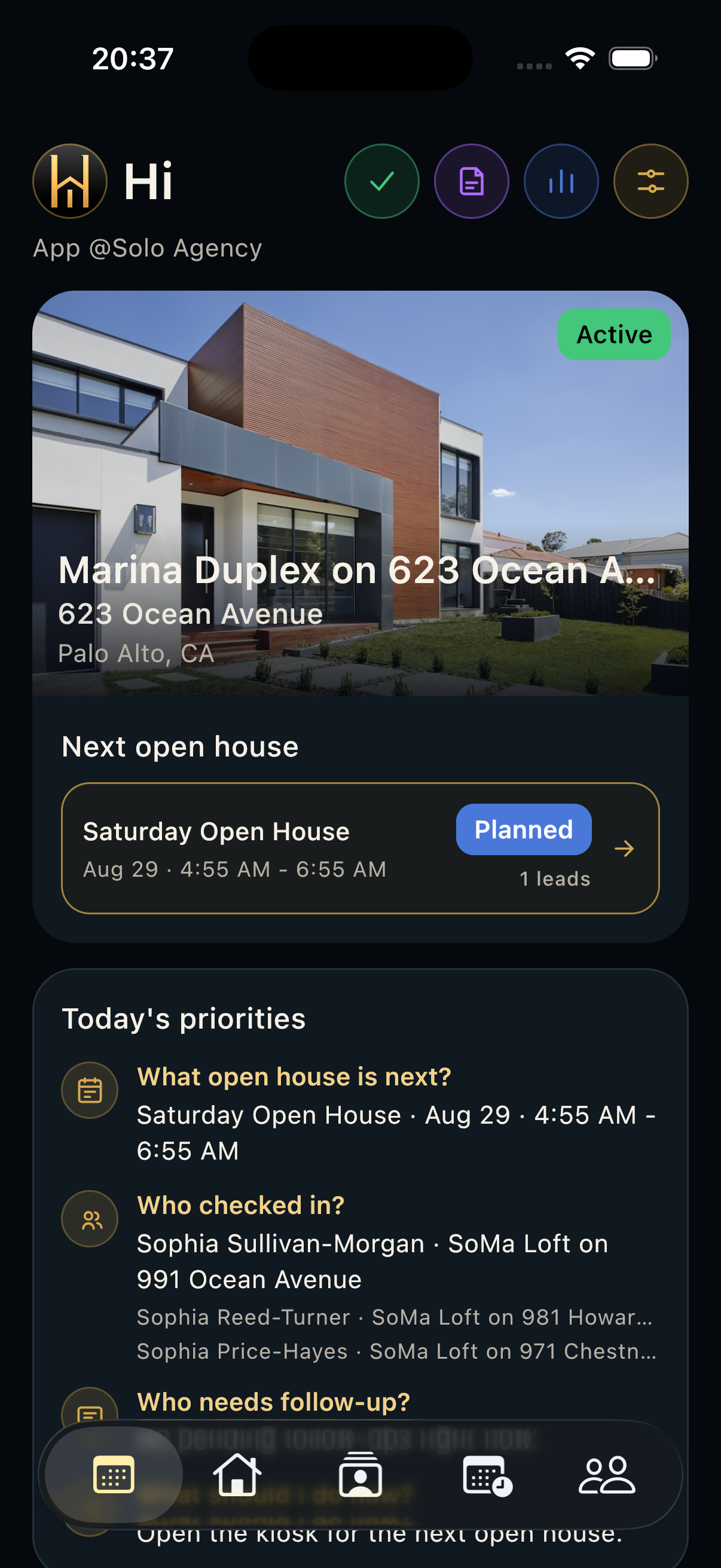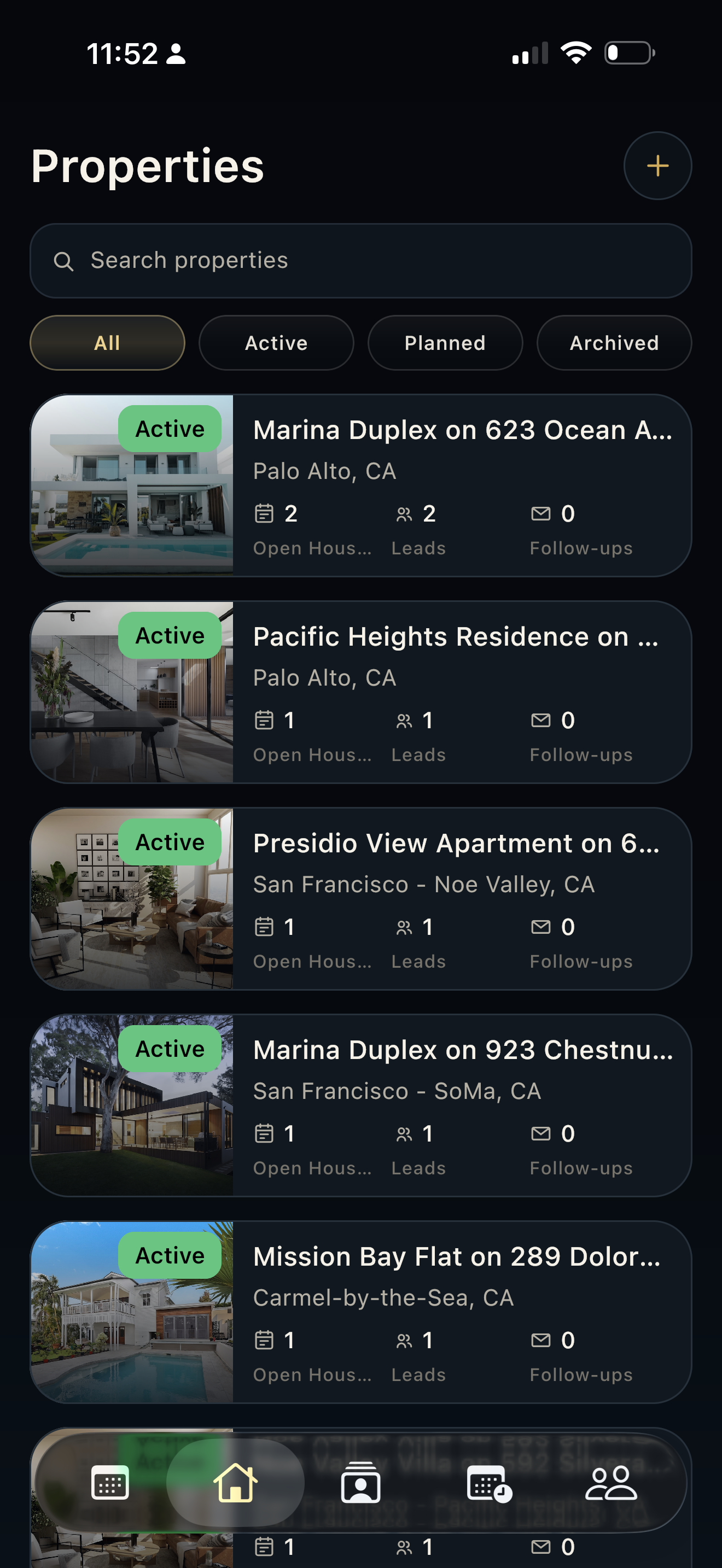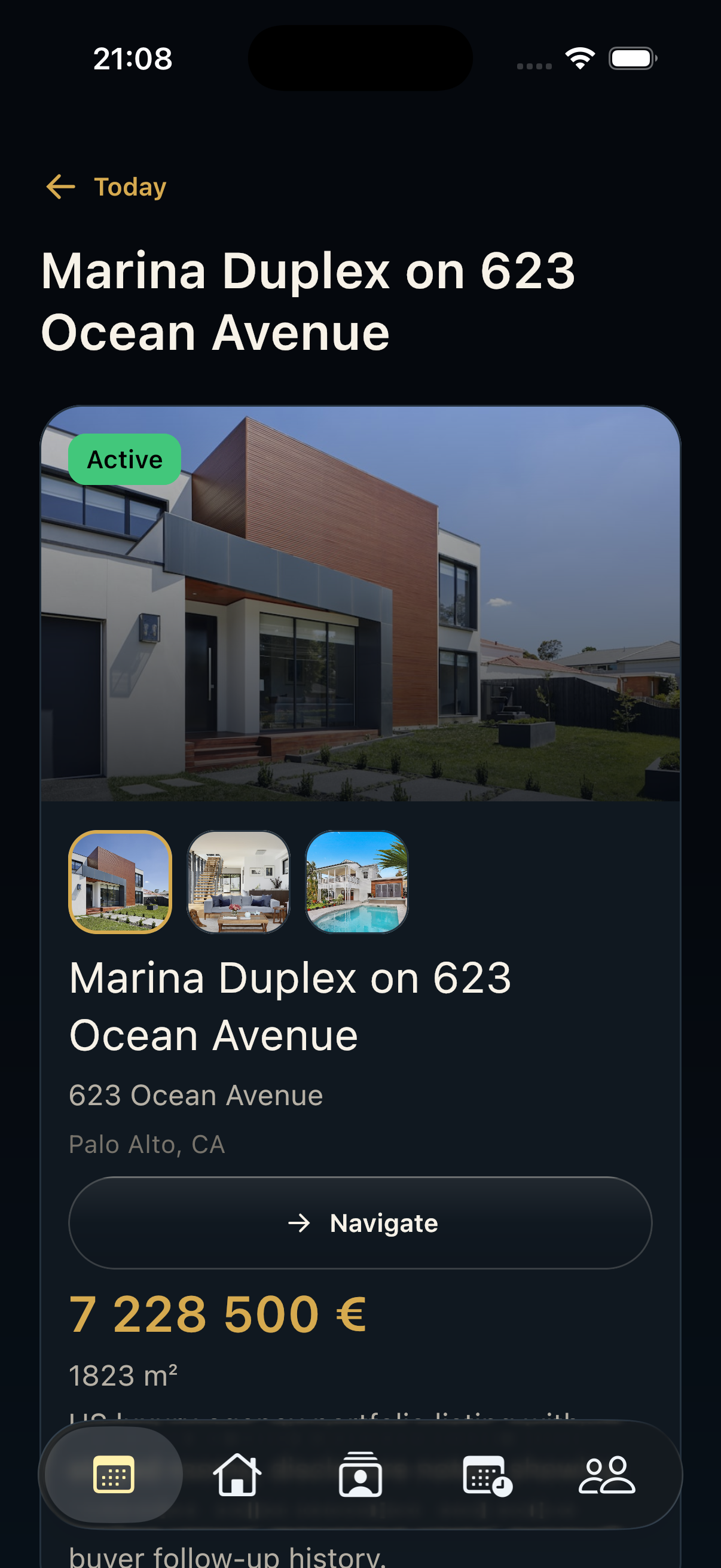
Steps
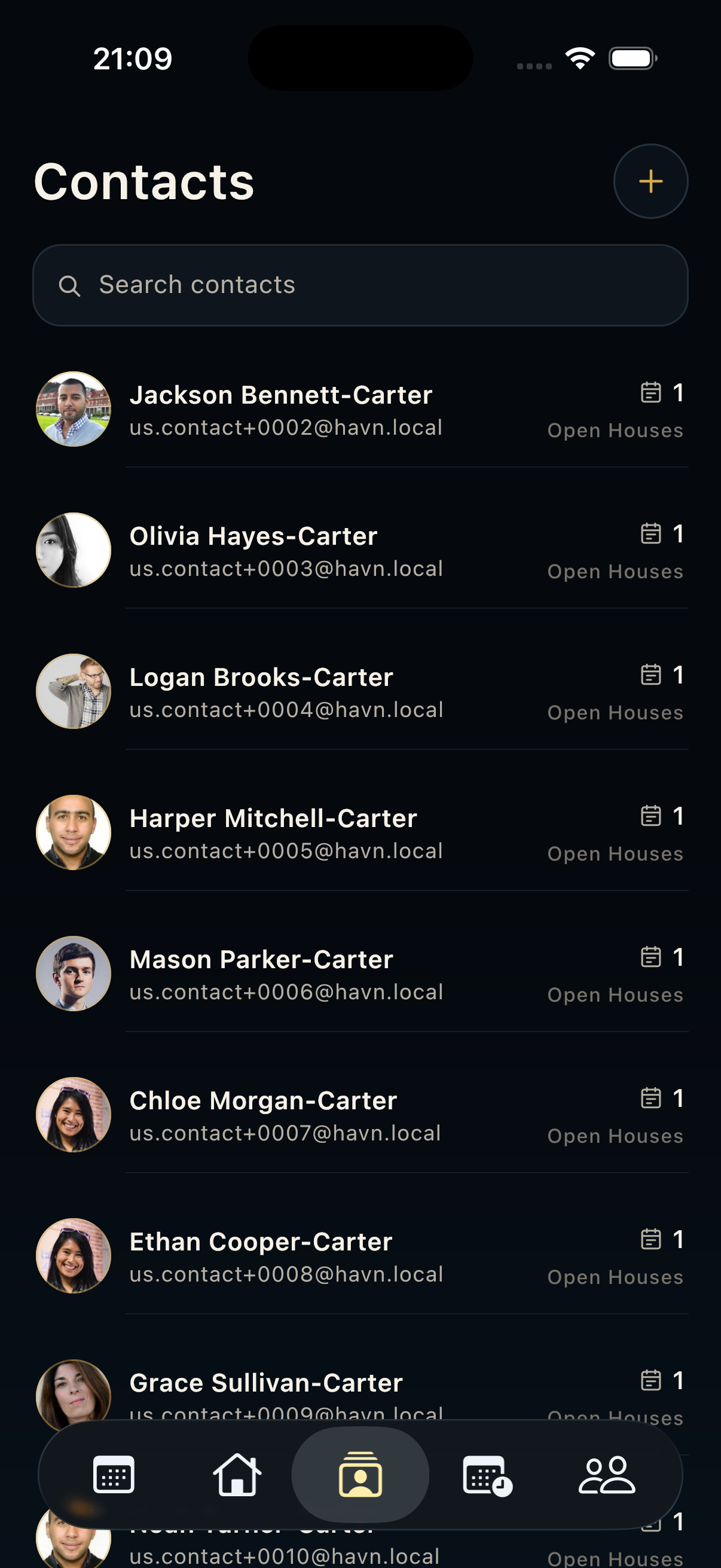
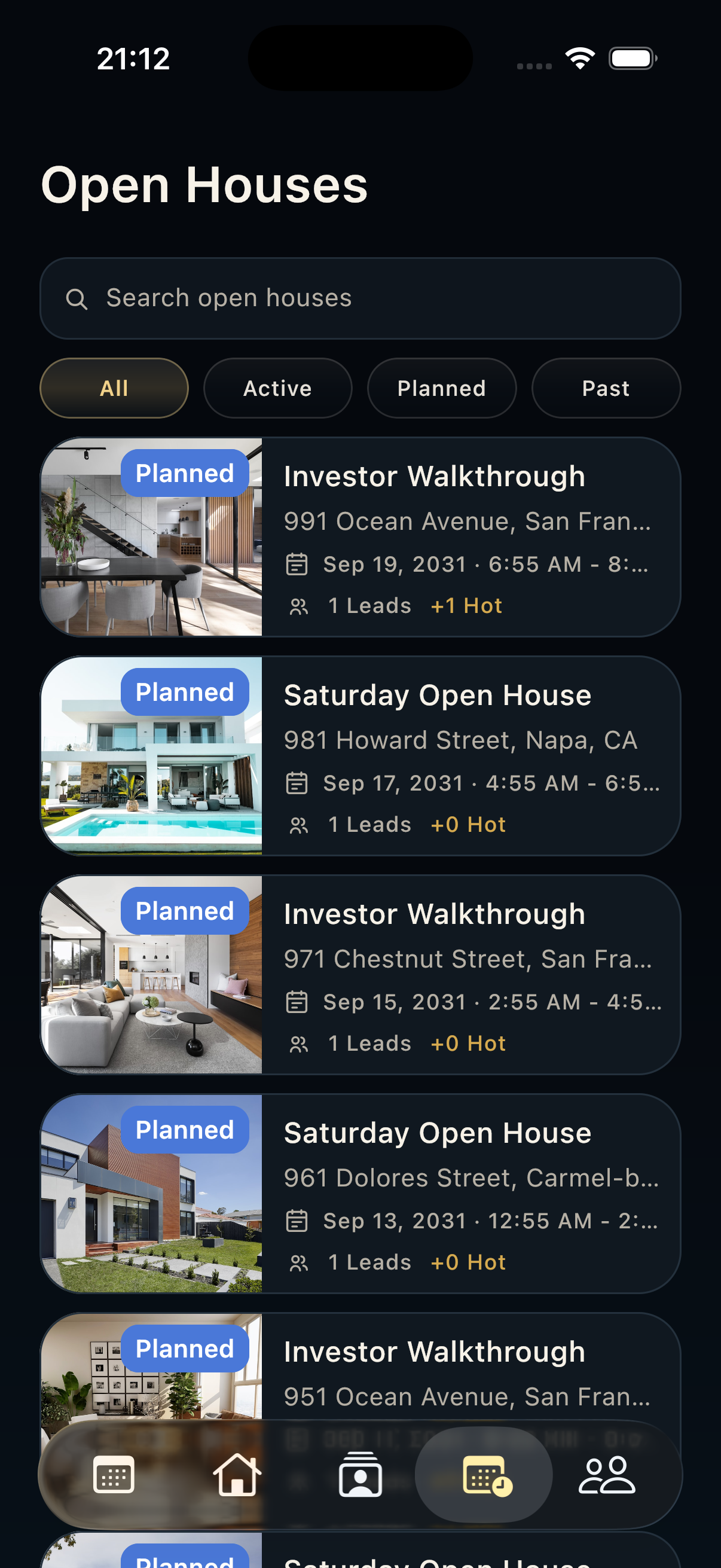
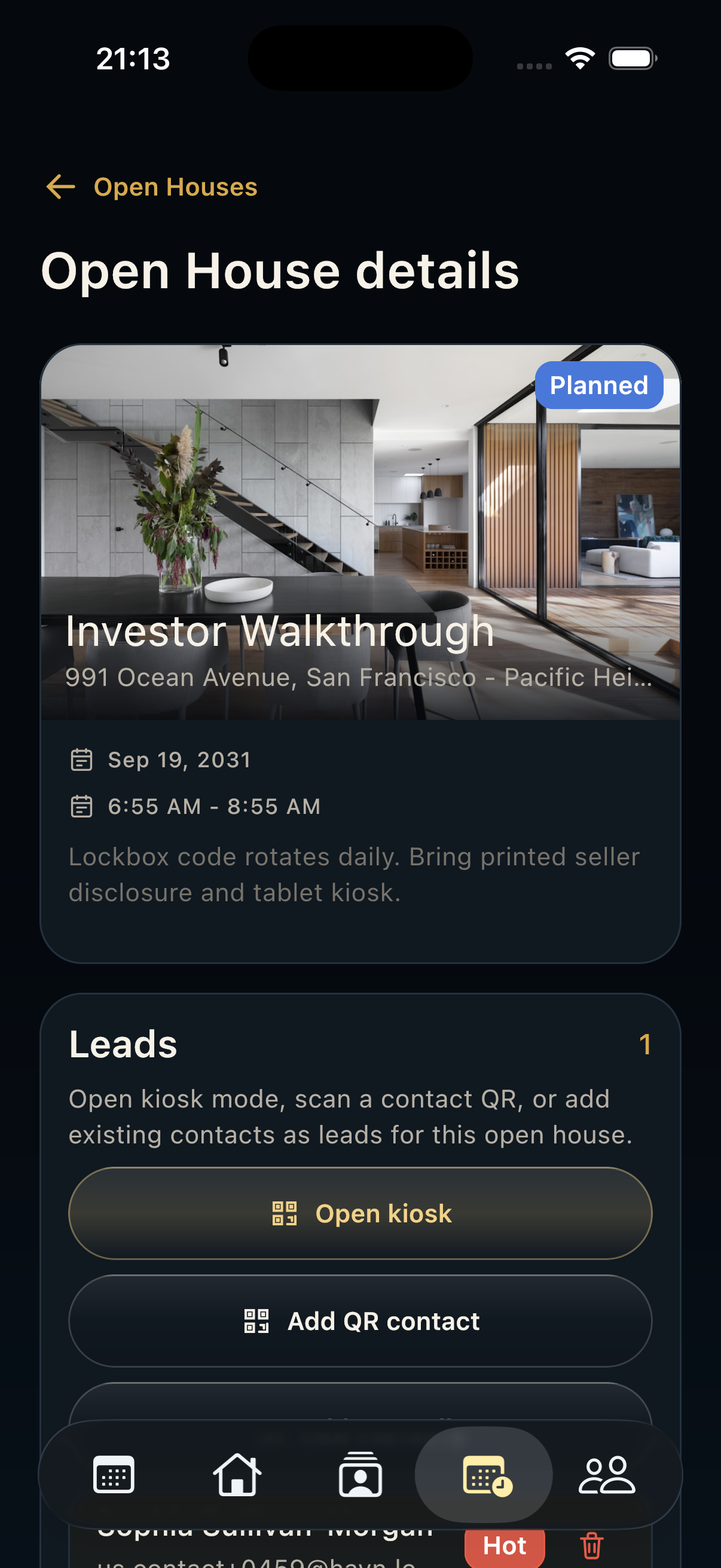
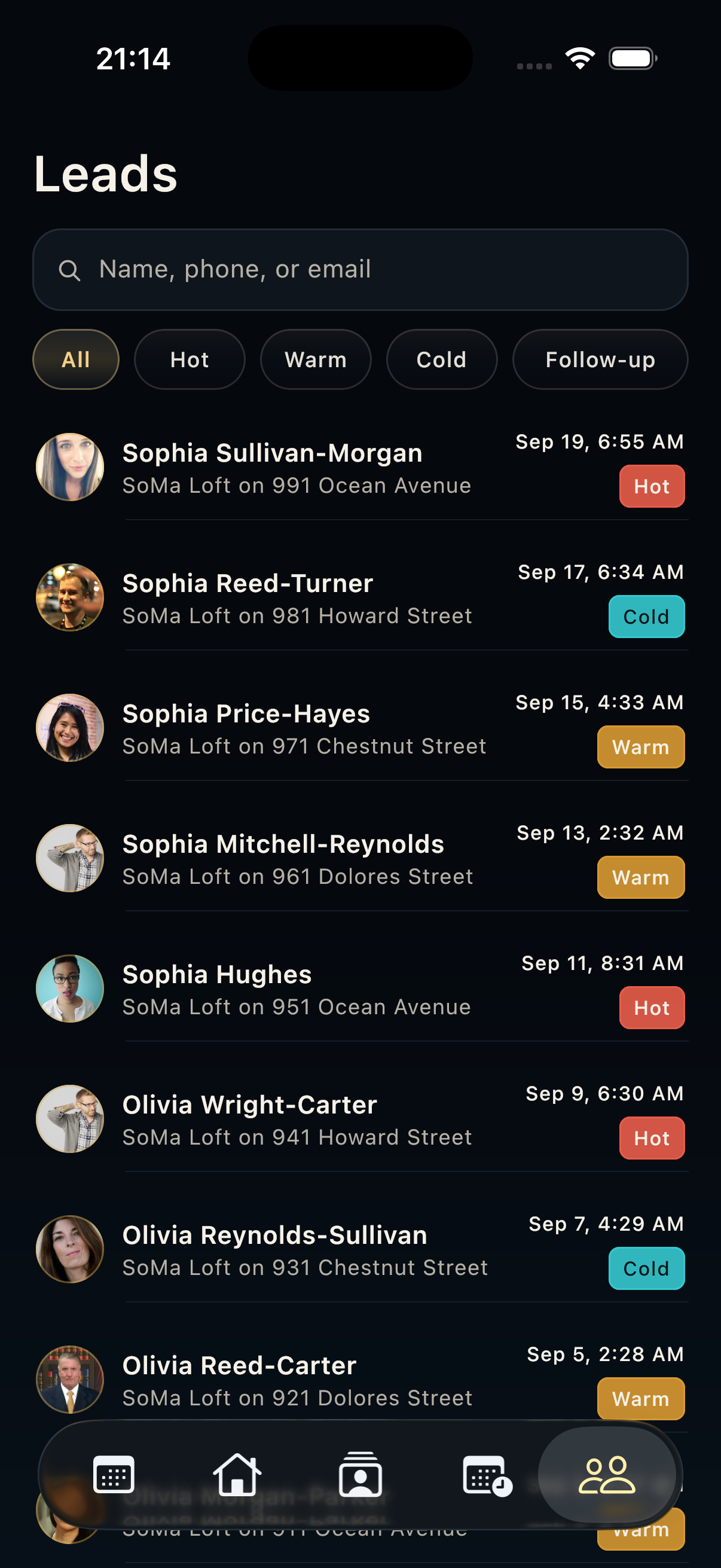
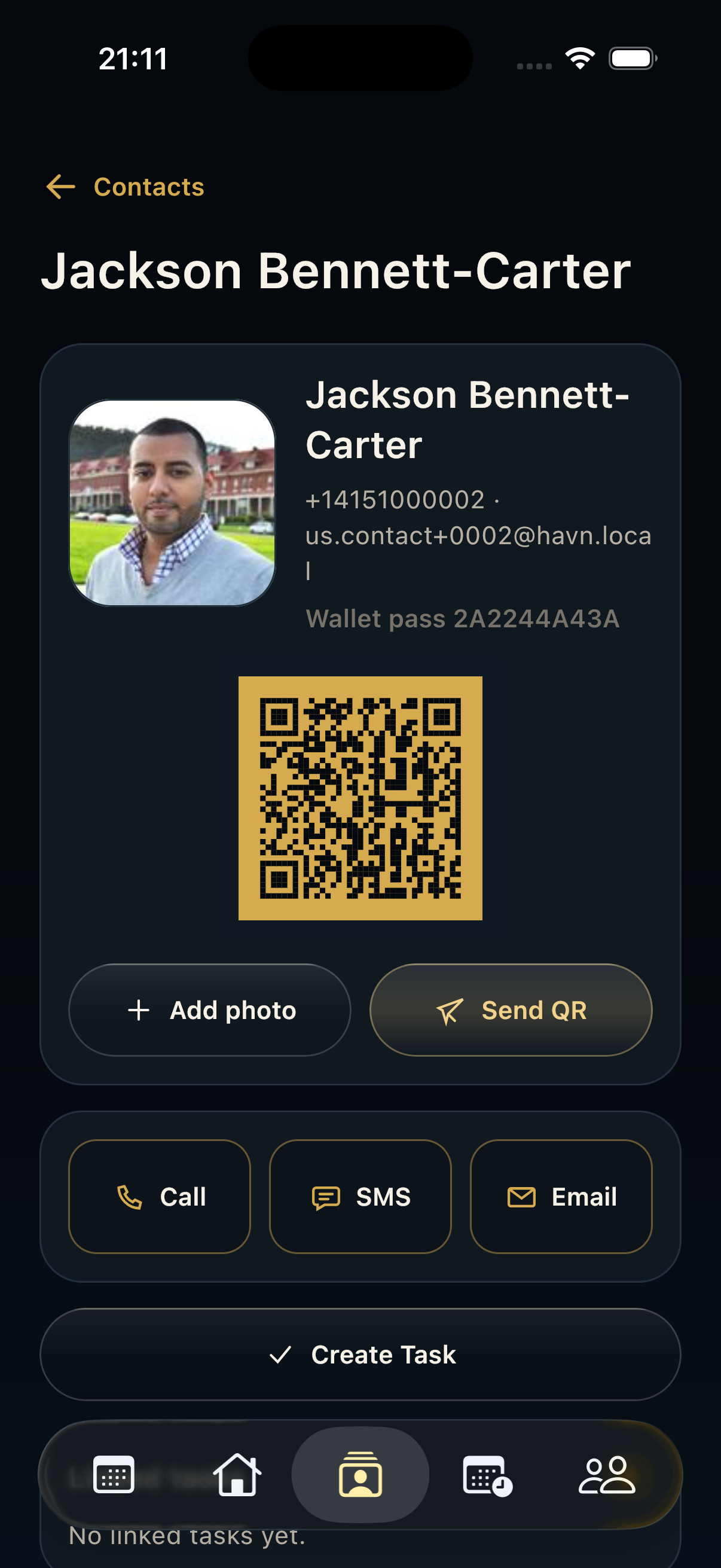
- Open Contacts, then select the person you need to review.
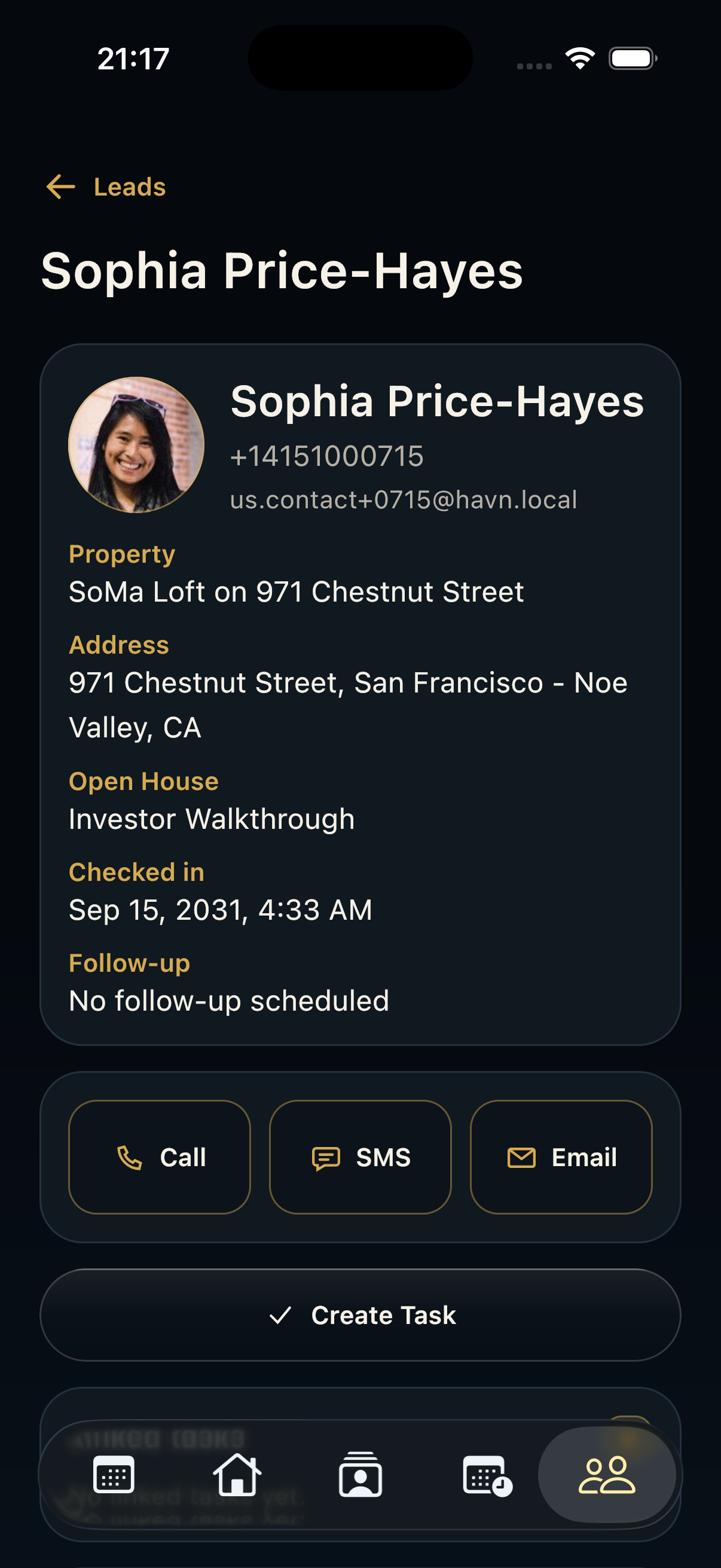
- Confirm the contact's name, photo, phone, email, and pass key or QR pass before sharing anything.
- Use Send QR when the visitor needs a reusable sign-in pass.
- Use Call, SMS, or Email for direct outreach, then Create task if the next step needs tracking.
- Review comments and connected openings before editing or deleting the contact.
Good to know
- Contact detail is the right place to verify a person's history before lead follow-up.
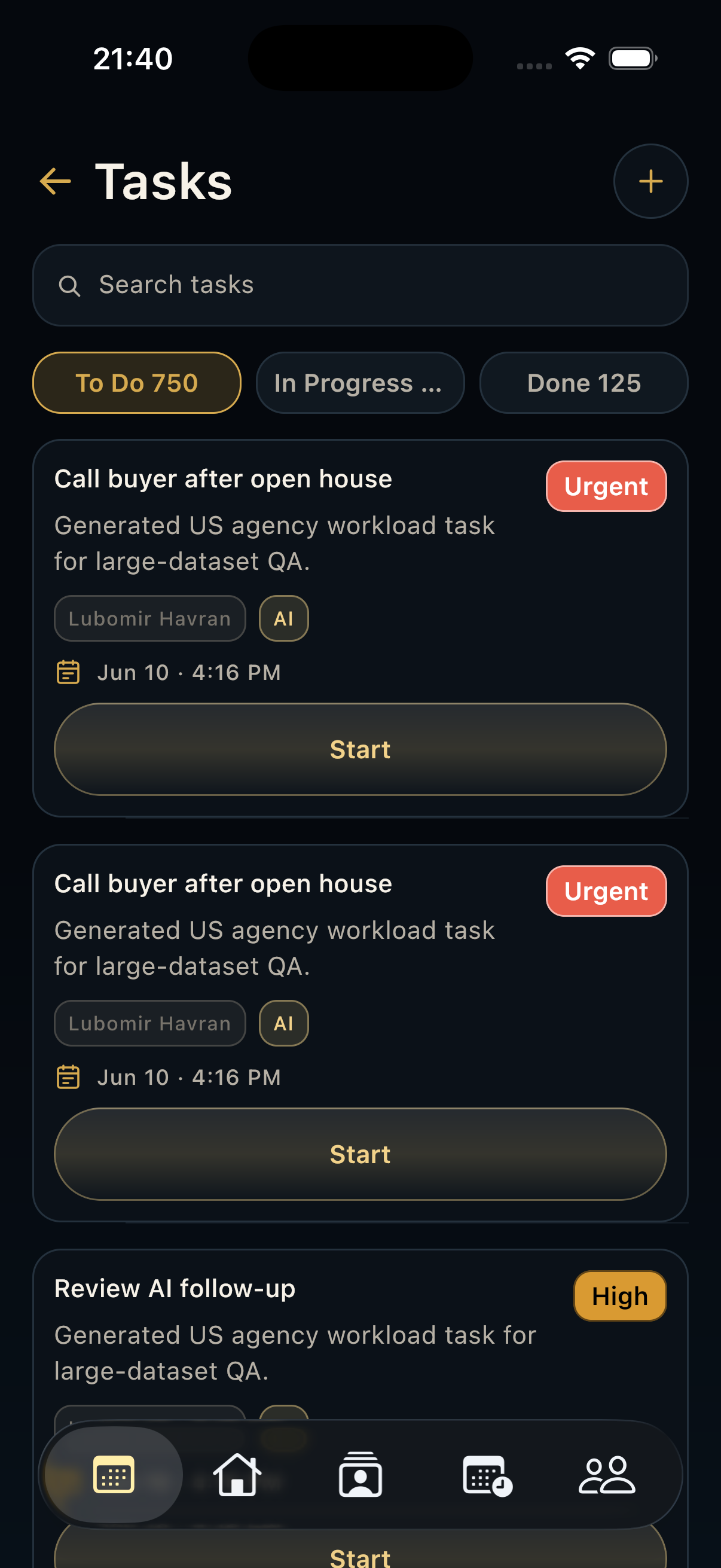
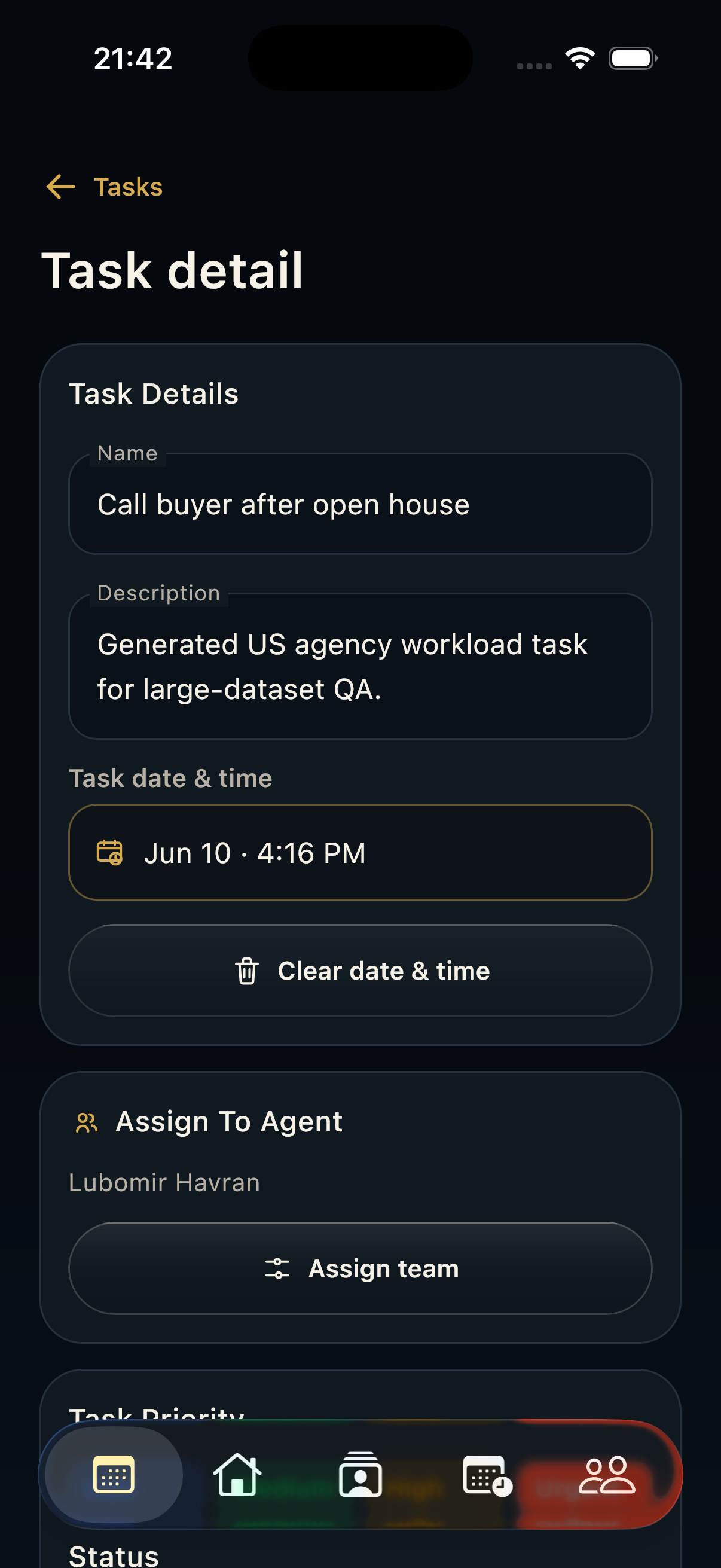
- Create a task from the contact when the action belongs to a person rather than a property or opening.
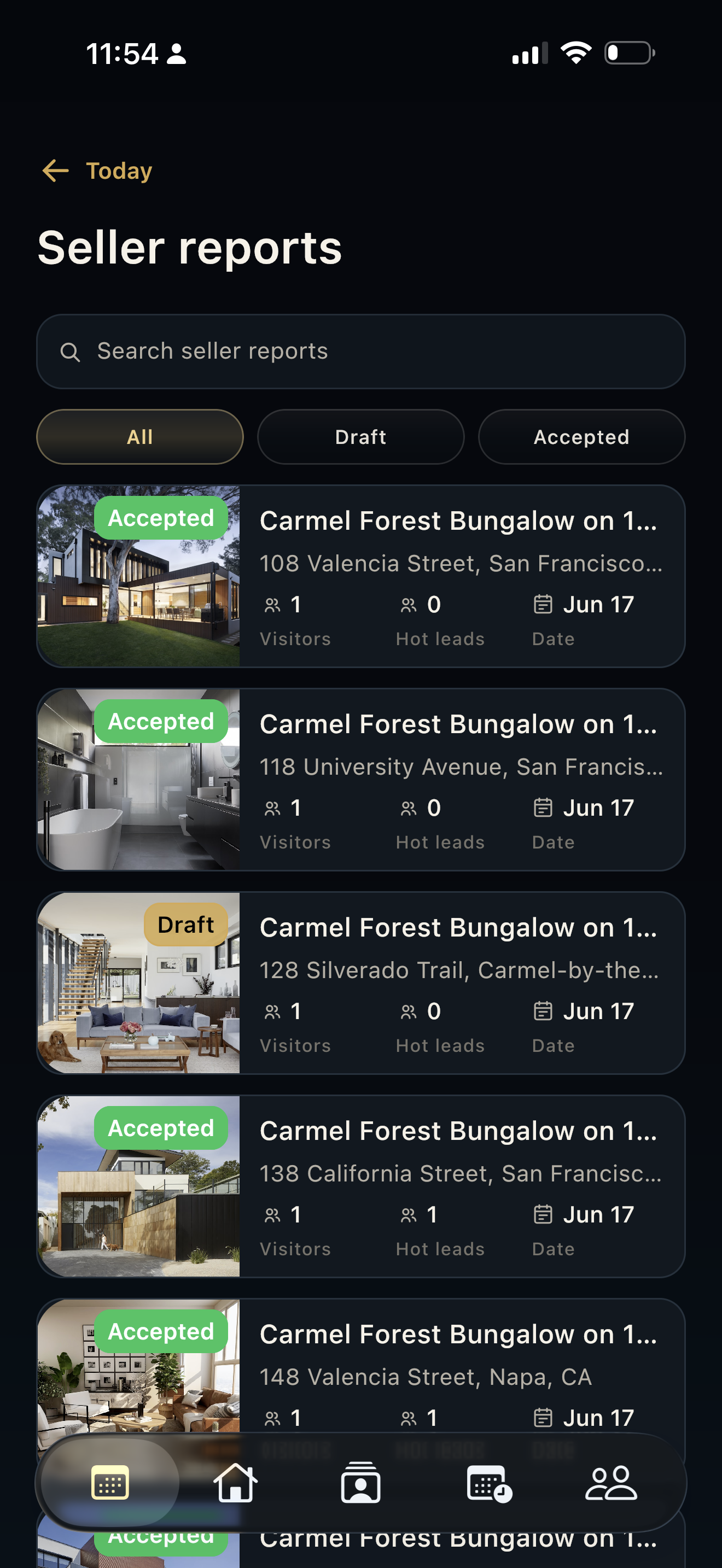
- Do not delete a contact until you are sure no active lead, opening, or report depends on it.