Steps
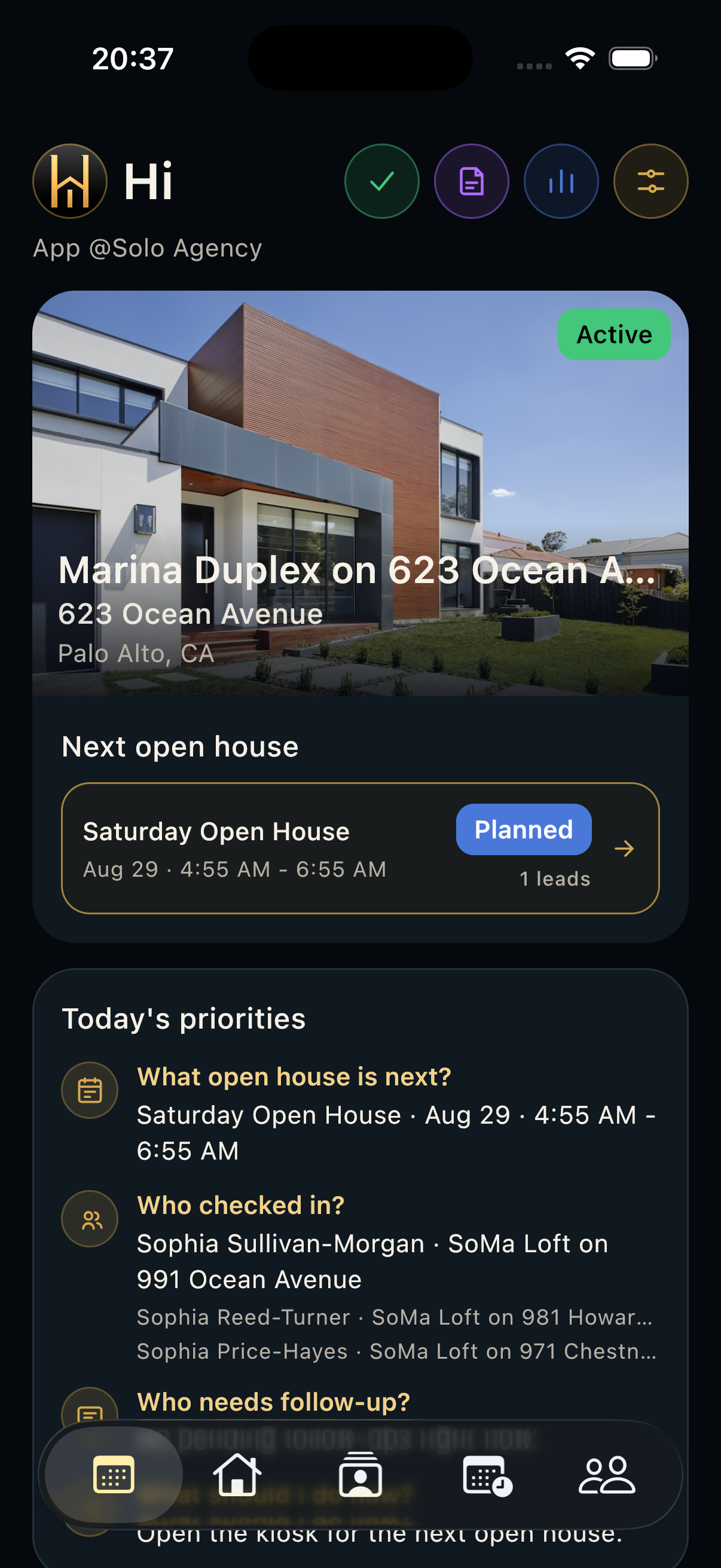
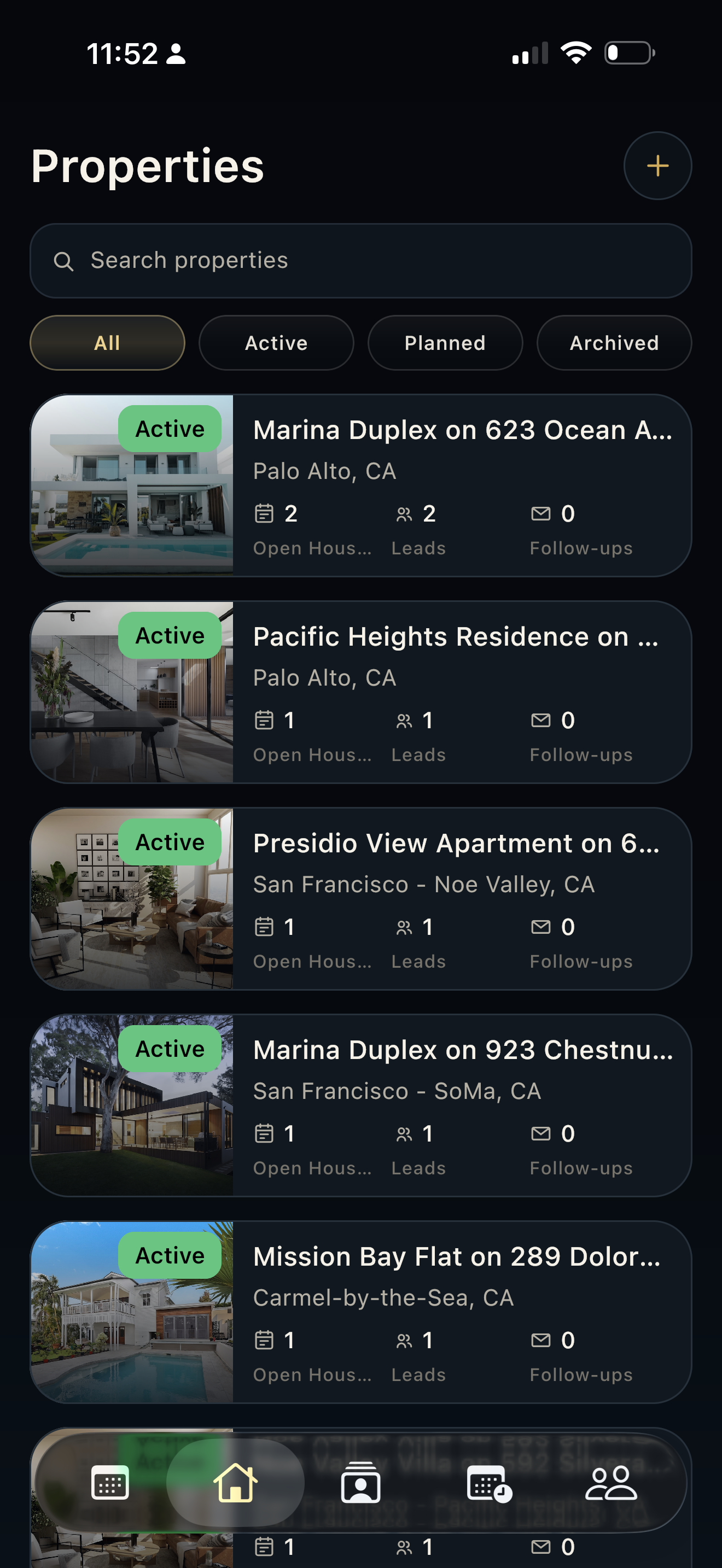
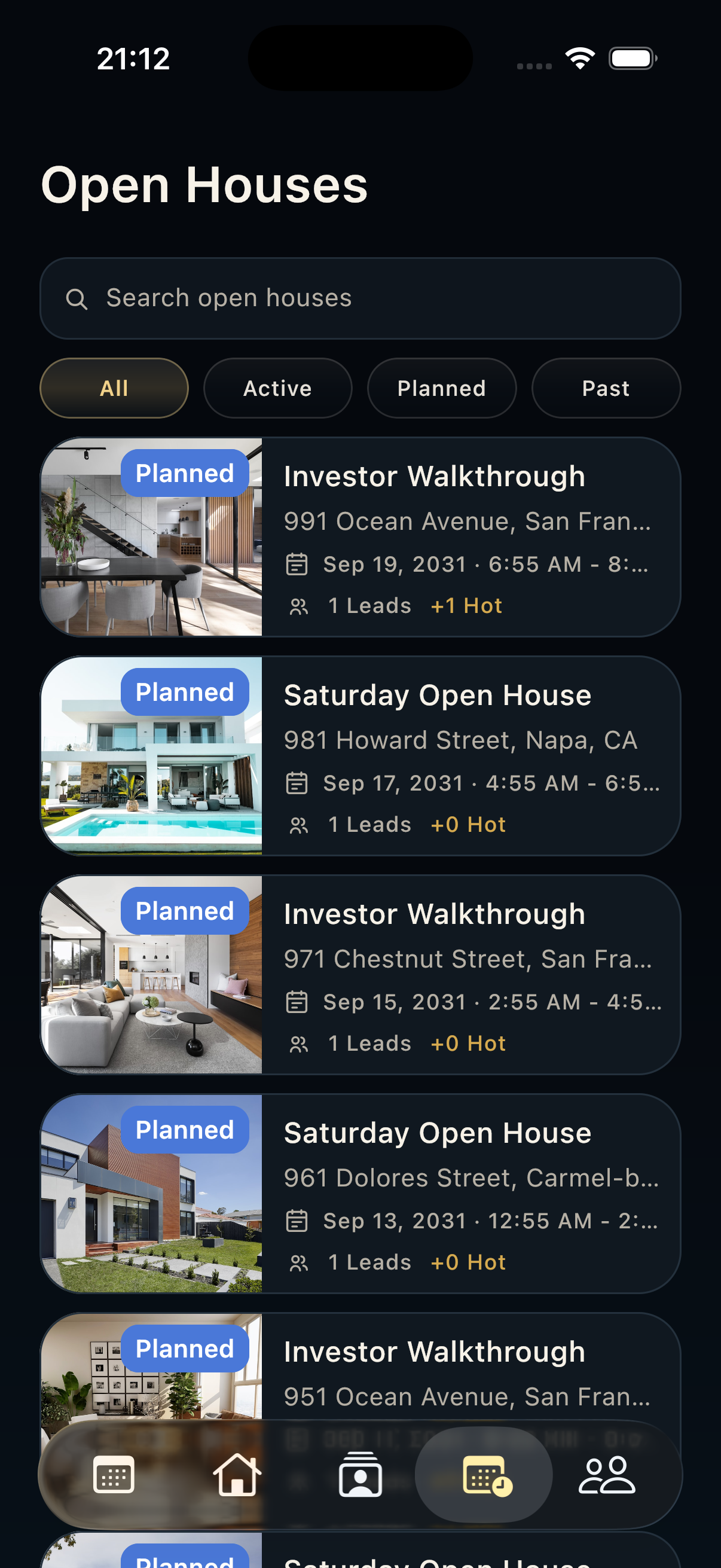
- Open Open Houses, then select the event connected to the property and time you are running.
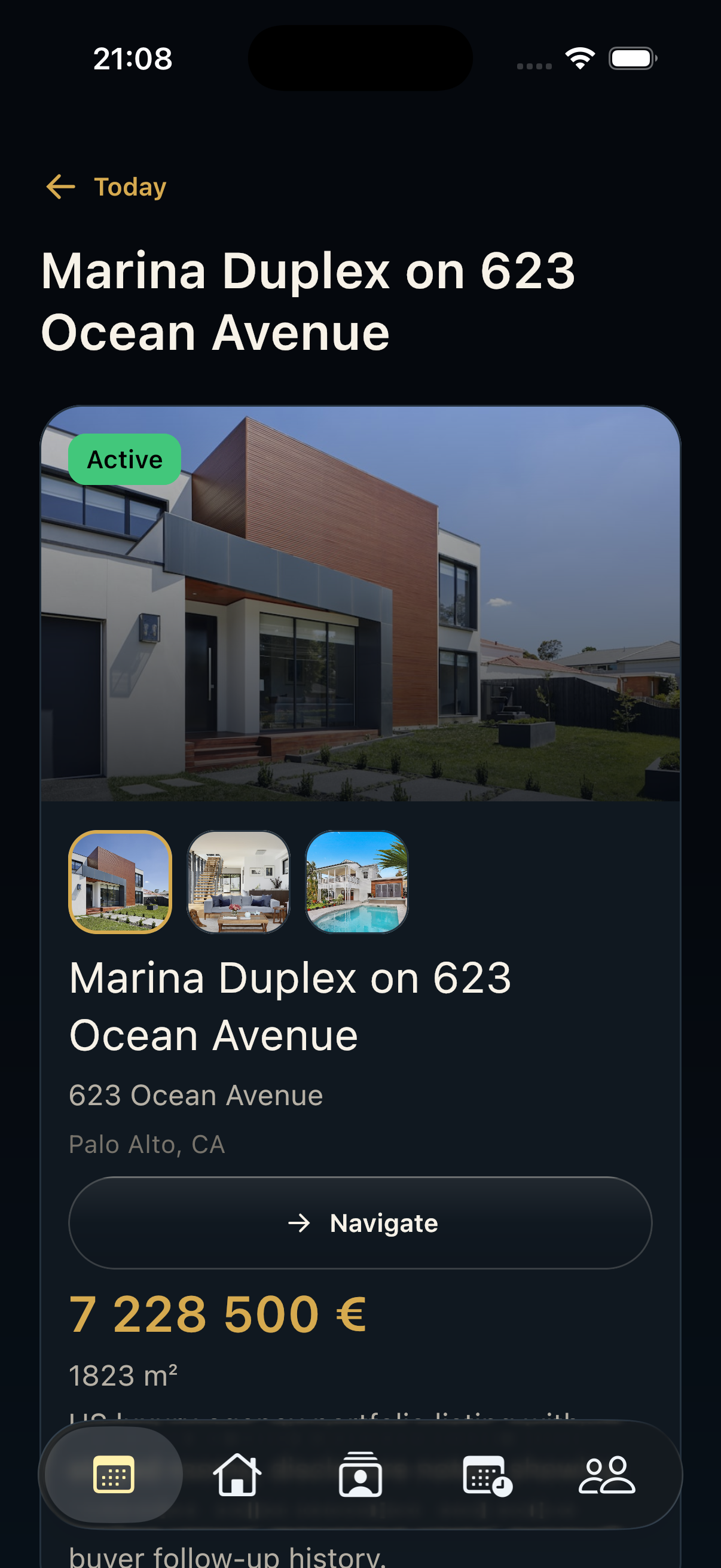
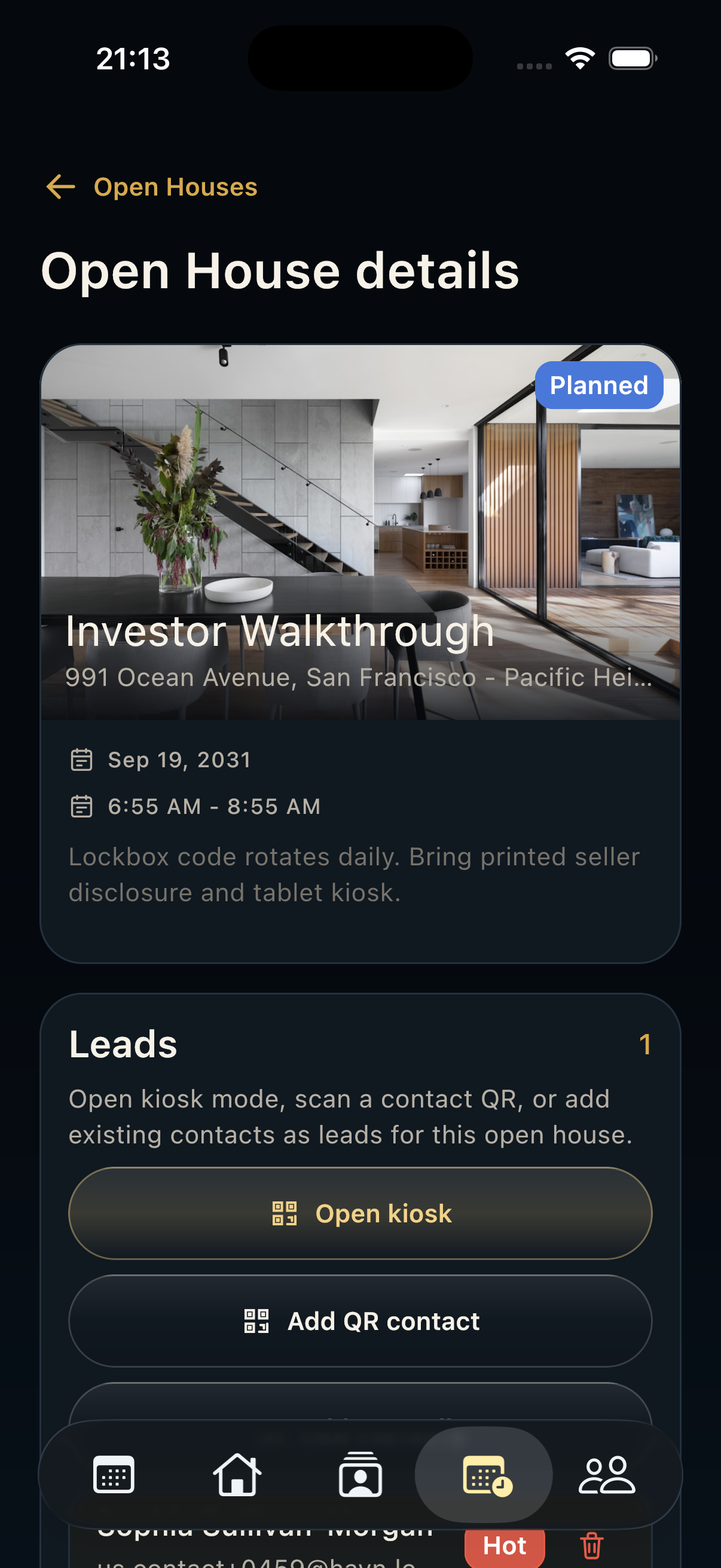
- Review the event photo, property, address, status, date, time, and operational notes.
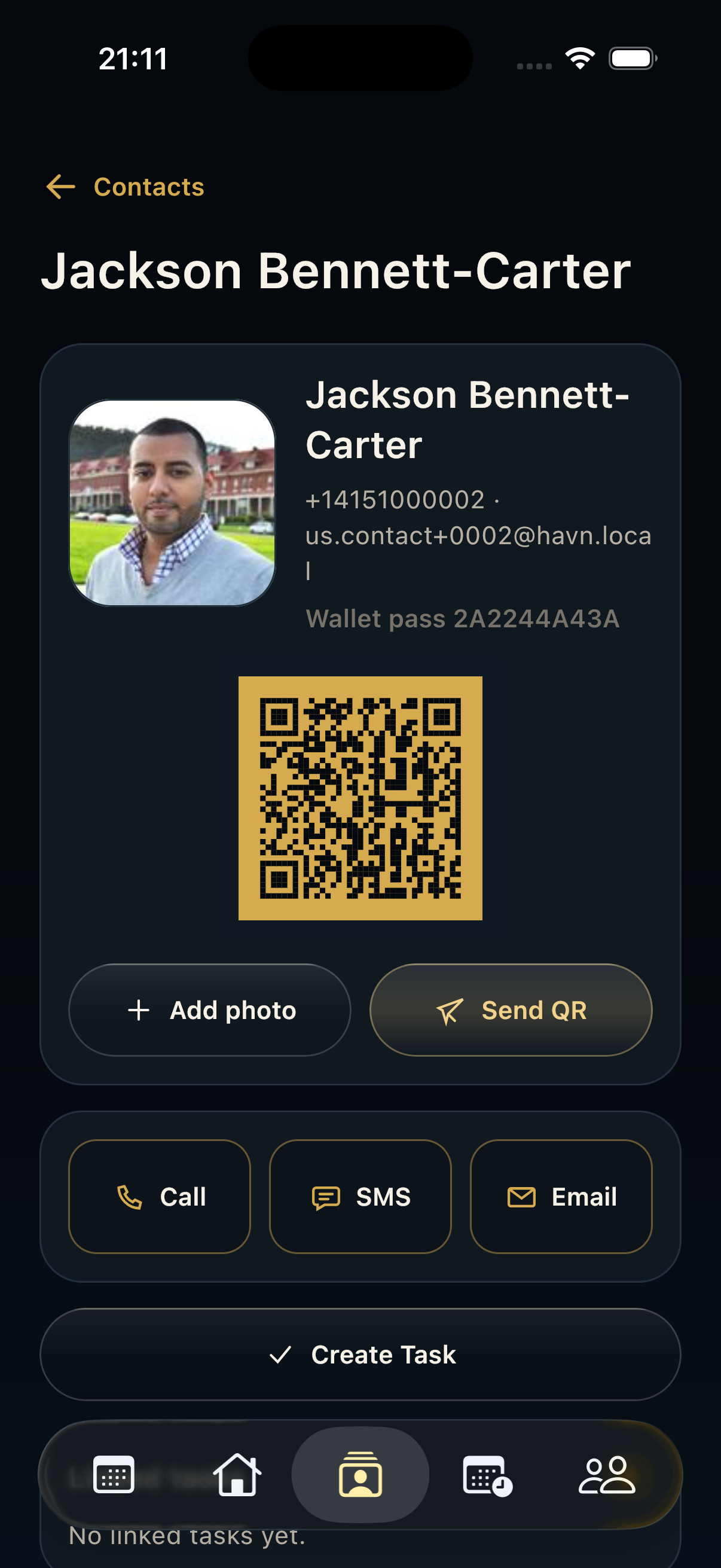
- Use Open kiosk for visitor self sign-in, Add QR contact for scanned passes, or Add manually to select or create visitors.
- In kiosk flow, visitors enter contact details, answer agent and interest questions, then become leads on the event.
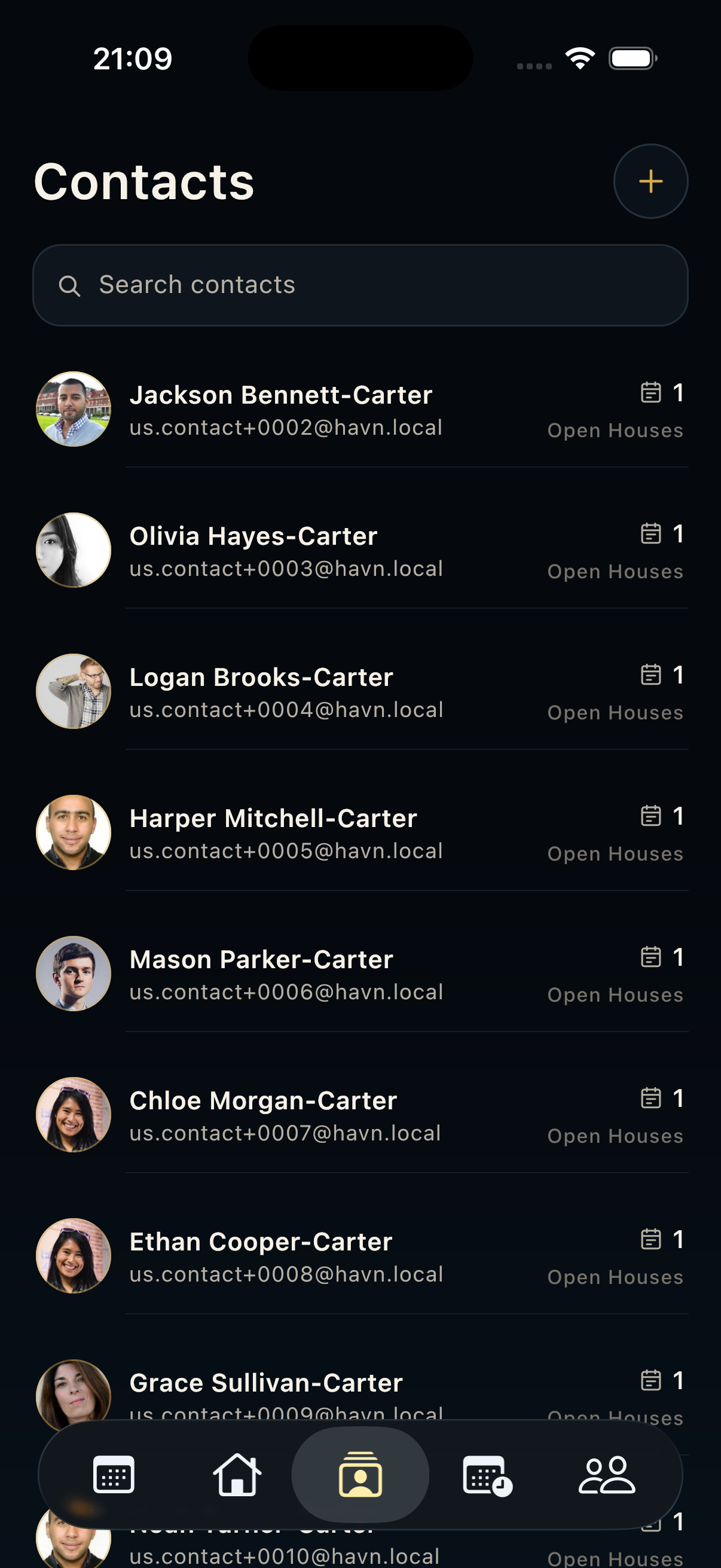
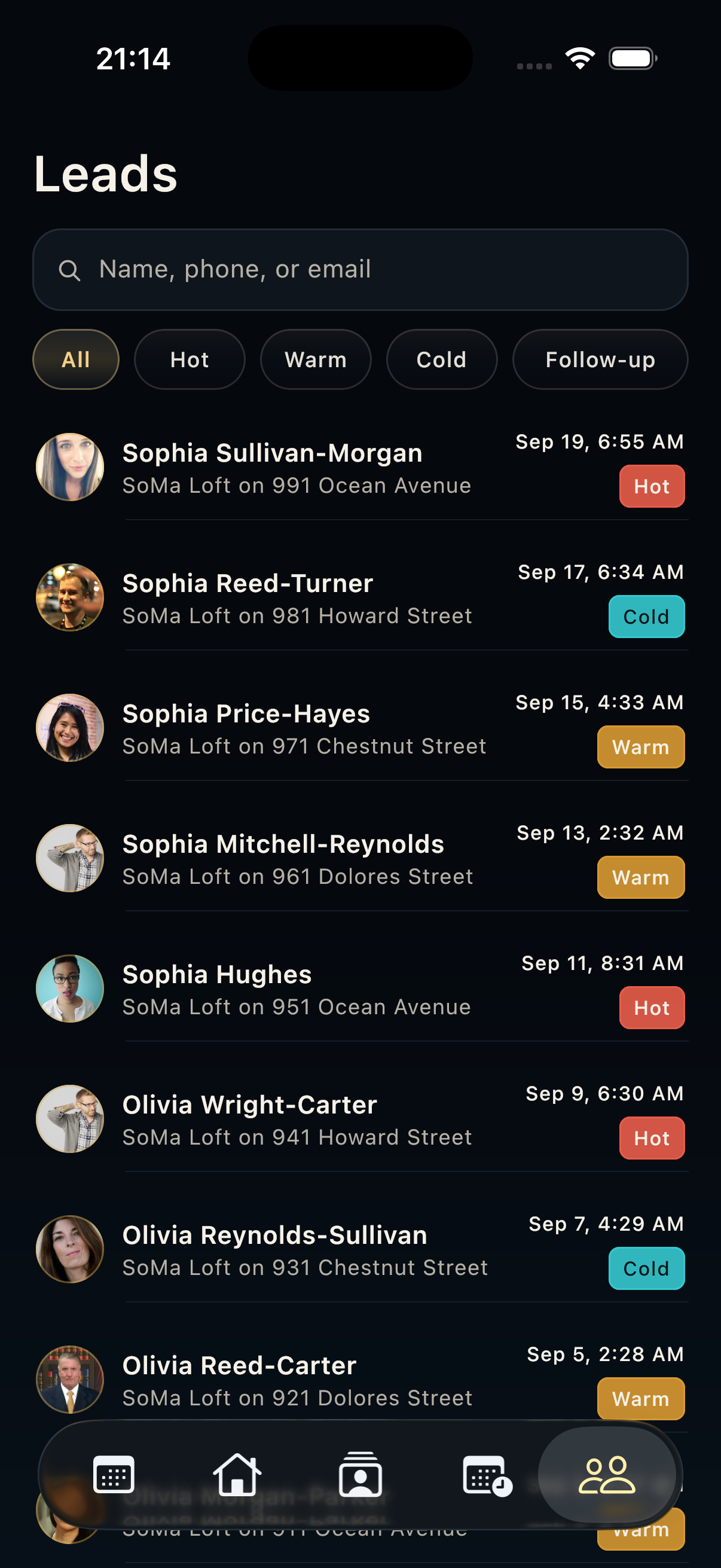
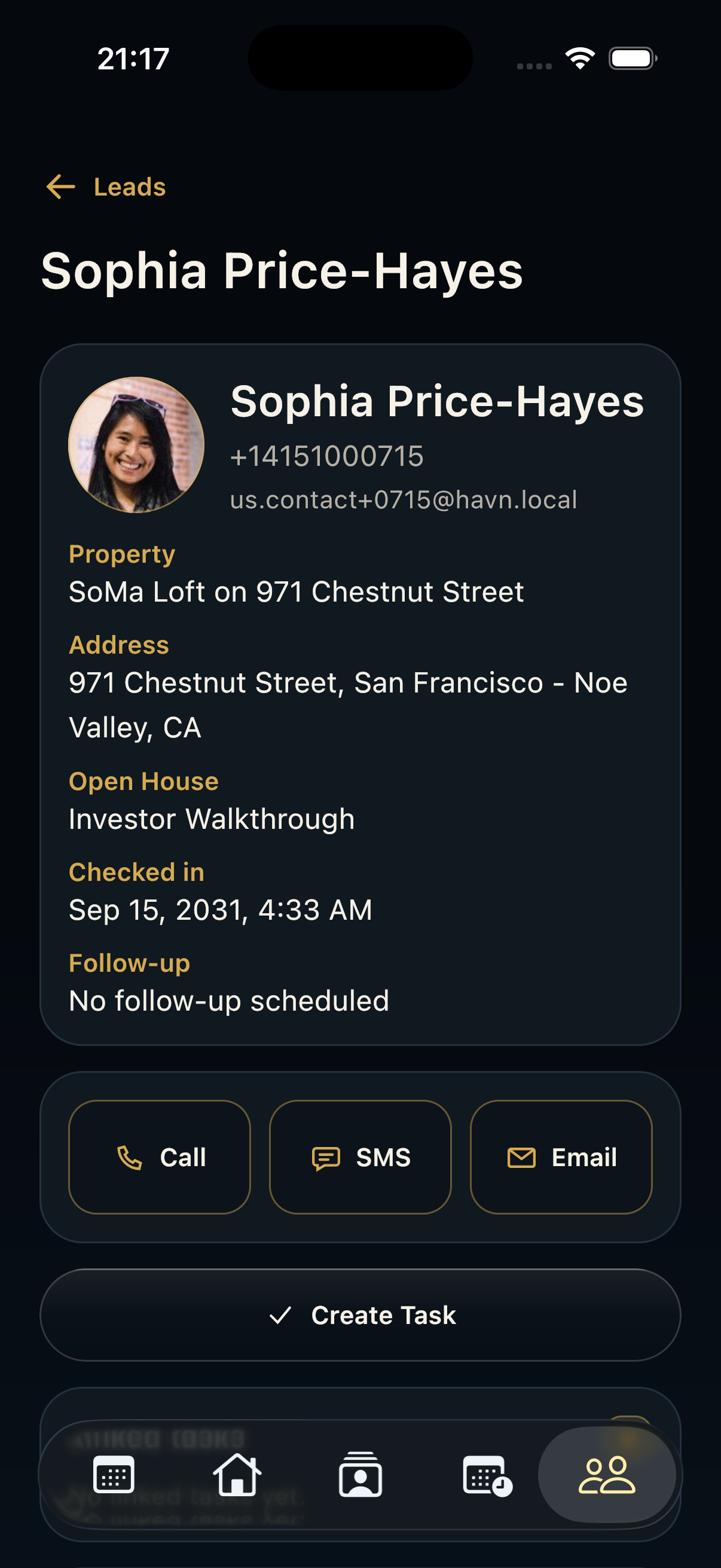
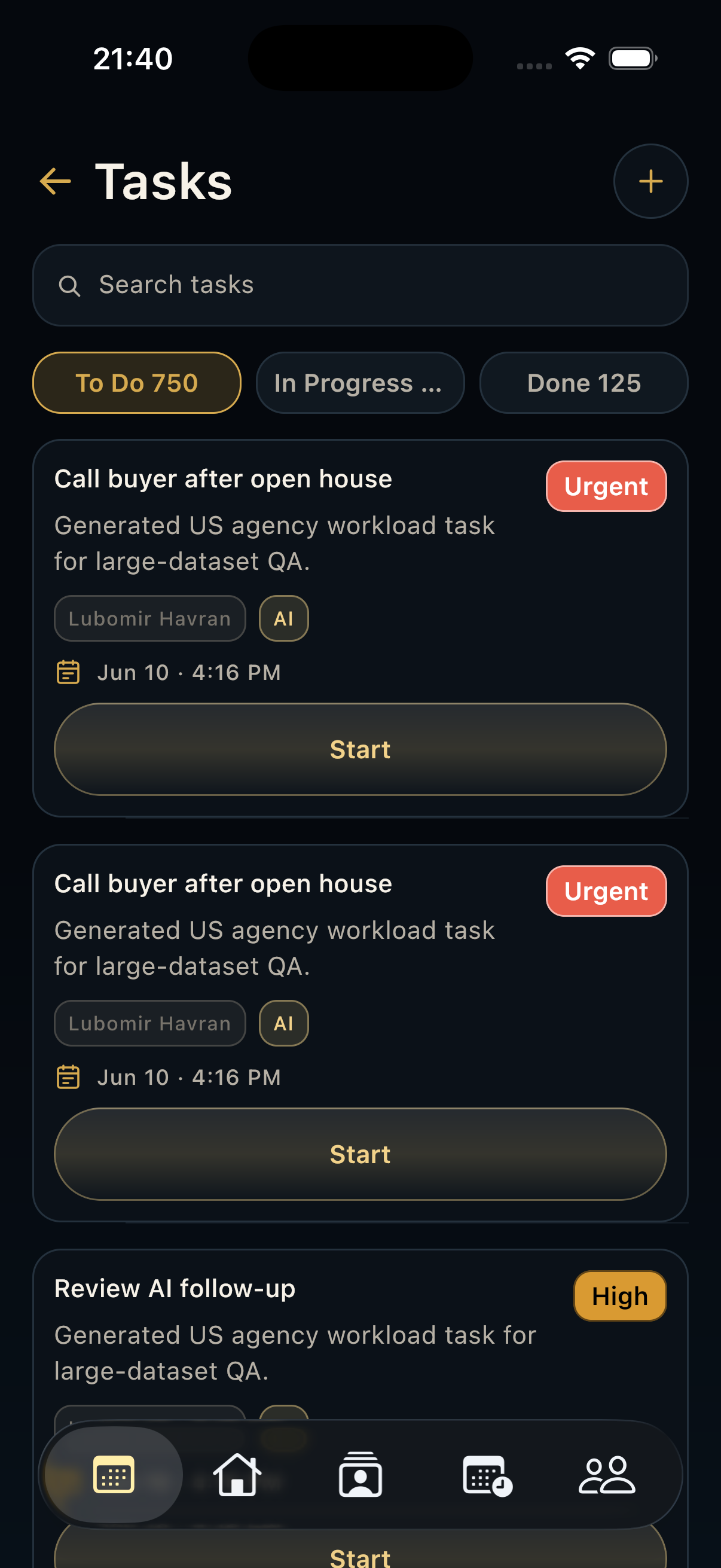
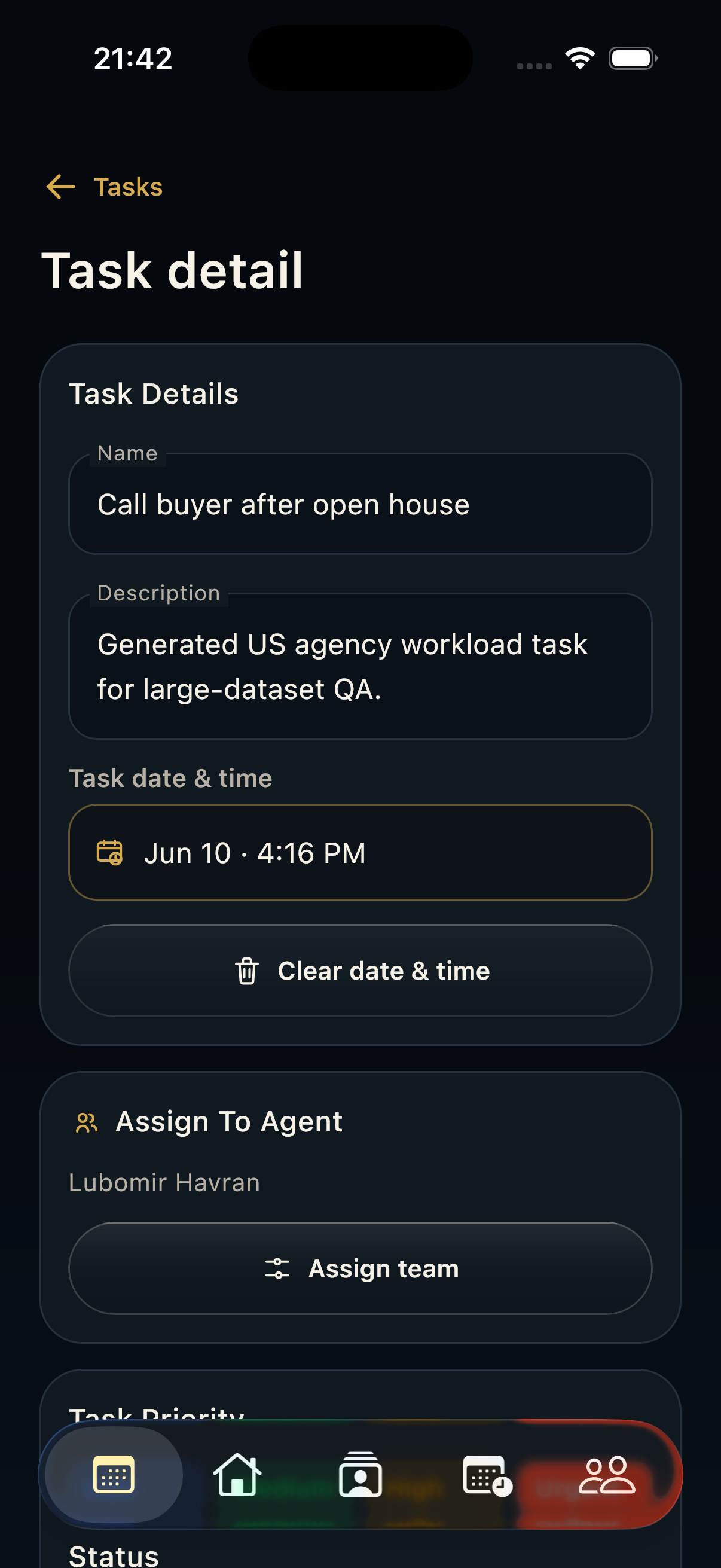
- Review lead rows and linked tasks in real time; correct wrong entries before using the data in follow-up or reports.
- Use edit or close actions only after confirming the event state is correct.
Good to know
- Kiosk and QR actions should be started from the exact open house that guests are attending.
- Manual add is useful when a visitor cannot complete QR or kiosk sign-in.
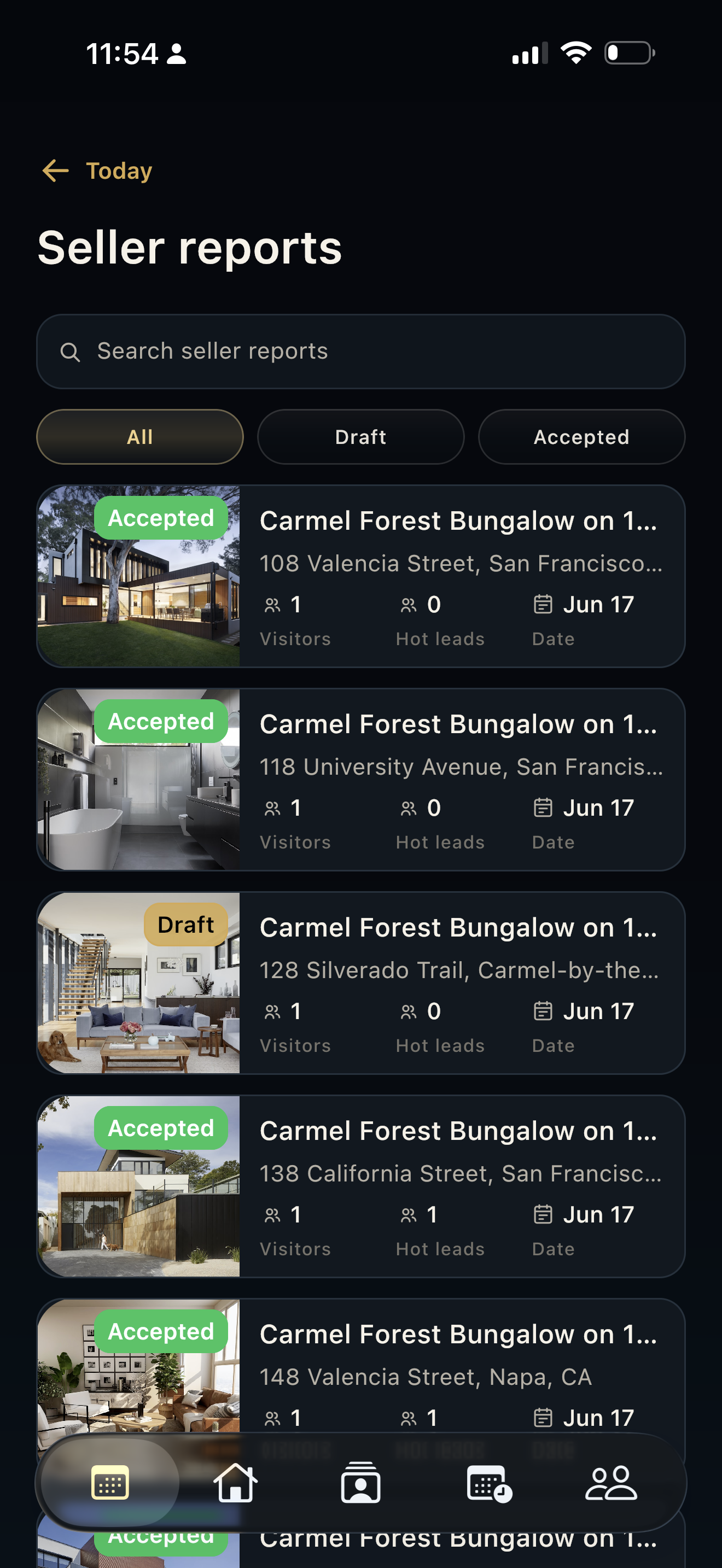
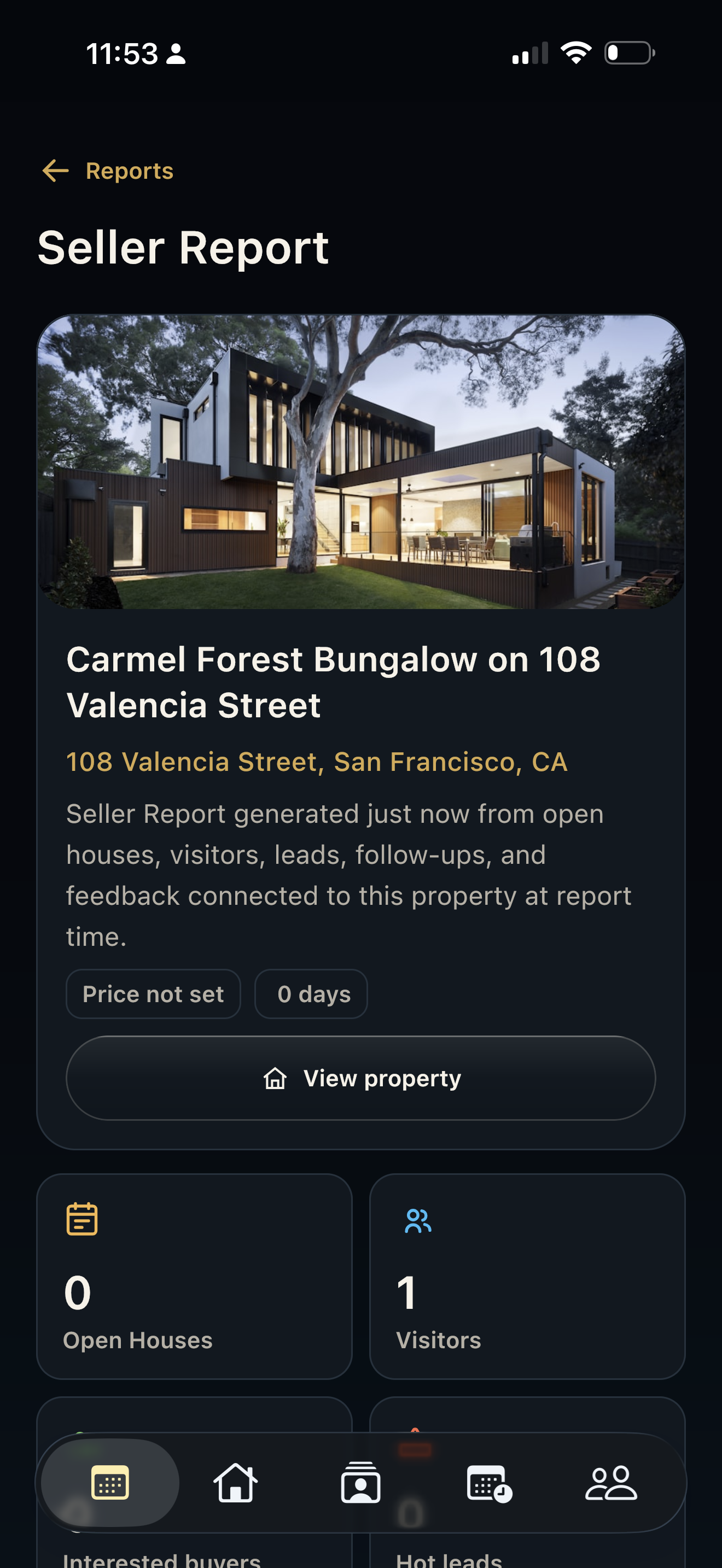
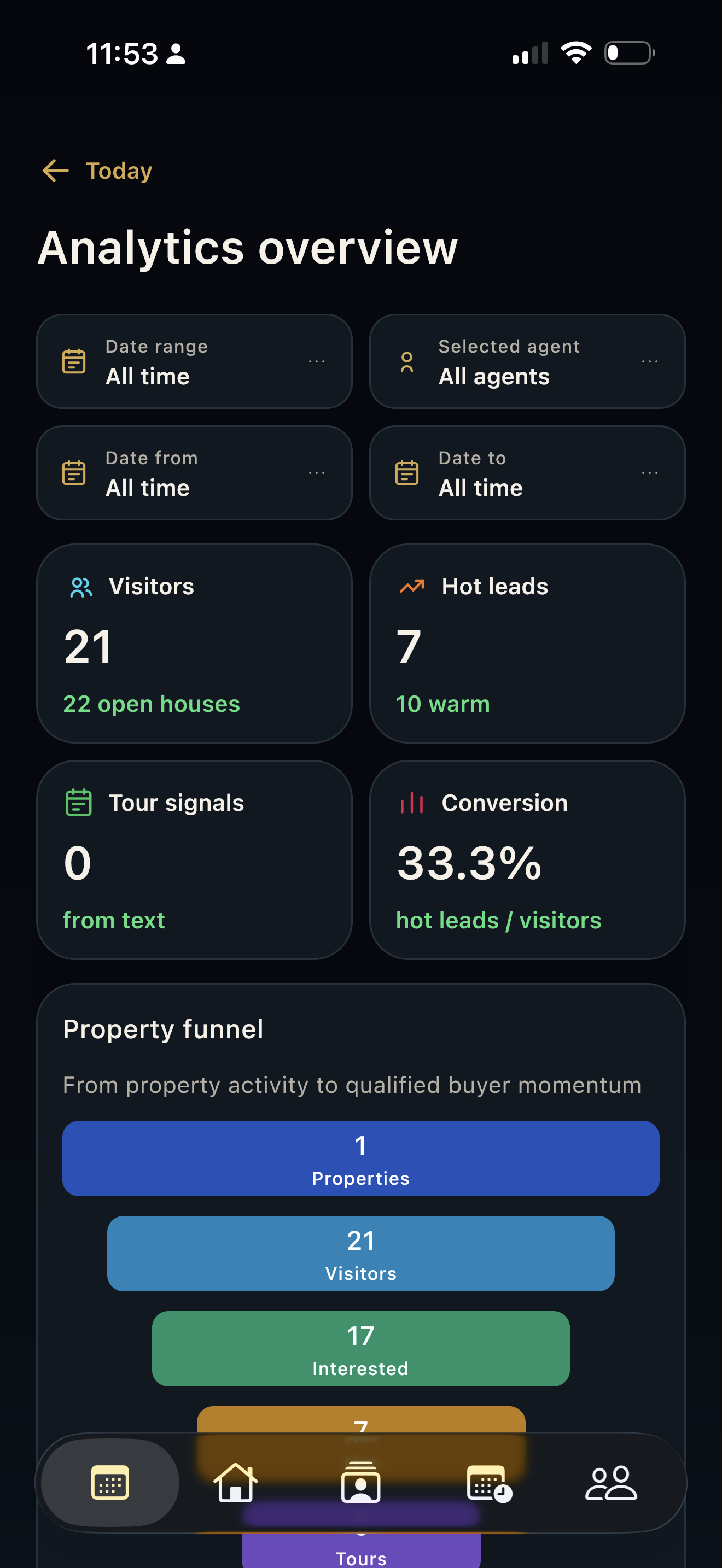
- Lead data collected here feeds Leads, Tasks, Analytics, and Seller reports.