Steps
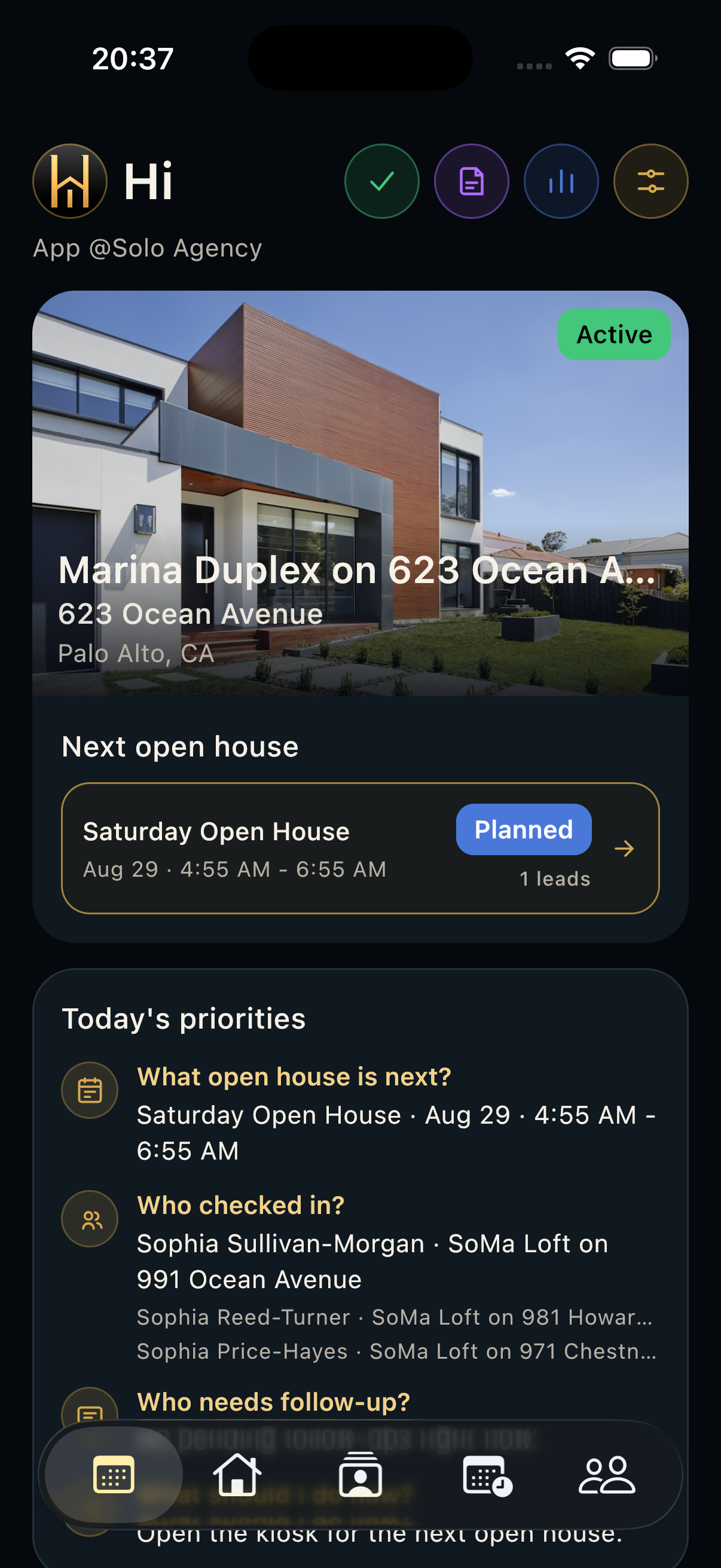
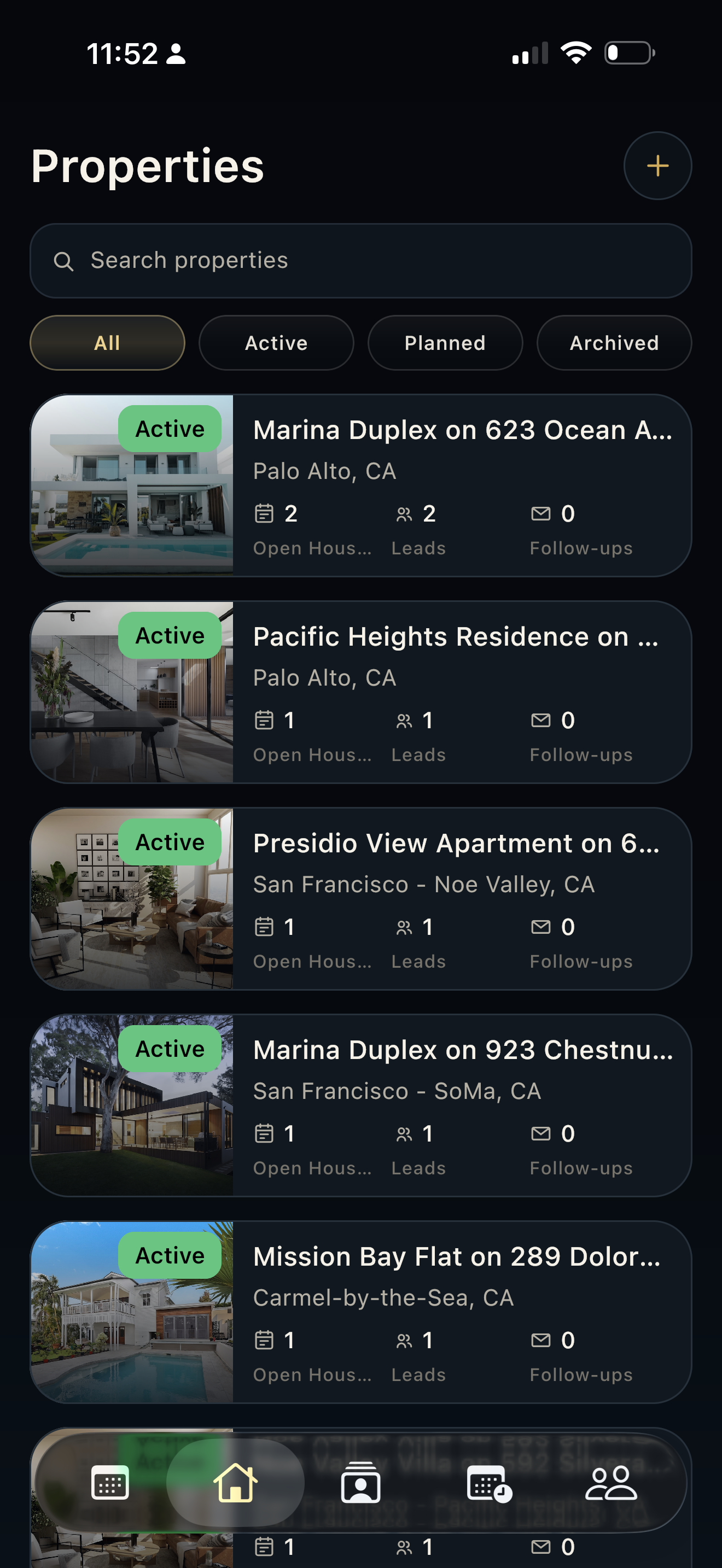
- Open Properties, then select the property row you want to inspect.
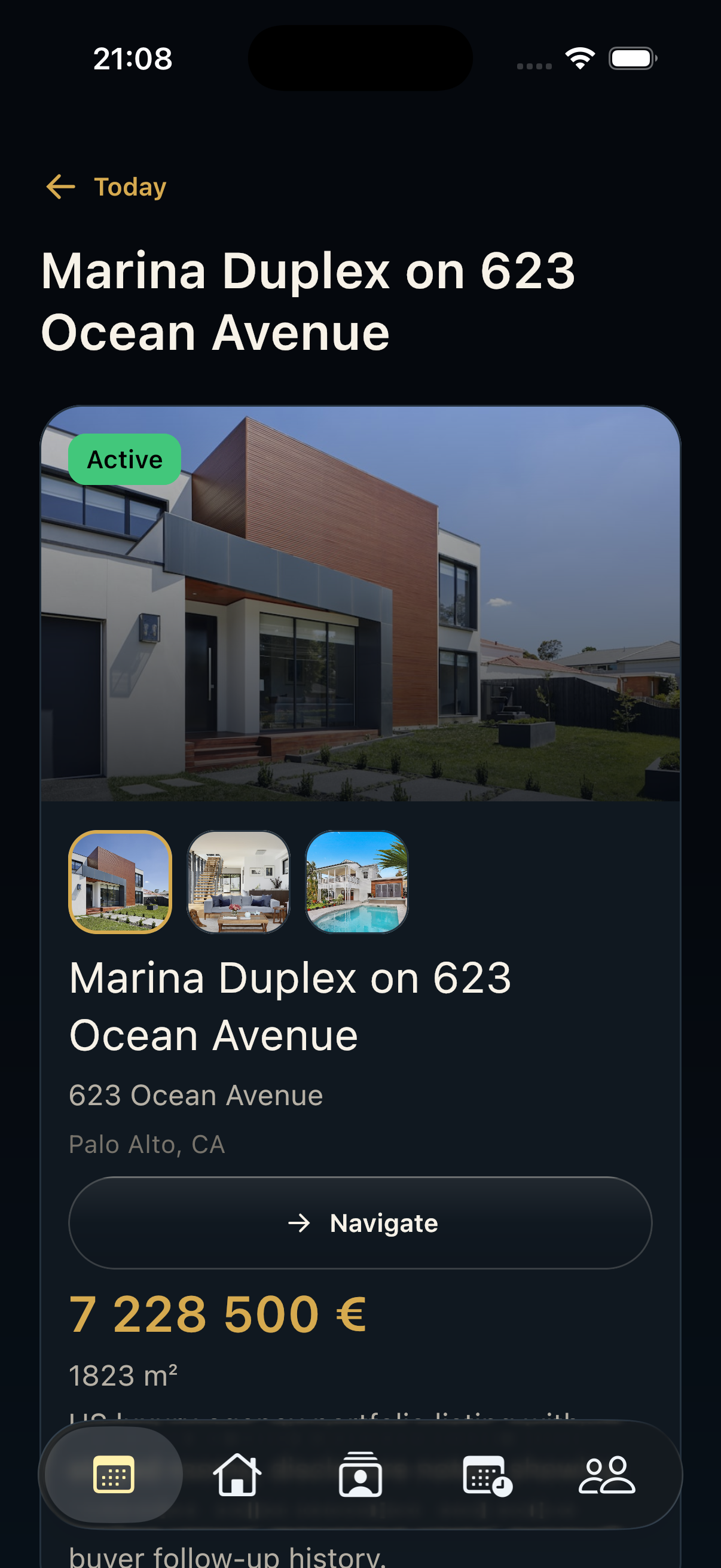
- Verify hero photo, title, address, city, status, price, beds, baths, area, description, and map/location context.
- Use Navigate when you need directions and review owner contact details before seller or buyer communication.
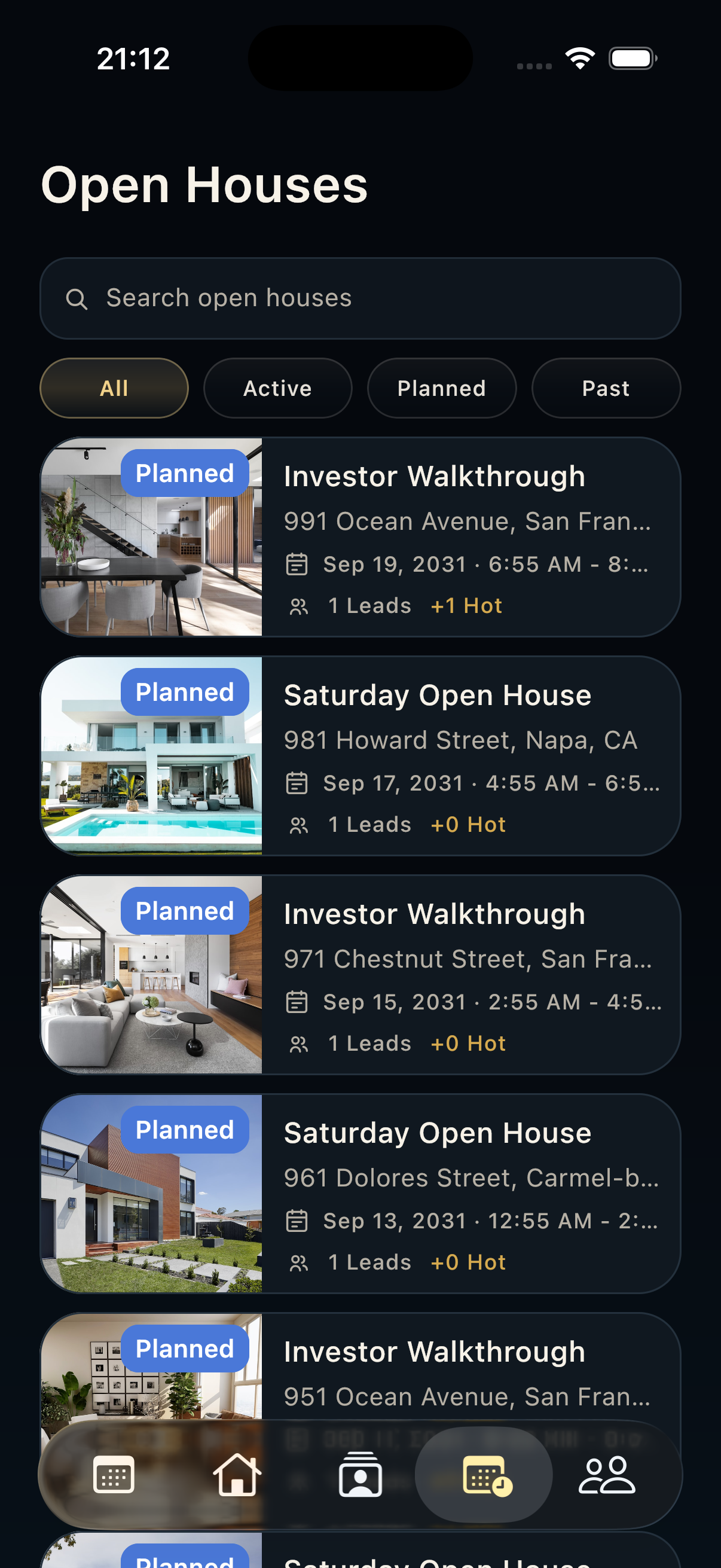
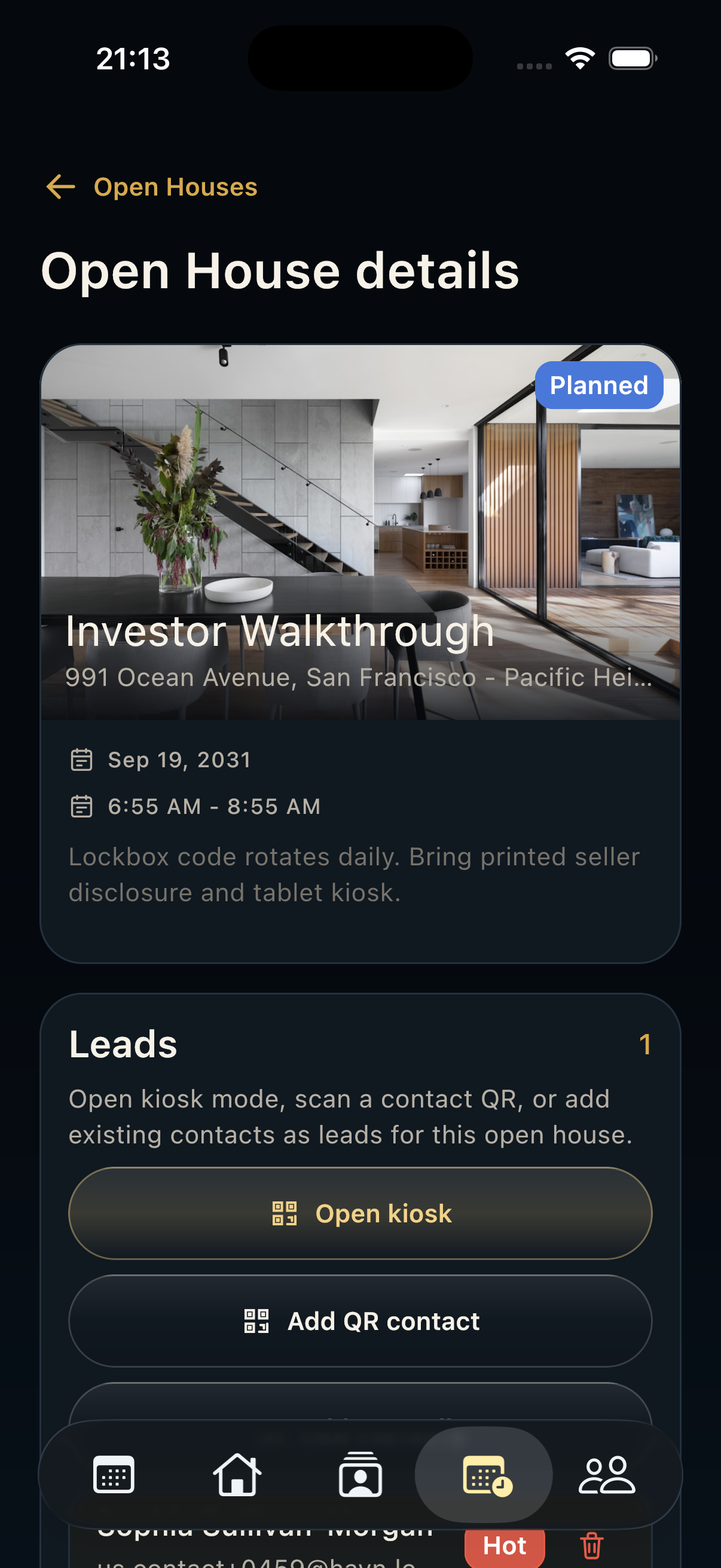
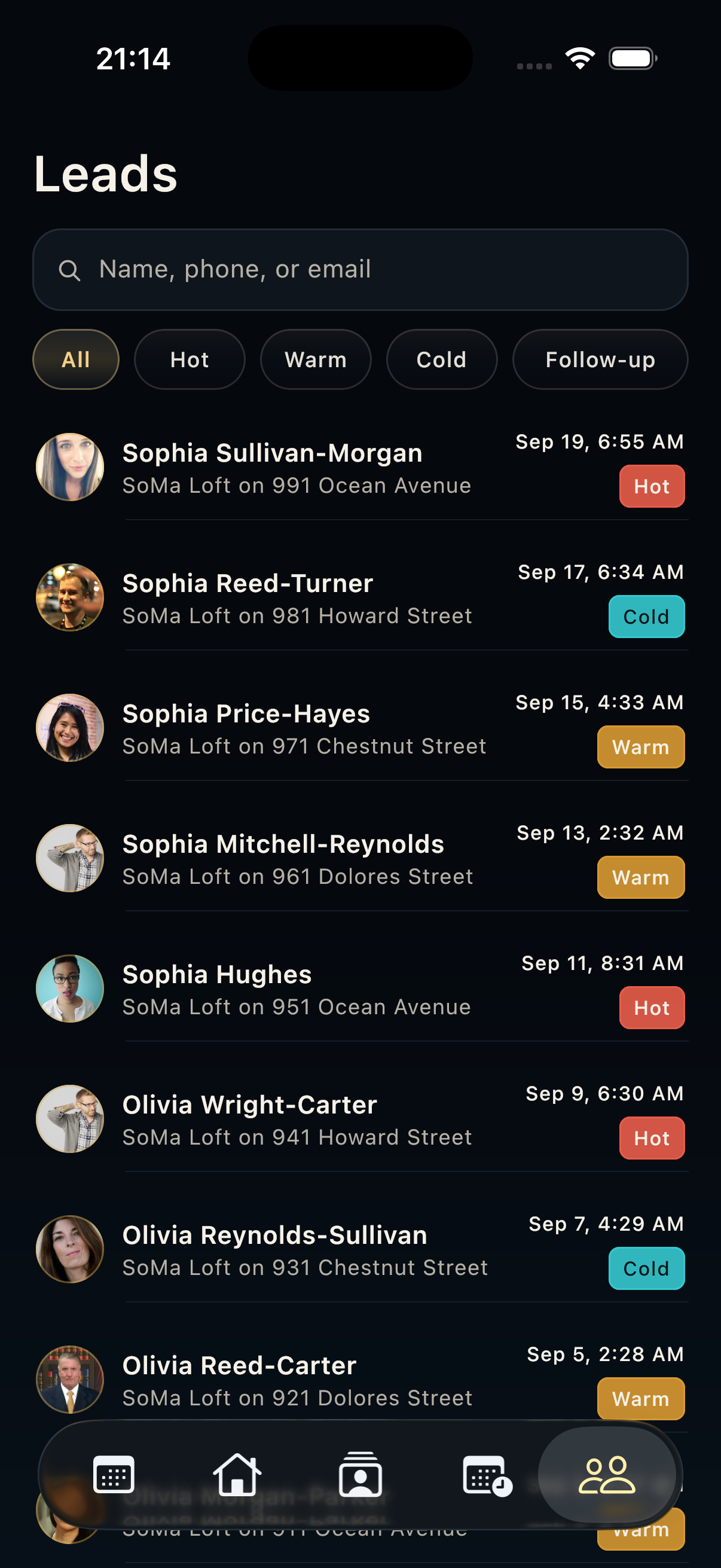
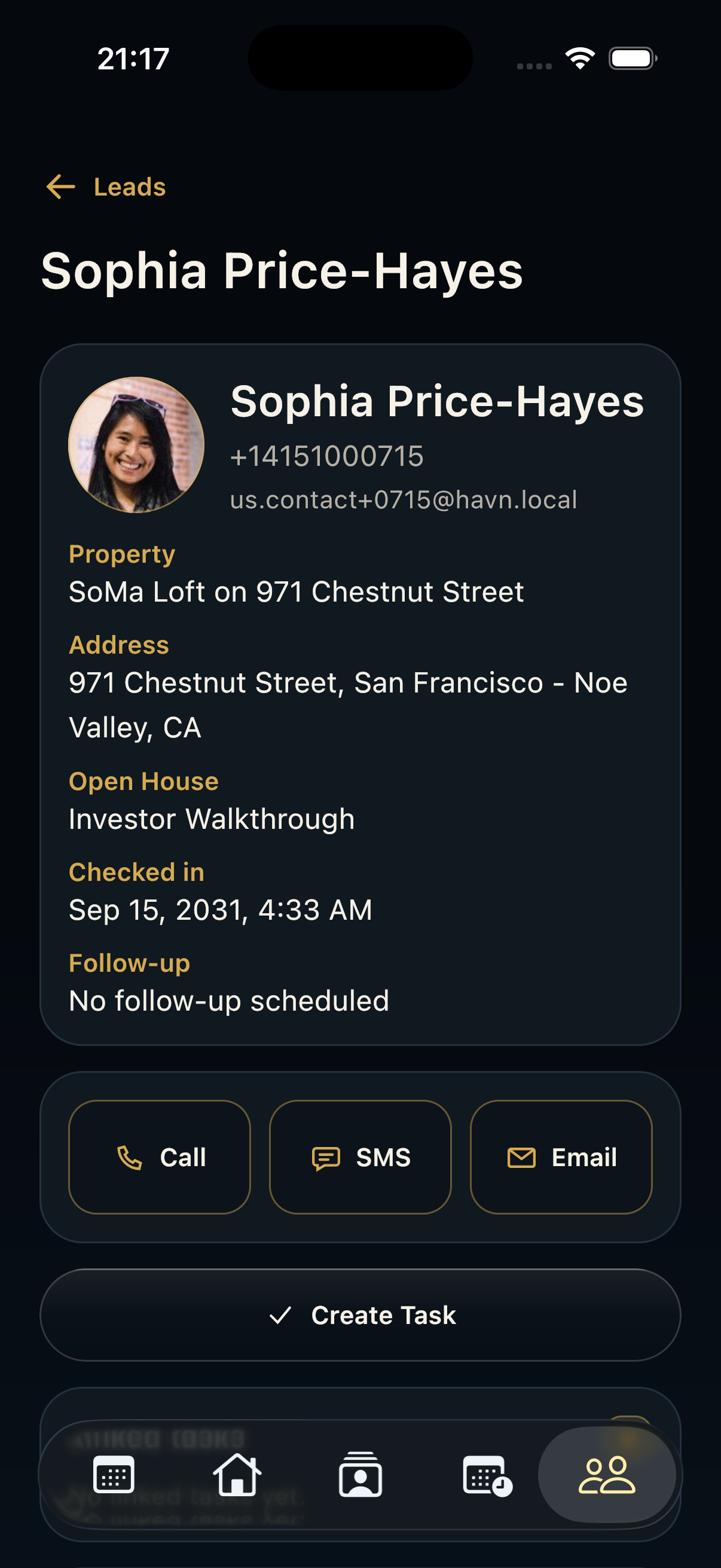
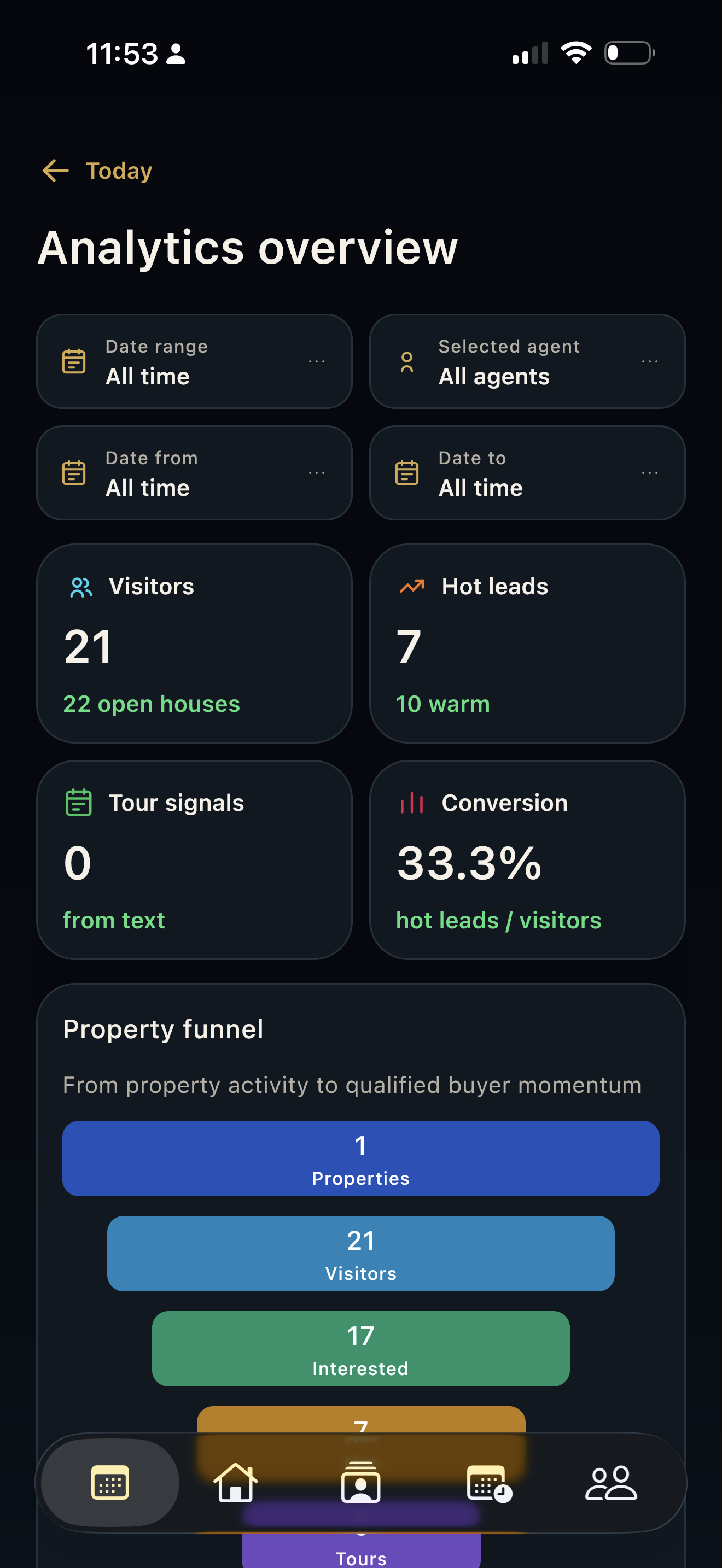
- Review connected open houses, leads, follow-ups, files, and linked tasks to understand the full property history.
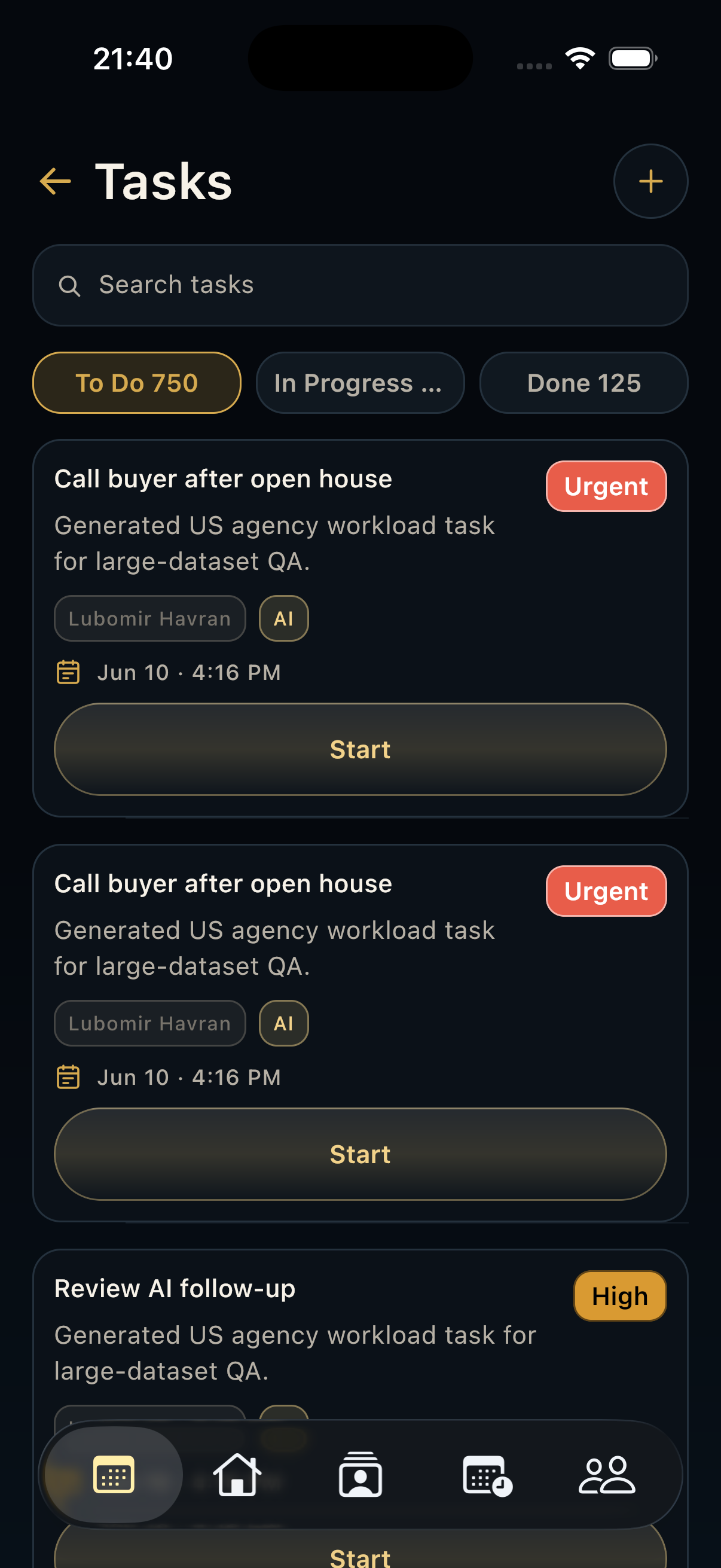
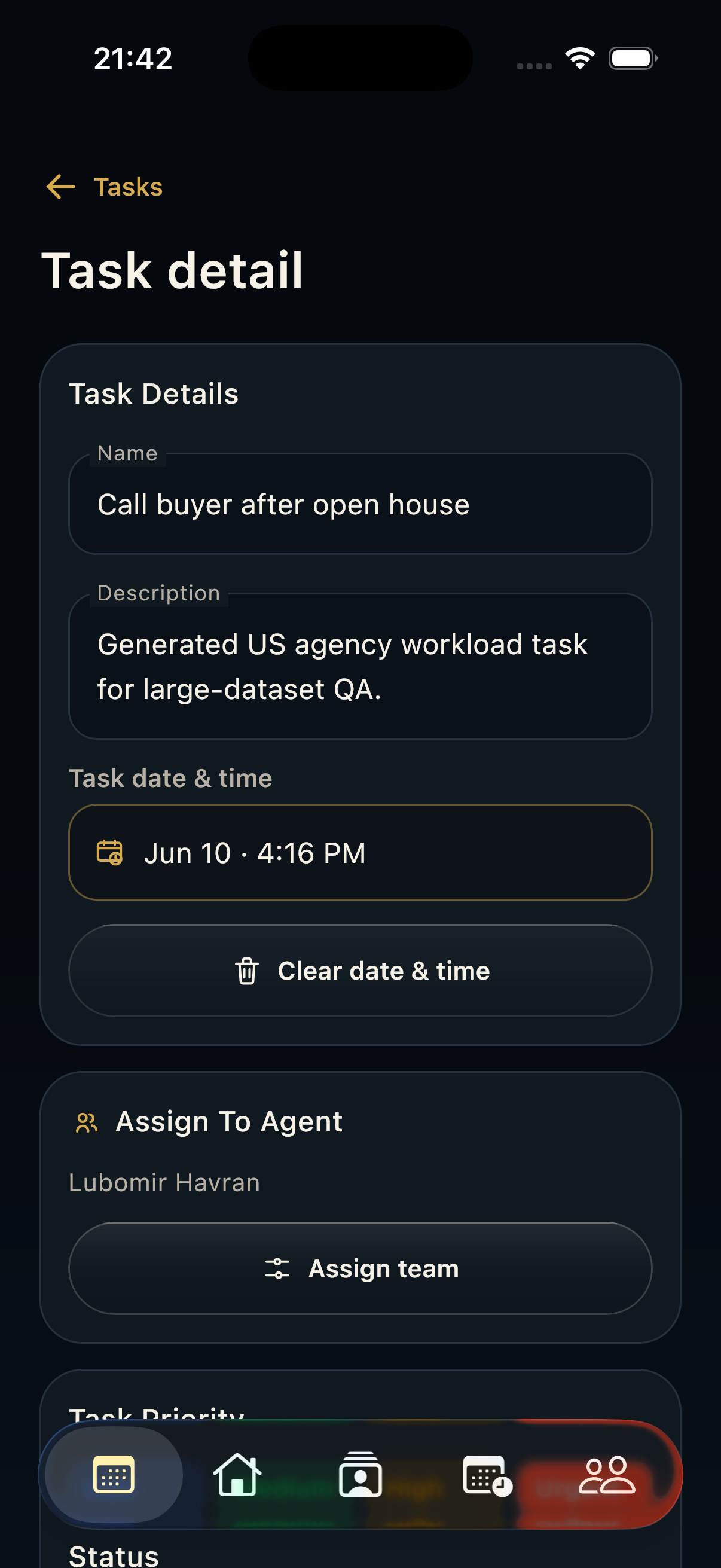
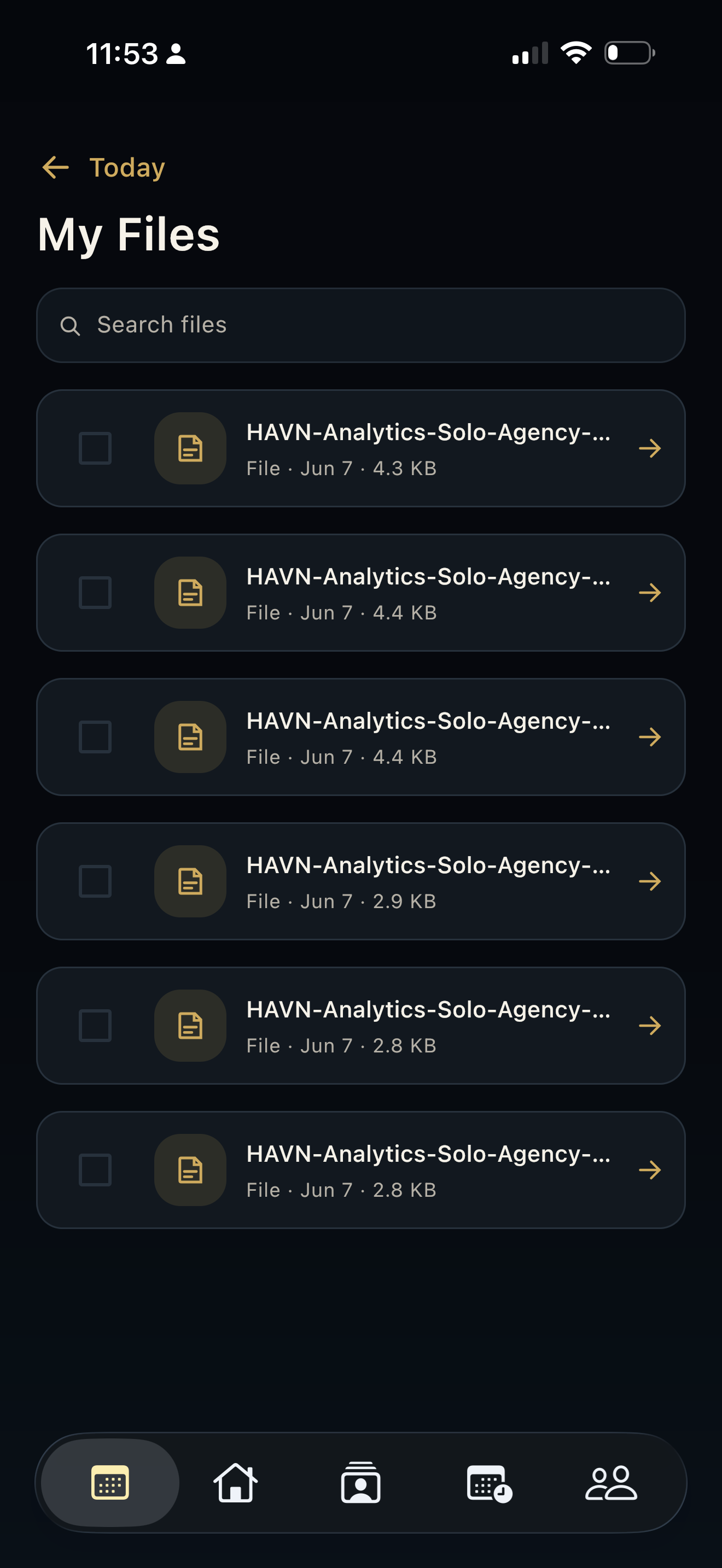
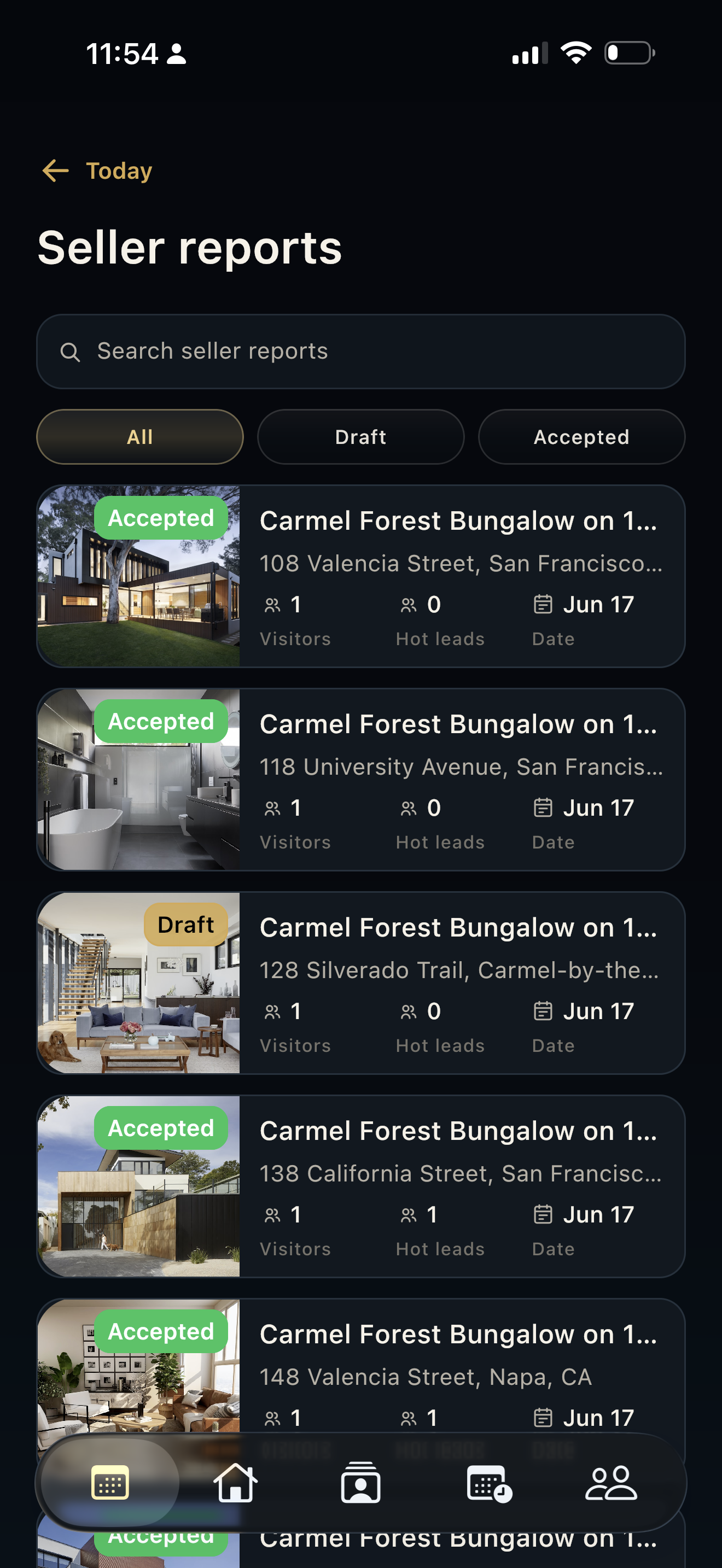
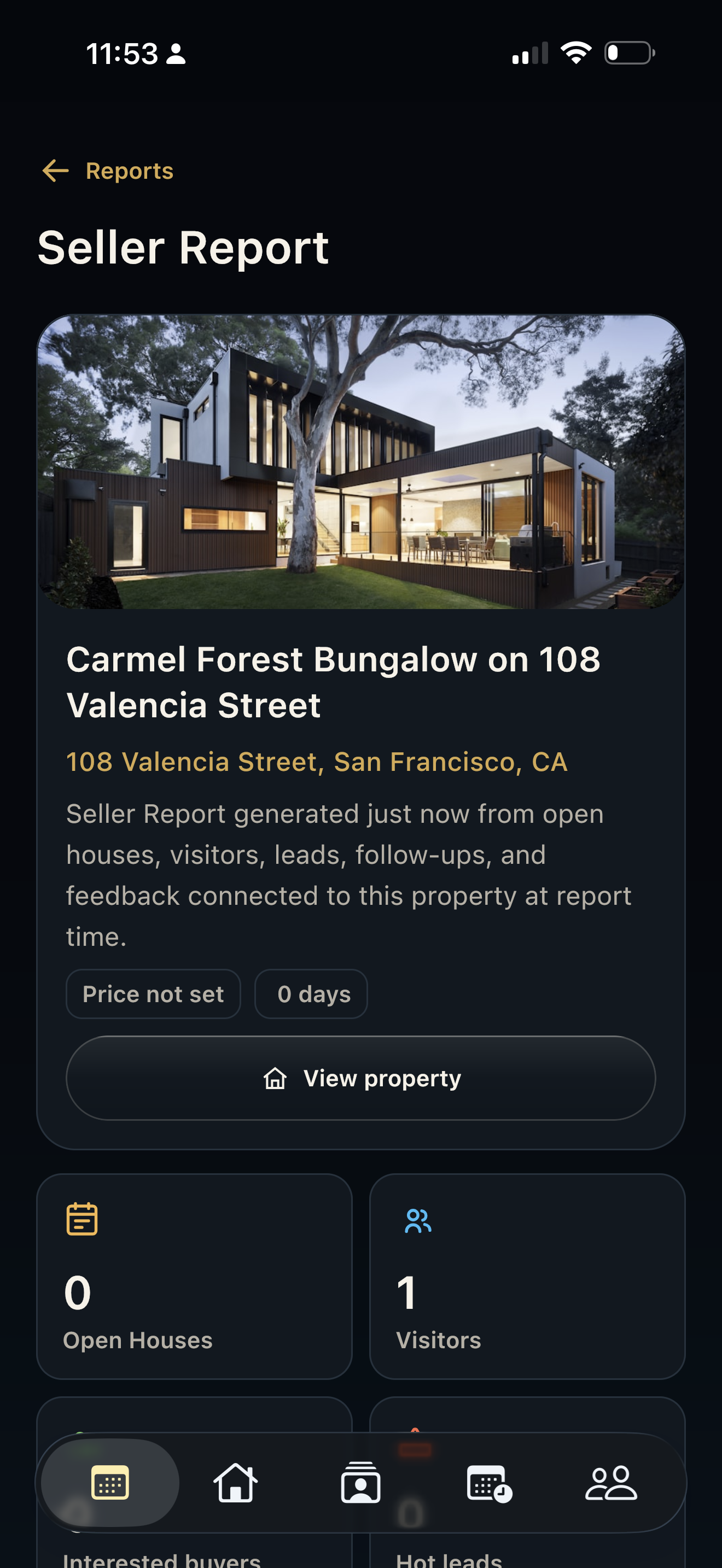
- Use Schedule open house, Create task, Upload or review files, Generate seller report, Edit, or Delete only after confirming you are on the correct property.
Good to know
- Property detail is the best checkpoint before starting kiosk sign-in or generating a seller report.
- If the wrong owner, team member, or photo is attached, correct it before running the open house.
- Use factual property notes because they can inform team handoff and seller reporting.