Steps
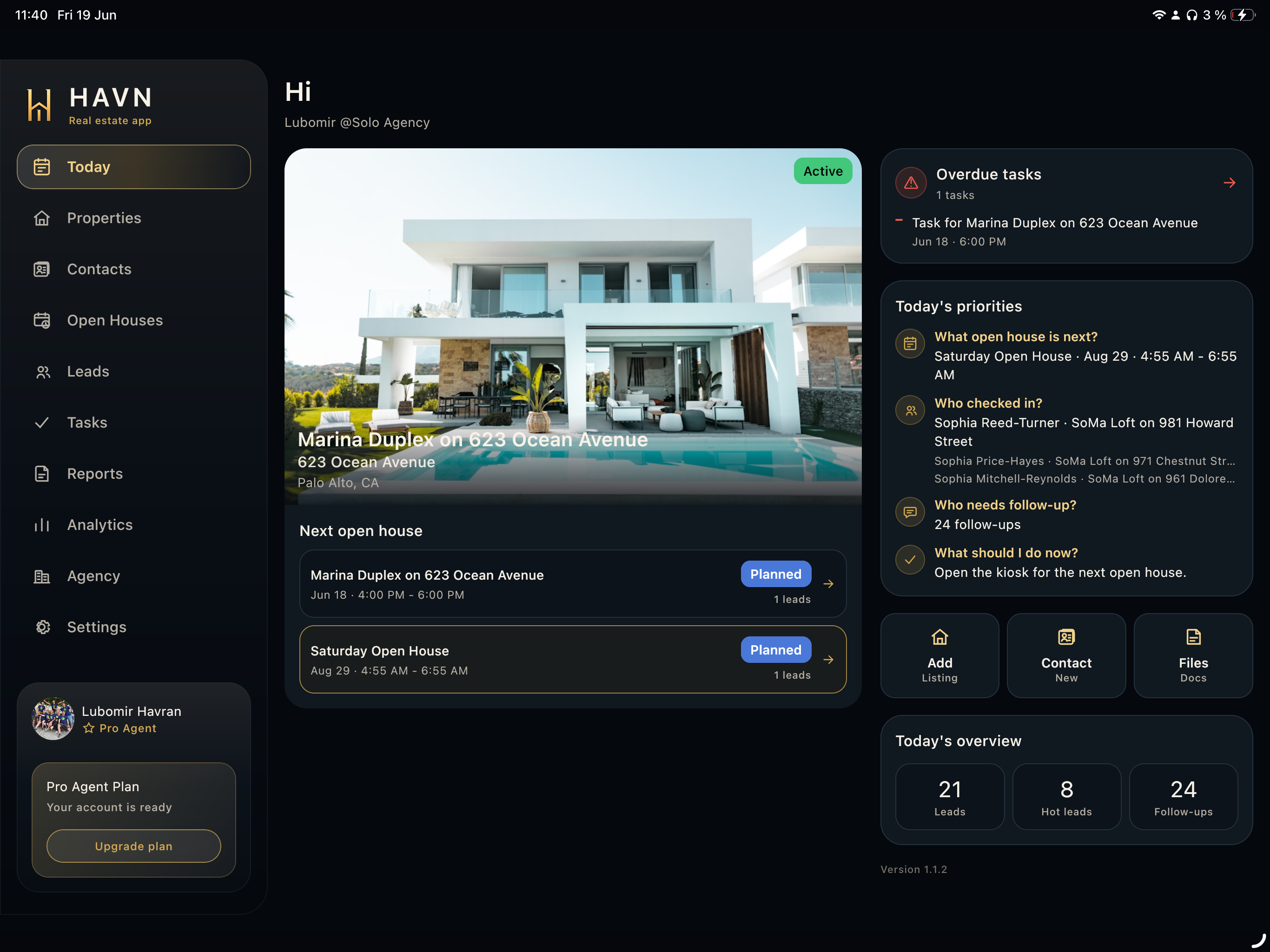
- Sign in with the agent account assigned to the workspace. HAVN waits for initial property, open-house, lead, entitlement, and hero-image data before the workspace is ready.
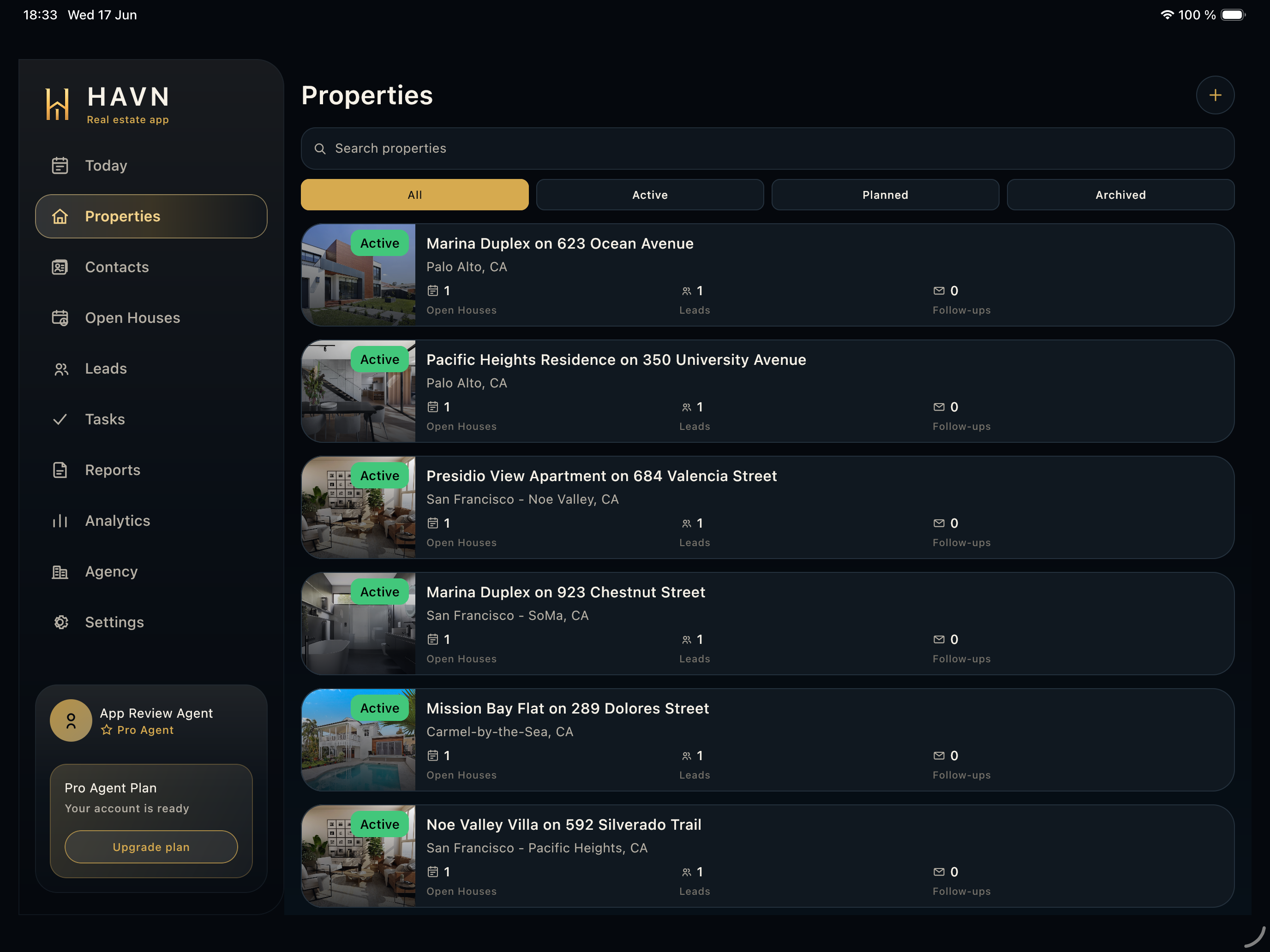
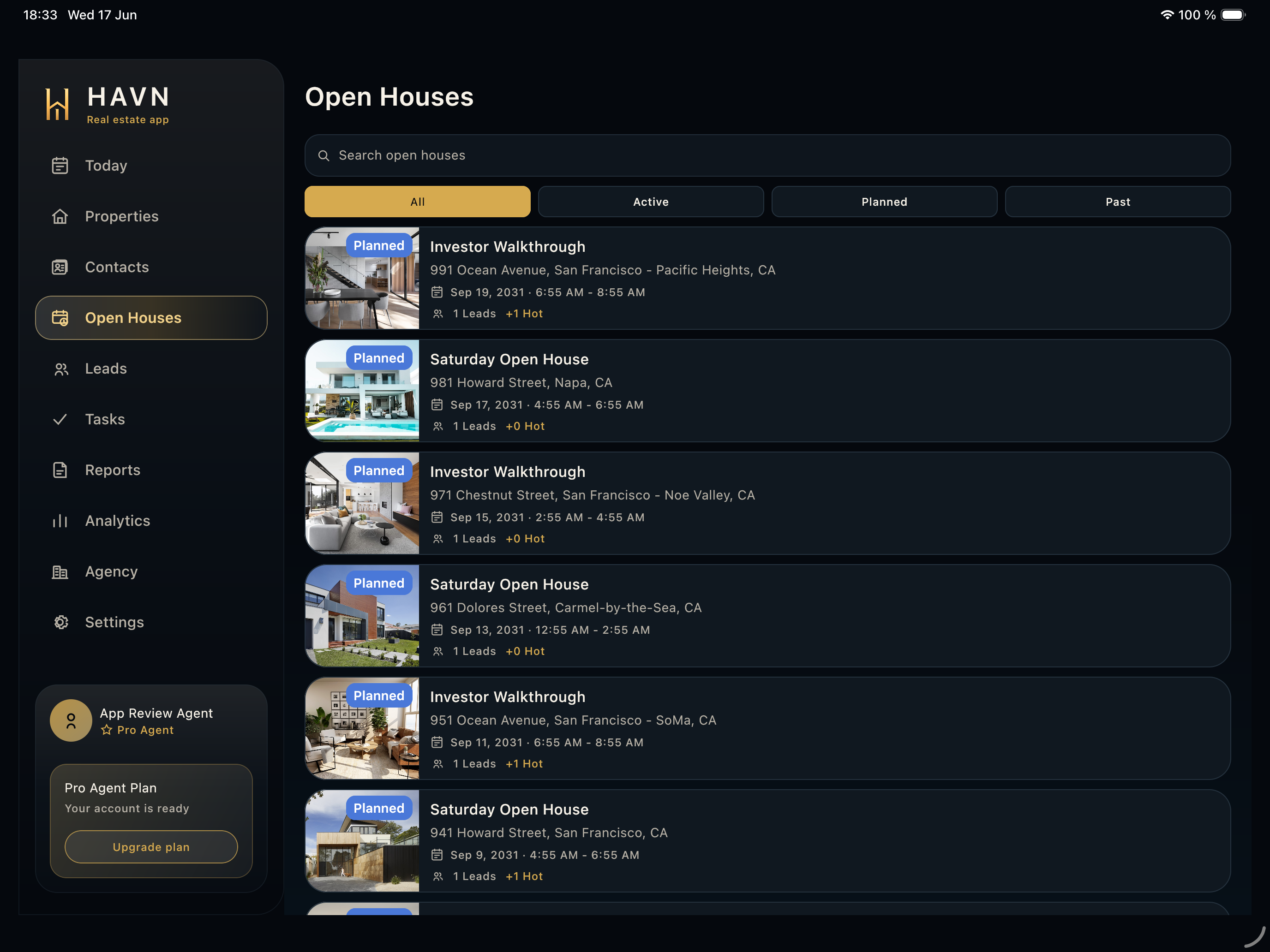
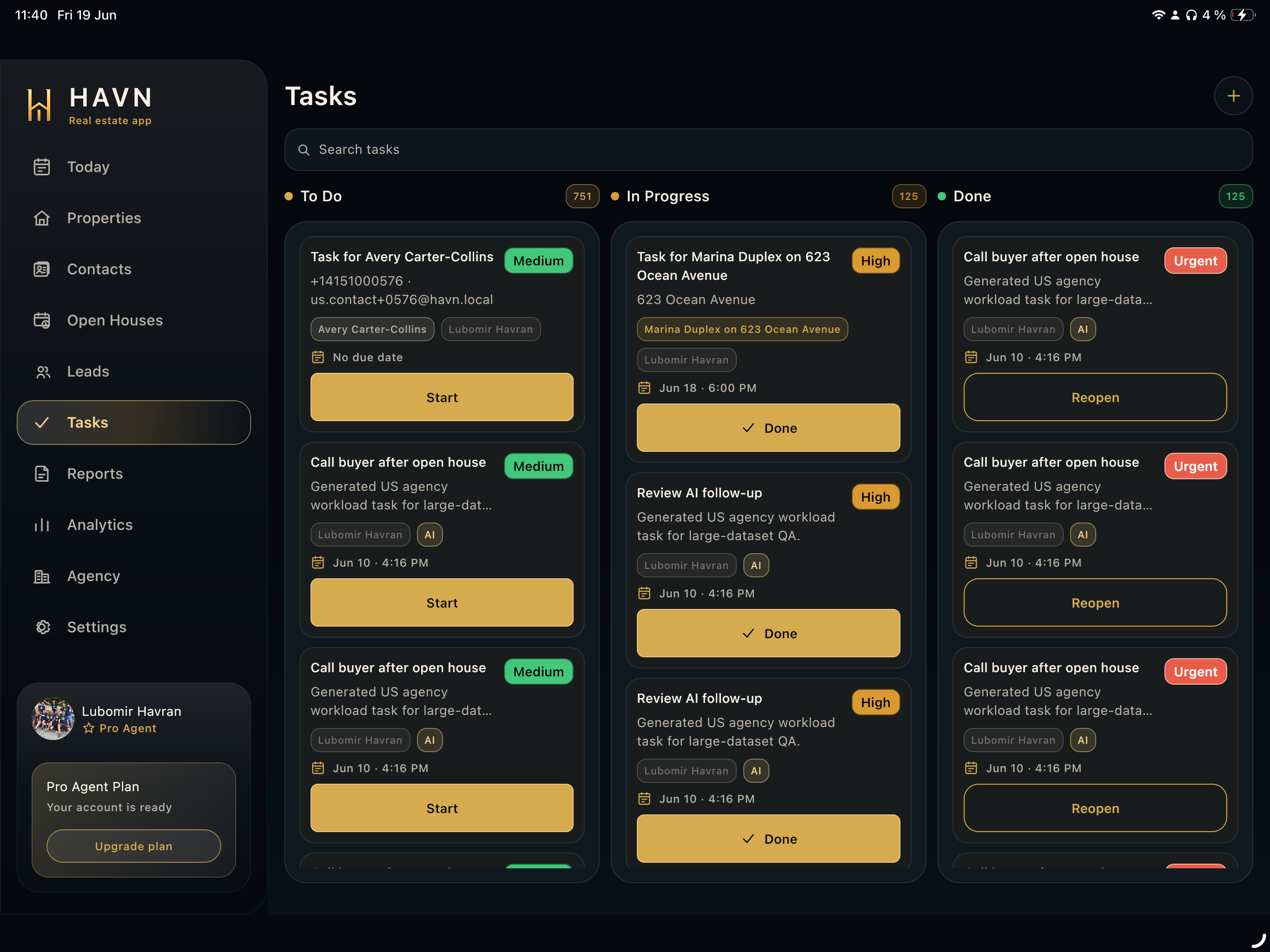
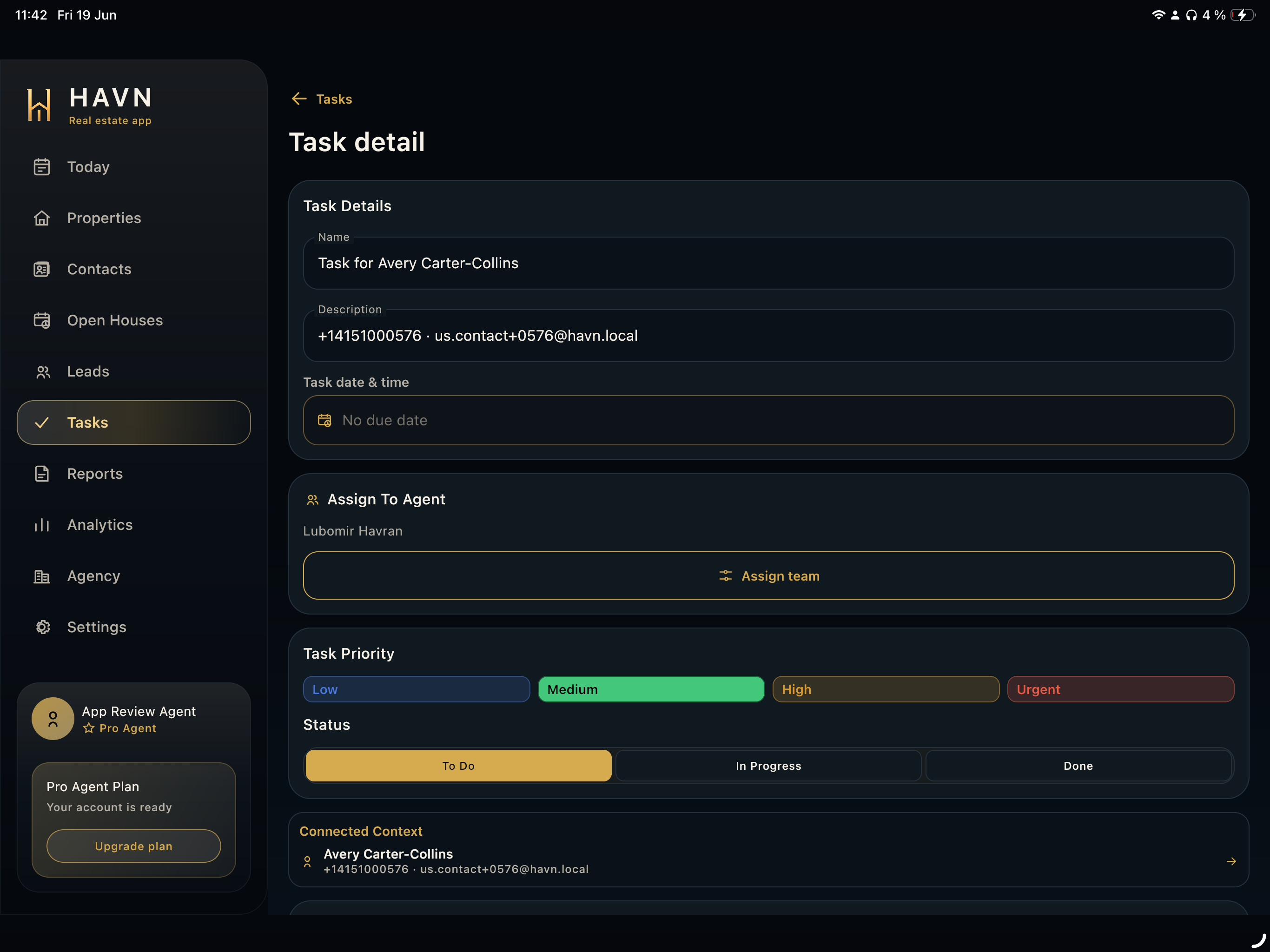
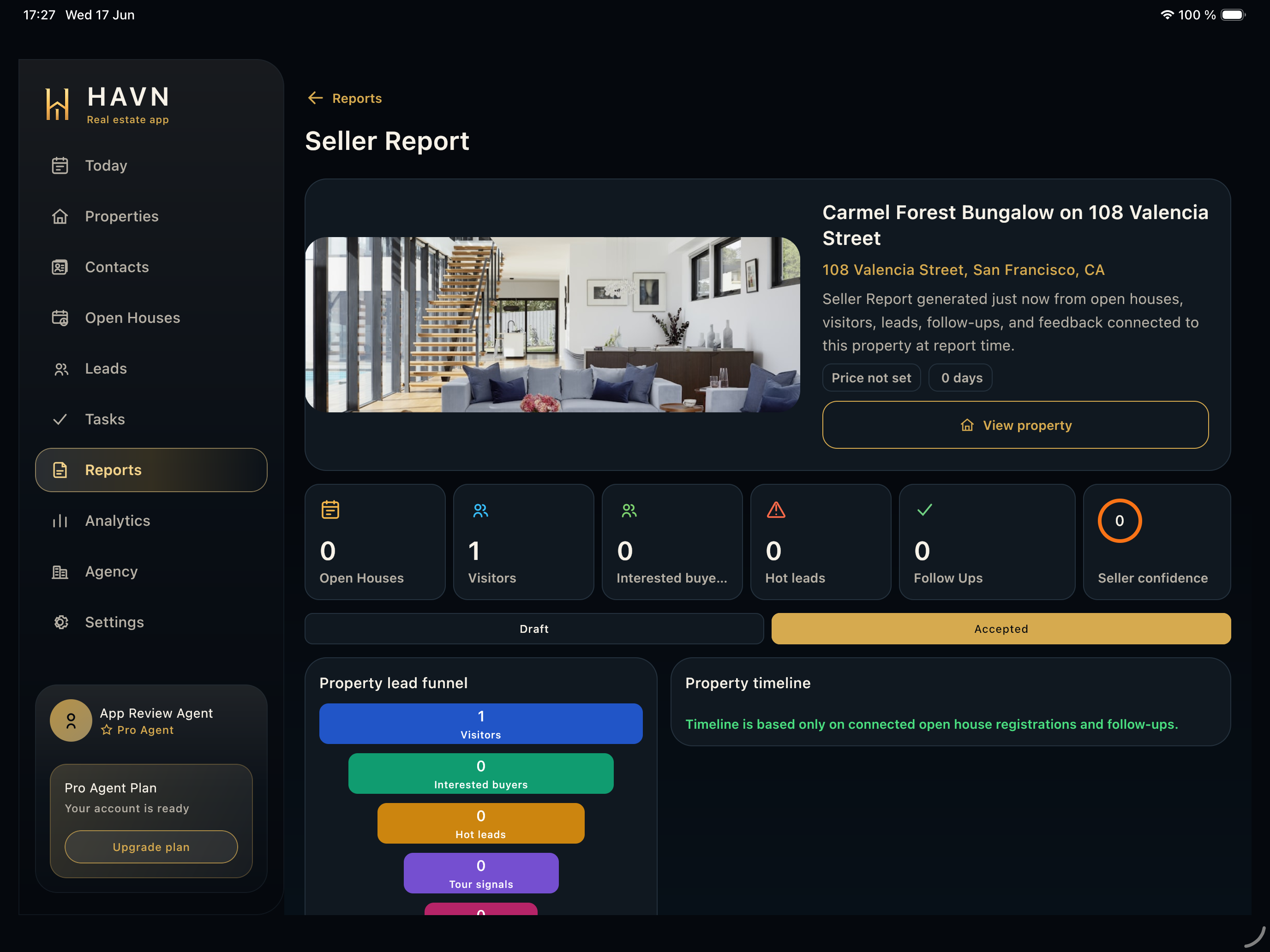
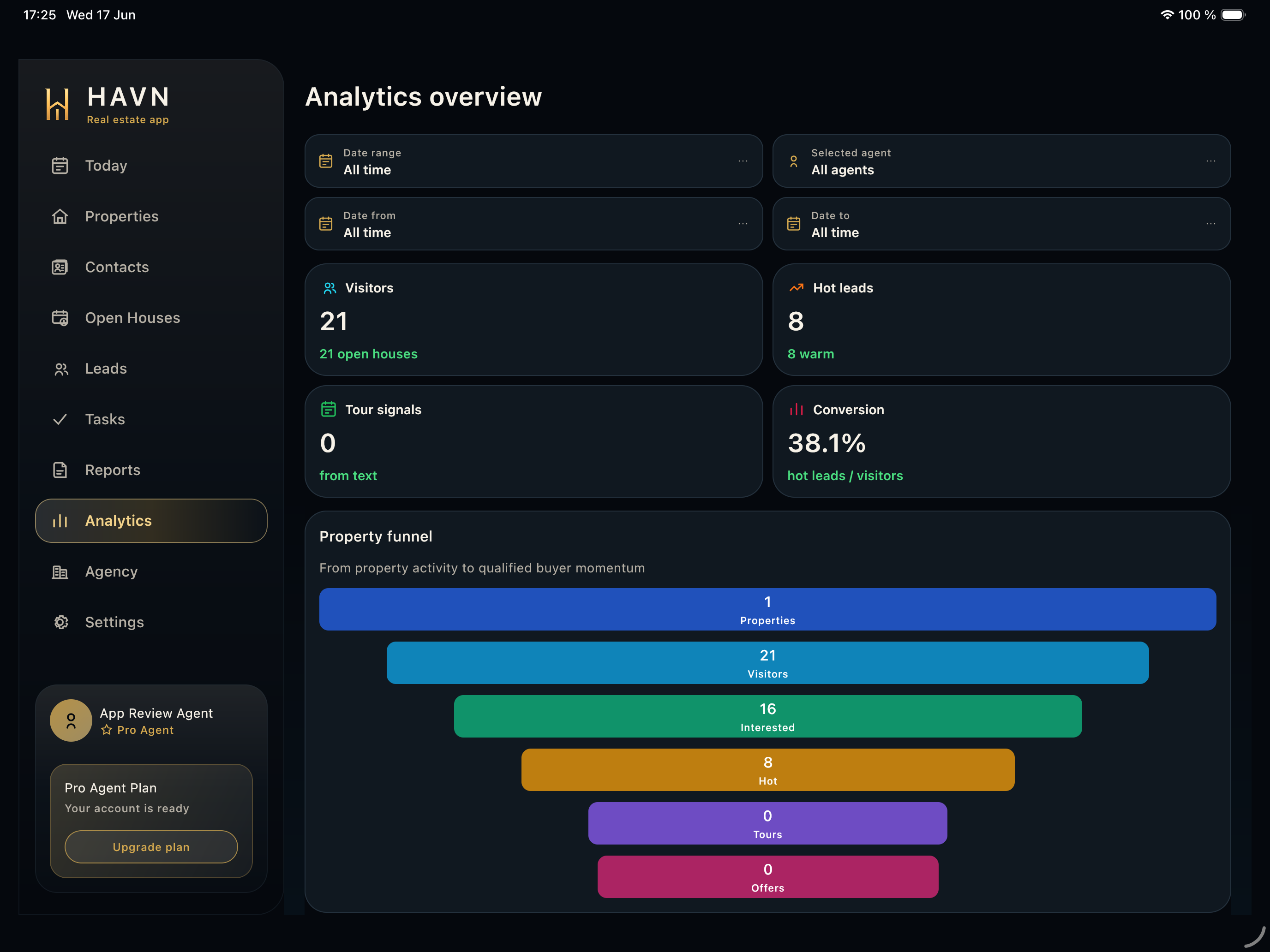
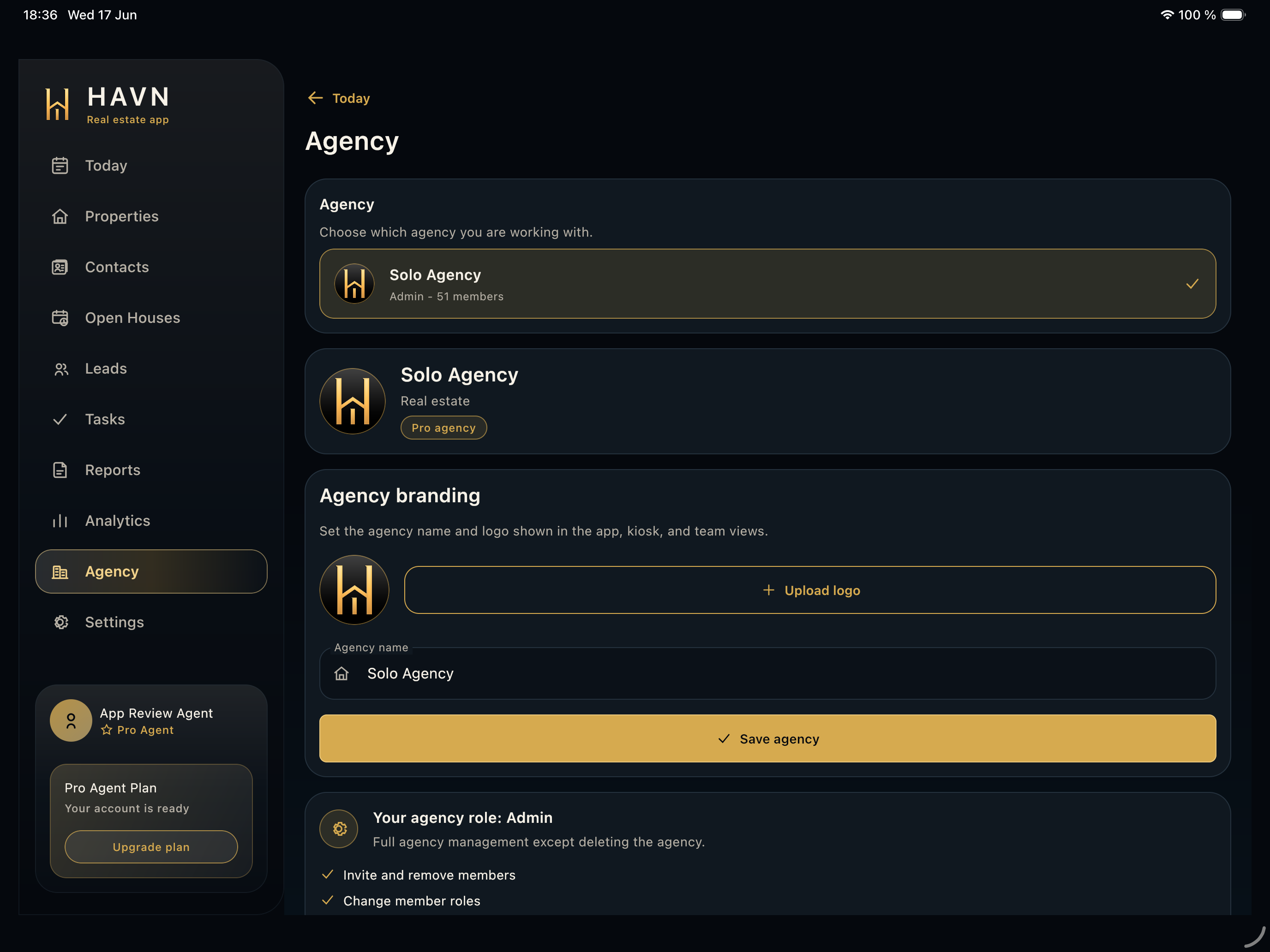
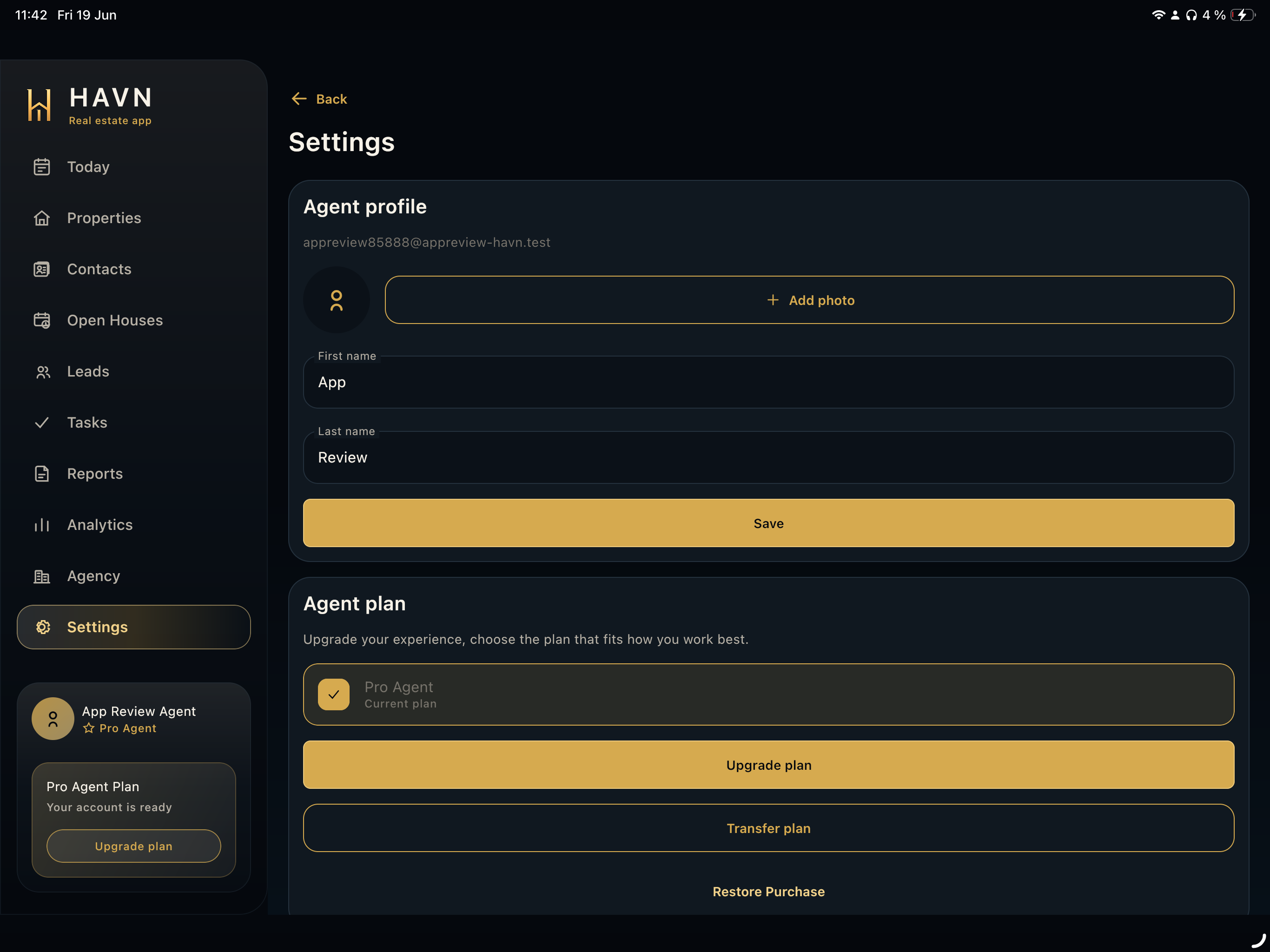
- Use the left sidebar or rail for Today, Properties, Contacts, Open Houses, Leads, Tasks, Seller reports, Analytics, Agency, and Settings.
- Keep iPad/tablet in landscape for the full sidebar, wider lists, and room for detail panels.
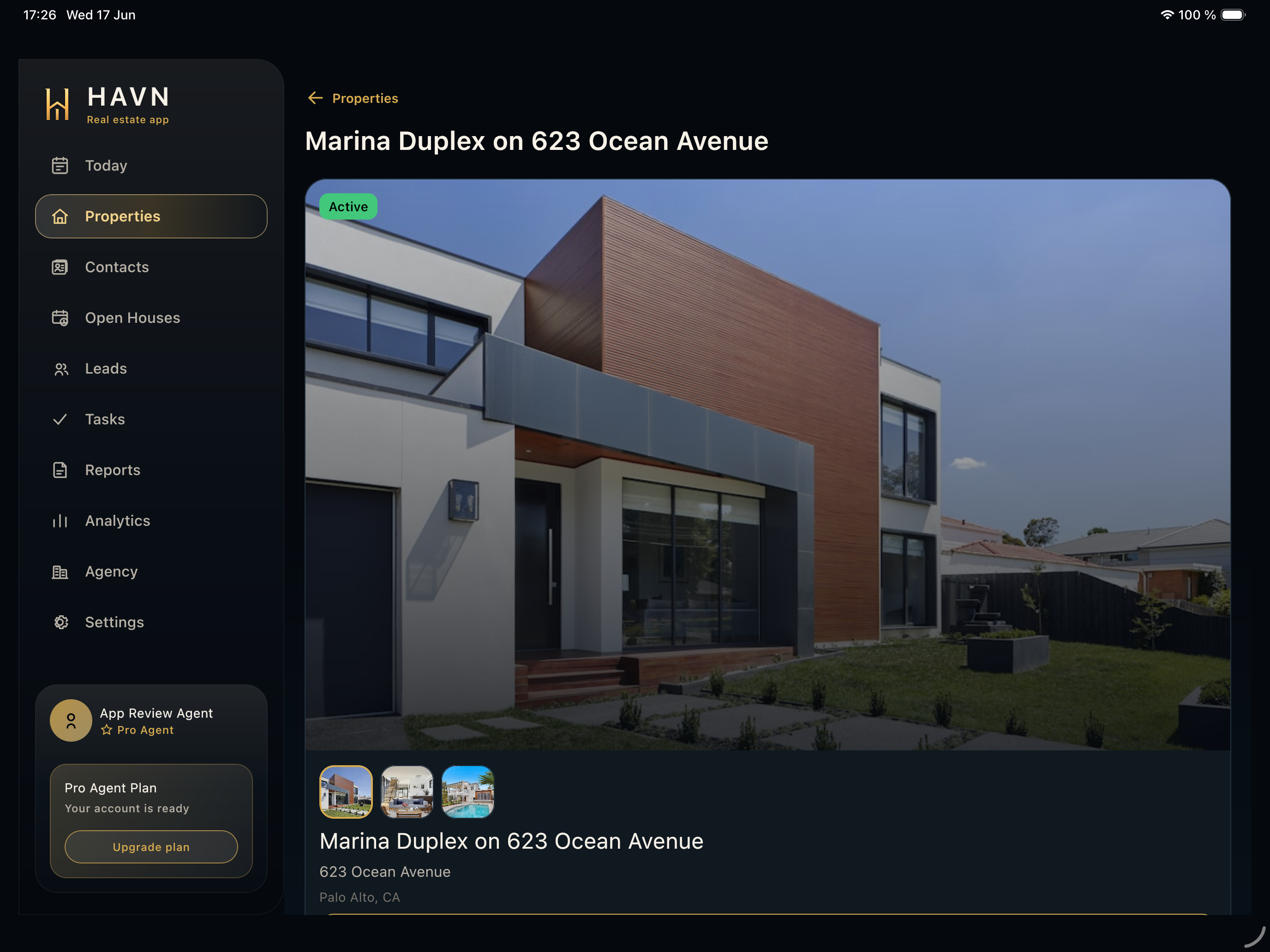
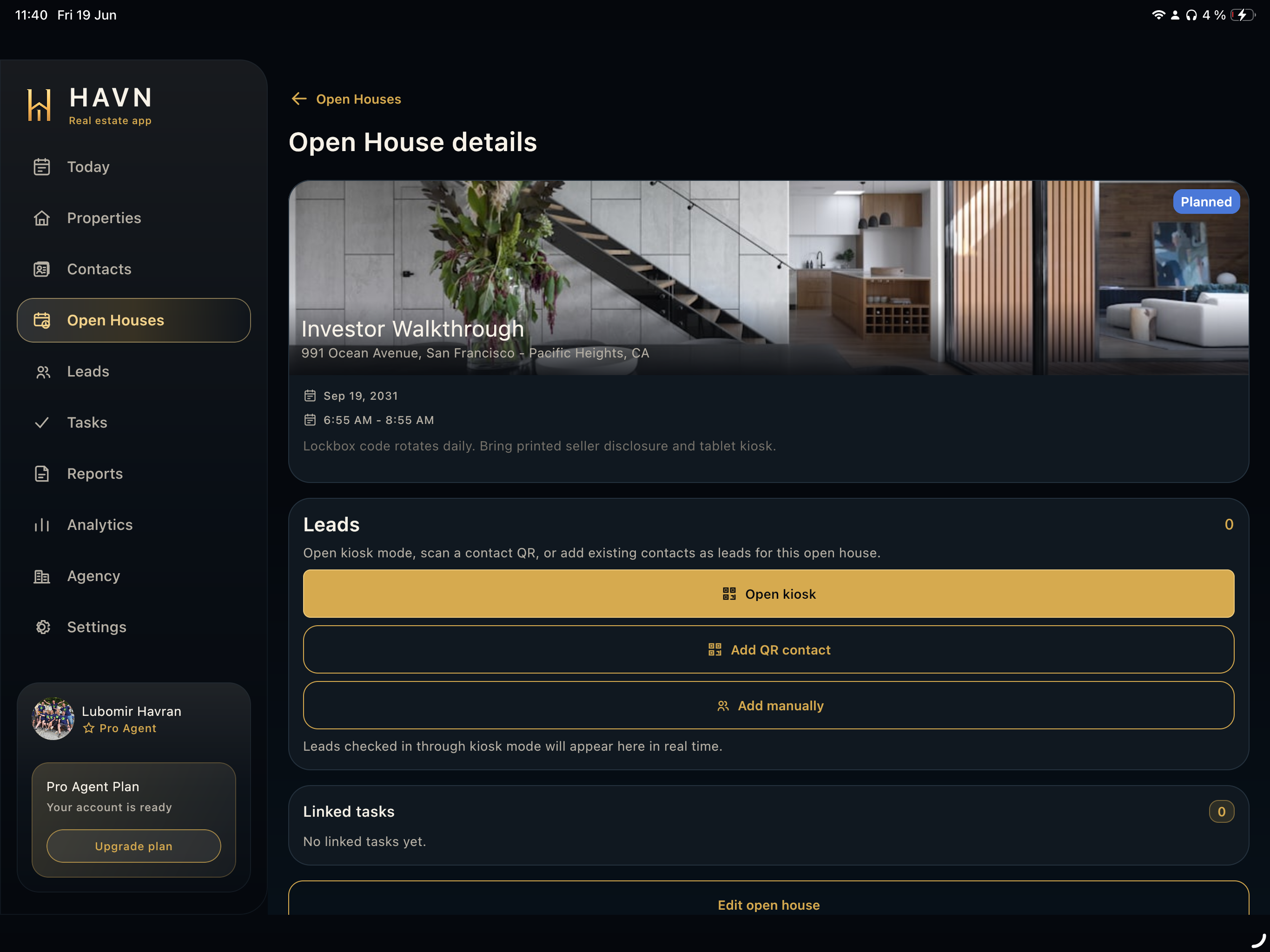
- Use Today to confirm the active property and next showing, then use Open Houses for kiosk, QR, and manual visitor collection.
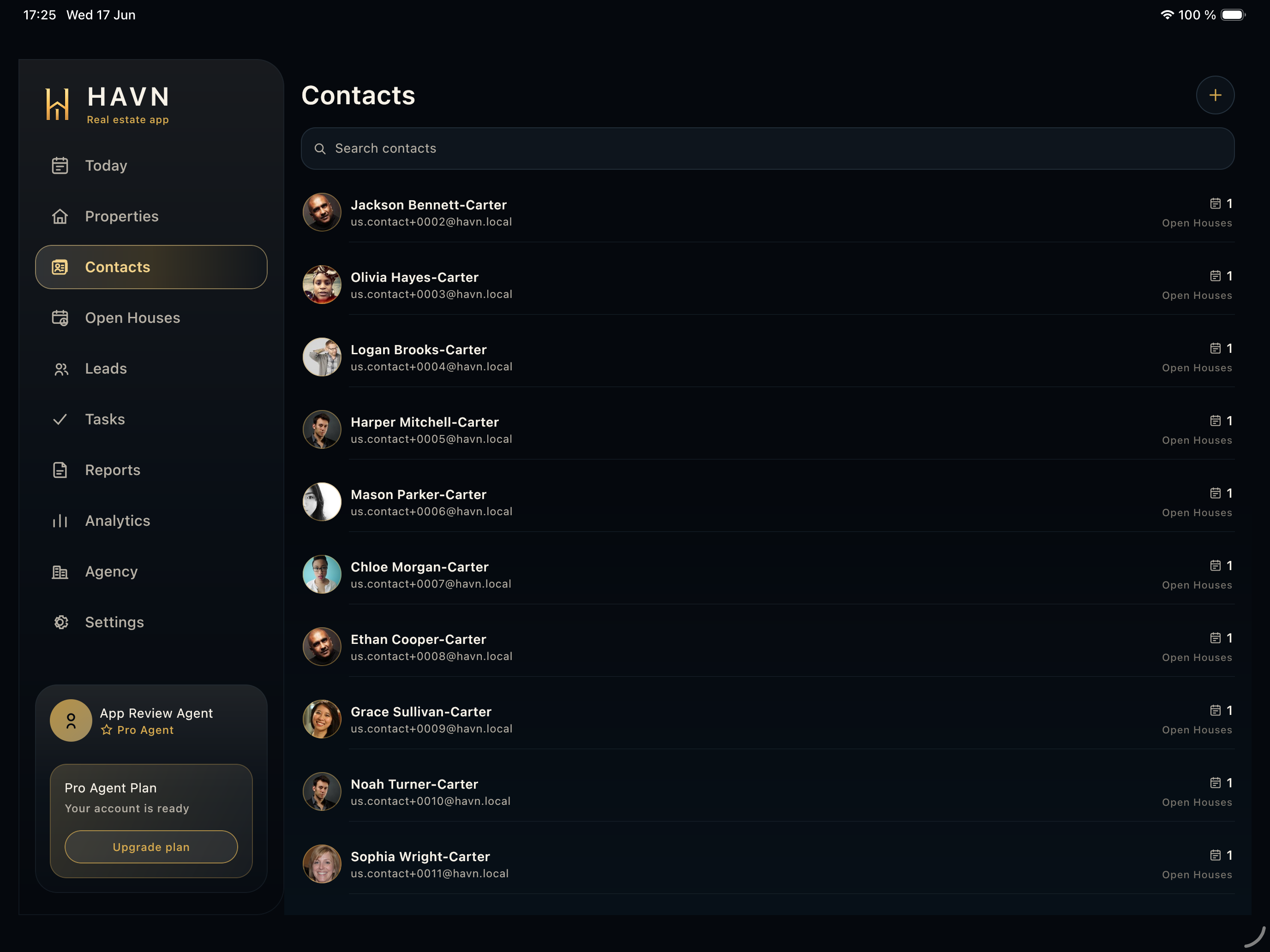
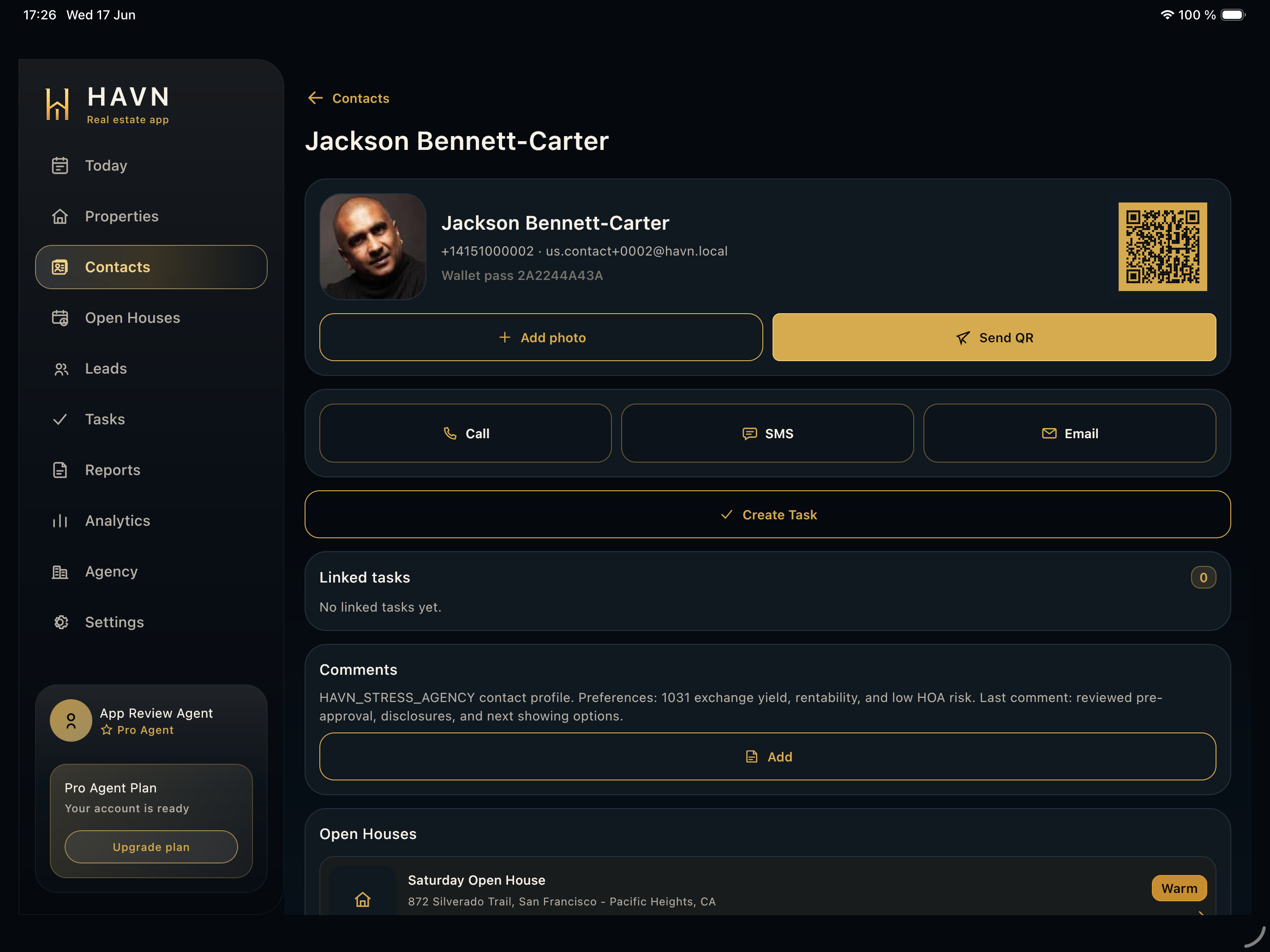
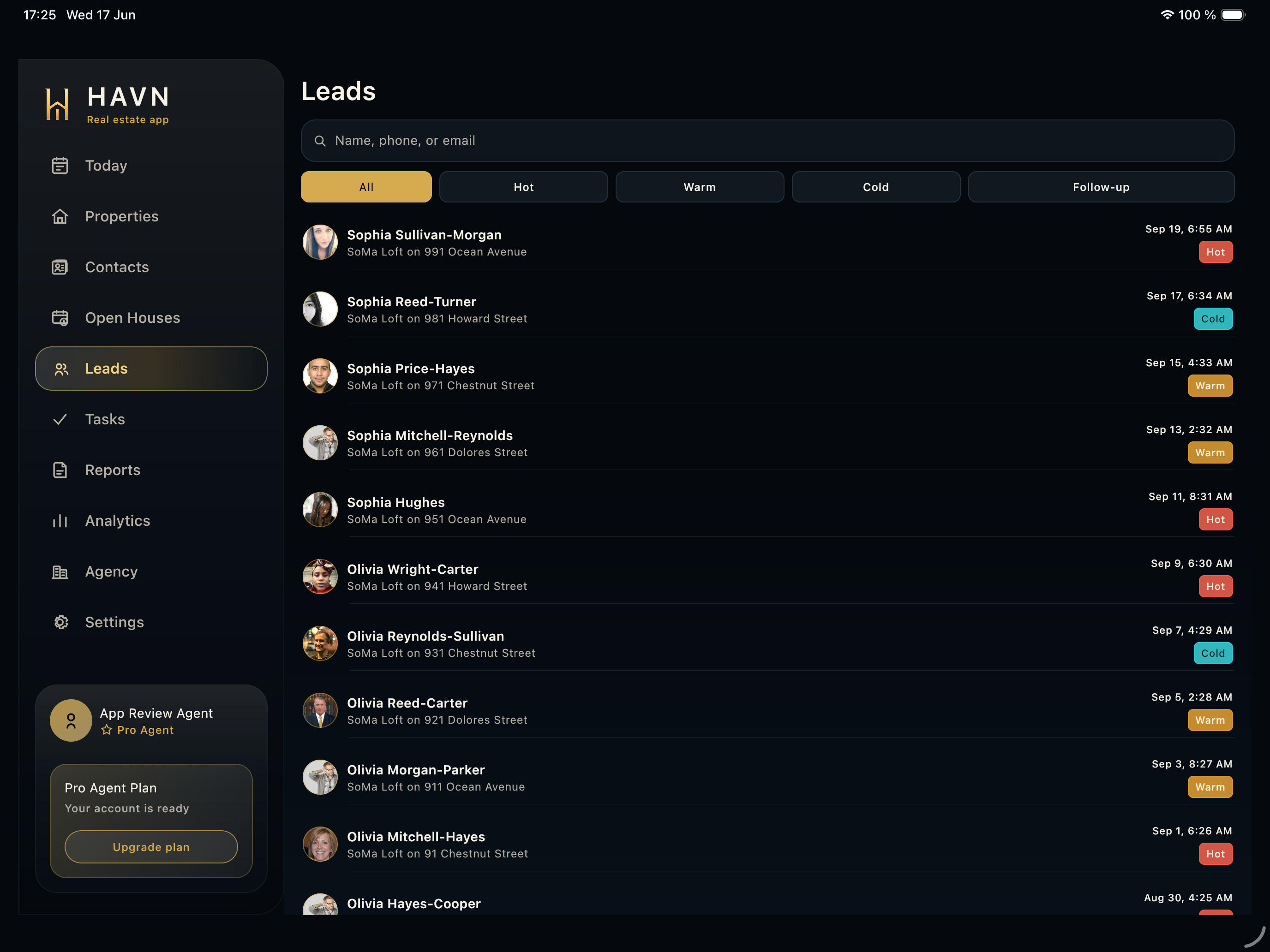
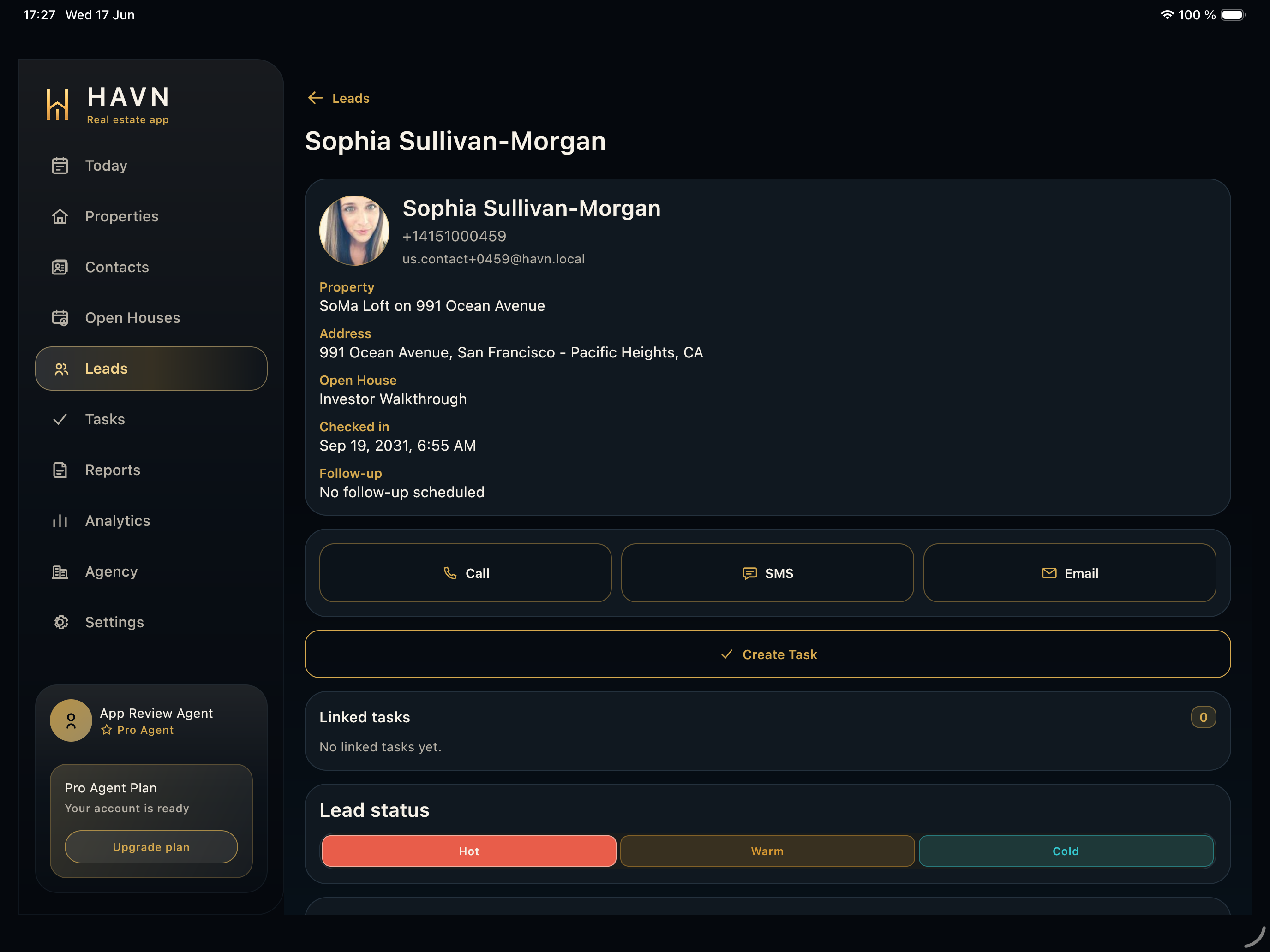
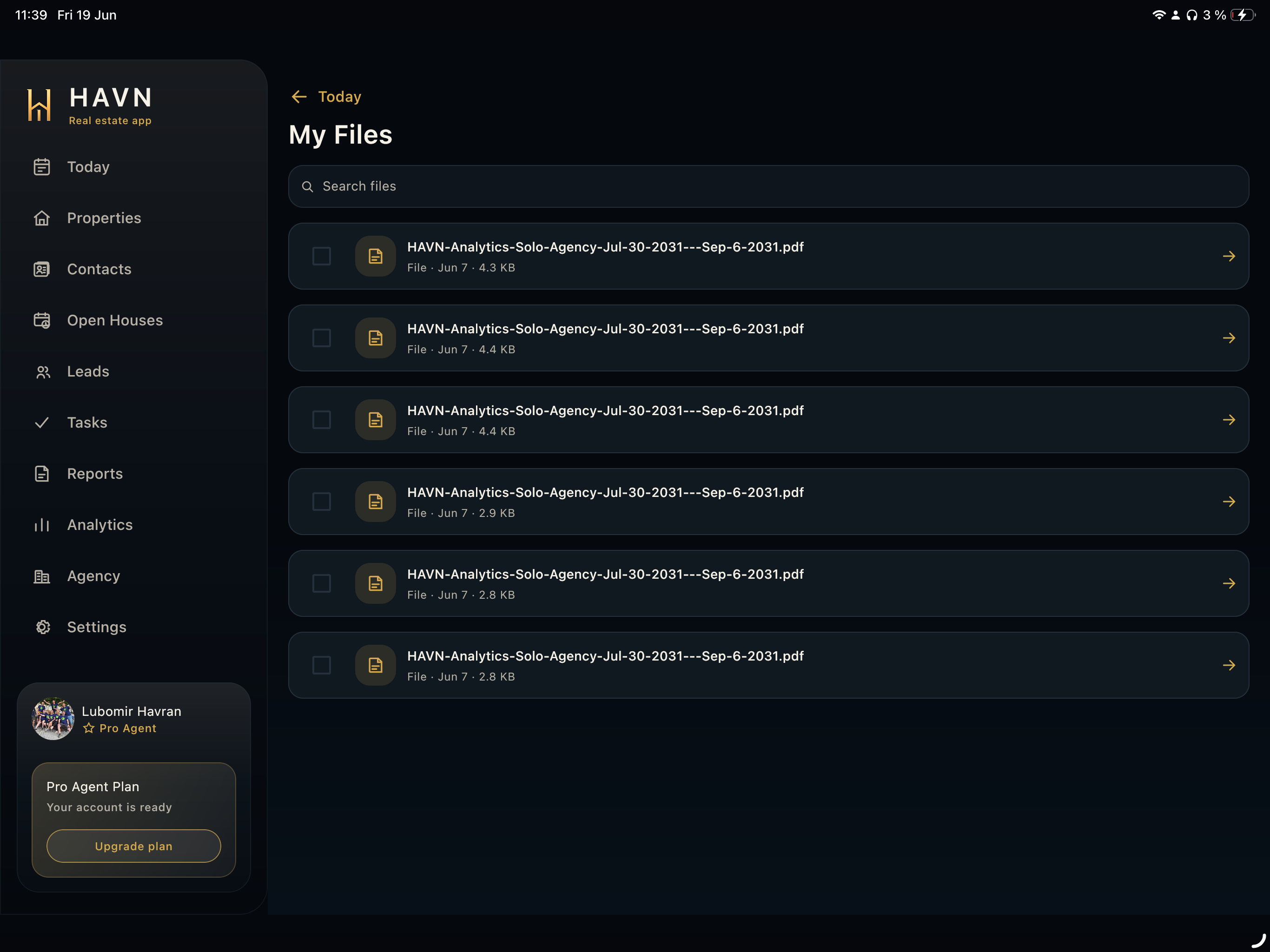
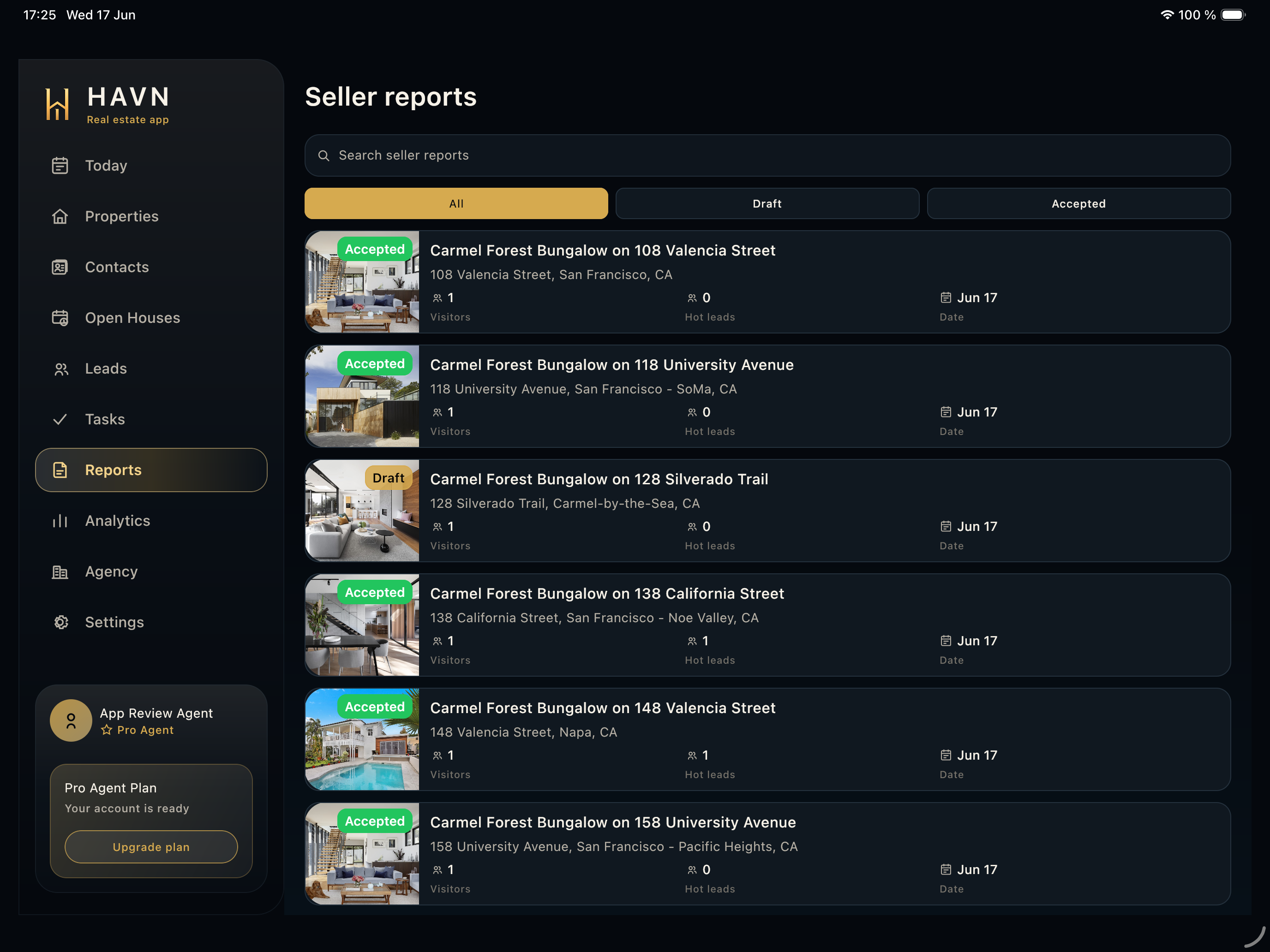
- After the event, clean up Contacts, Leads, Tasks, Files, Seller reports, and Analytics before sending seller-facing updates.
- If a plan-gated module opens Settings, review the current plan because Files, Tasks, Seller reports, and Analytics require the right entitlement.
Good to know
- Tablet is best for front-desk sign-in and quick review. Web is best for longer setup, reporting, and team administration.
- The same screen names and records are shared with the mobile app, so training and support can use one vocabulary.
- Use Agency for workspace-level roles and branding; use Settings for the signed-in agent account.