Steps
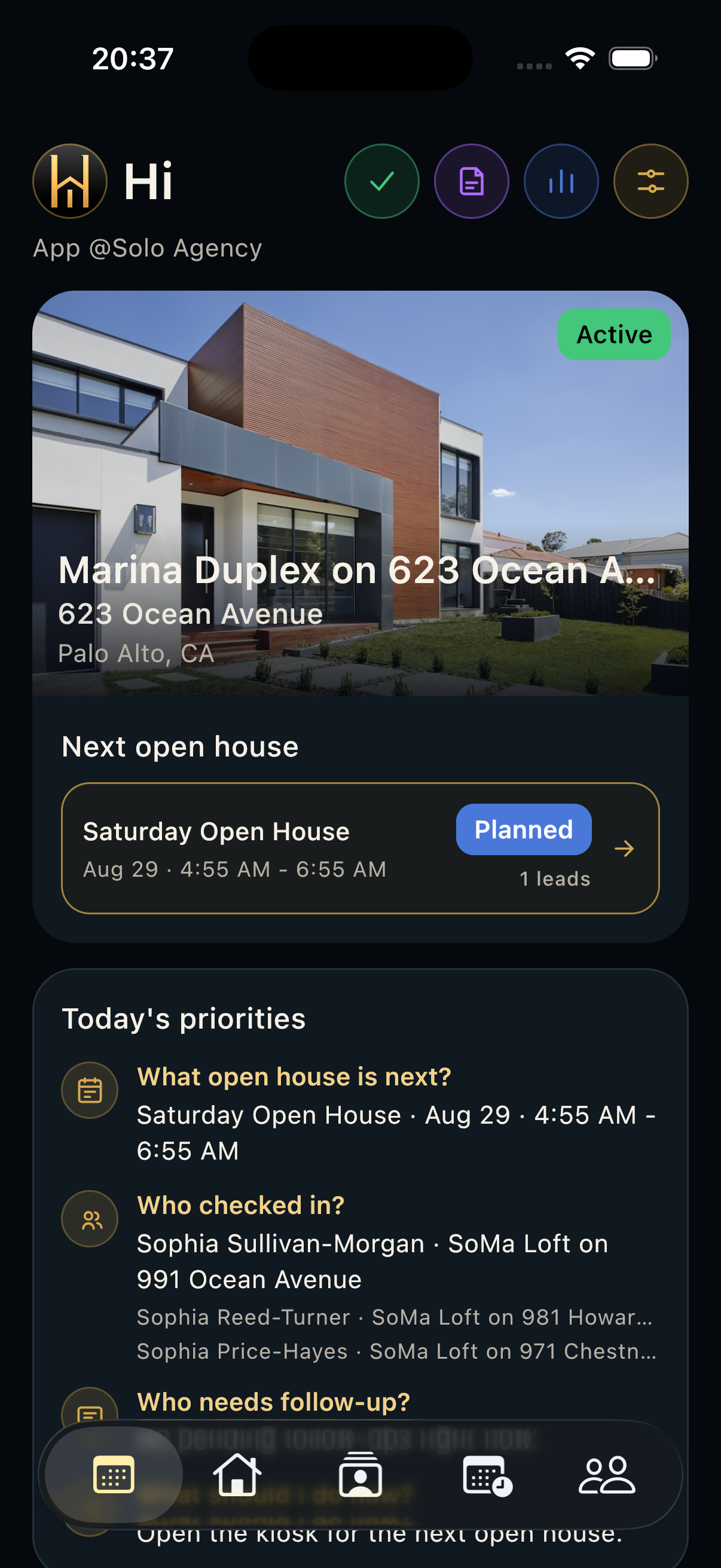
- Open Settings from the sidebar, rail, Today action, or top-right action button.
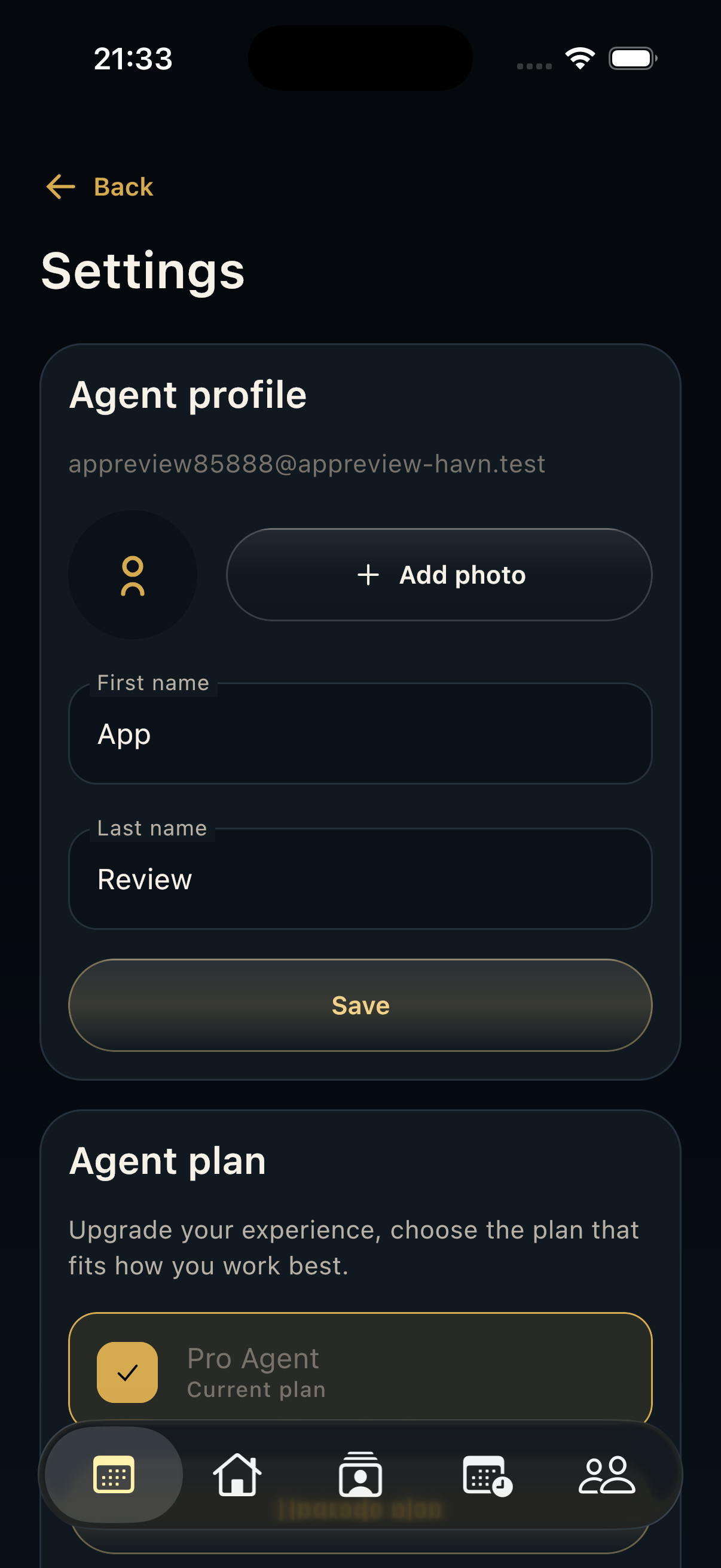
- Review agent profile, profile photo, first name, last name, and save changes when needed.
- Check the current plan, upgrade, transfer, or restore purchase if a module is locked.
- Review notification settings and quiet hours before a showing day.
- Use preferences such as language, display, units, or workspace/account options as needed.
- Use support, legal, sign-out, or delete-account actions carefully and only after recent work has synced.
Good to know
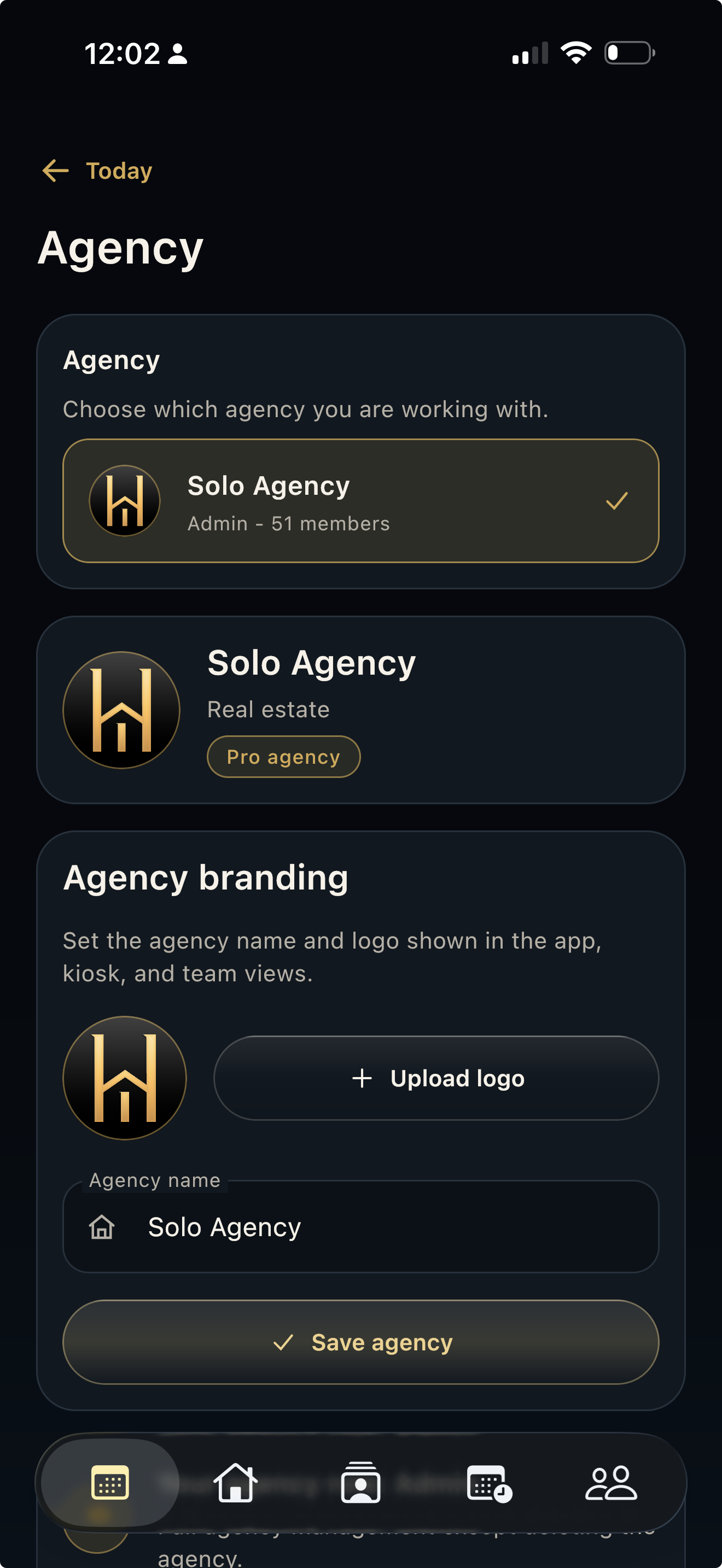
- Settings is account-level; use Agency for team, workspace, roles, and branding.
- If a module redirects here, the account likely needs a plan or entitlement check.
- Include device type and app version when contacting support.