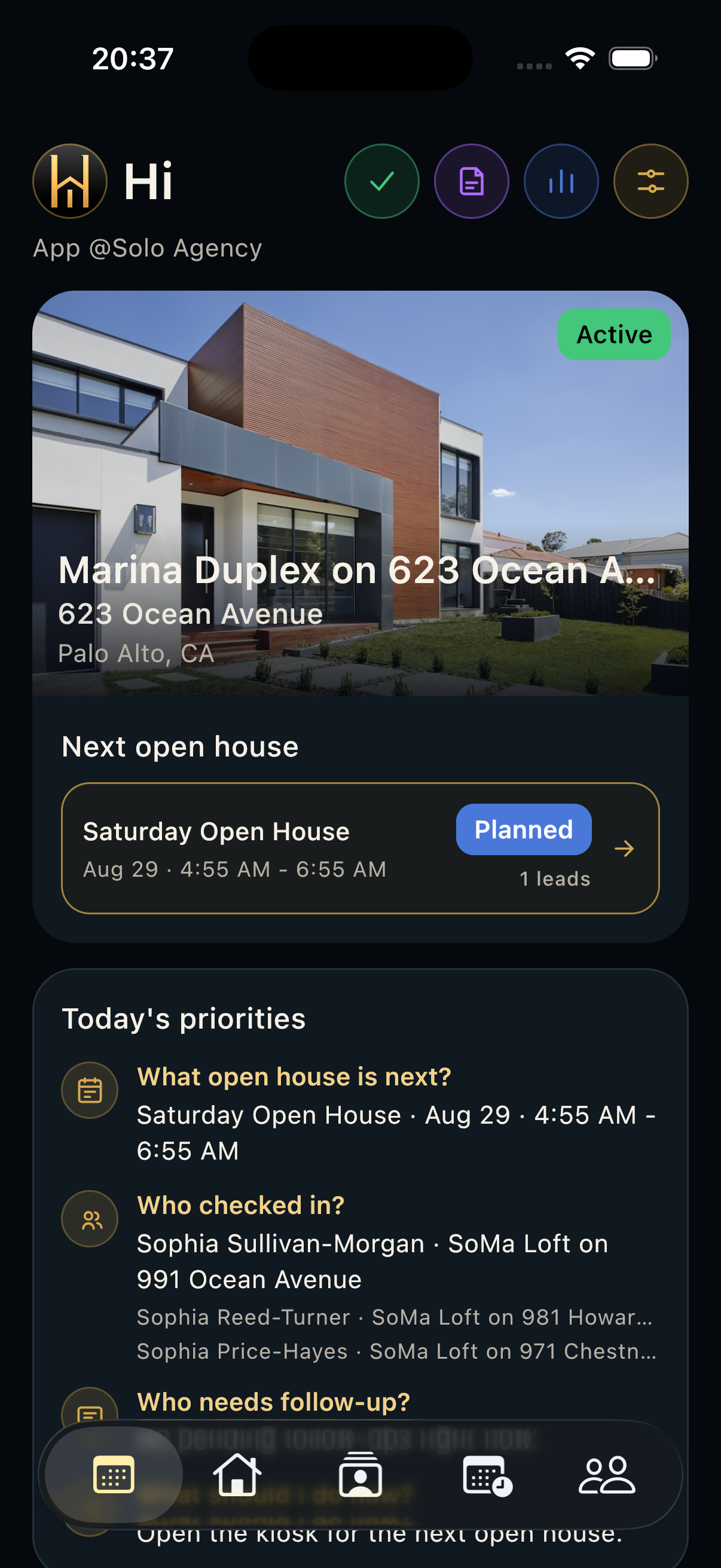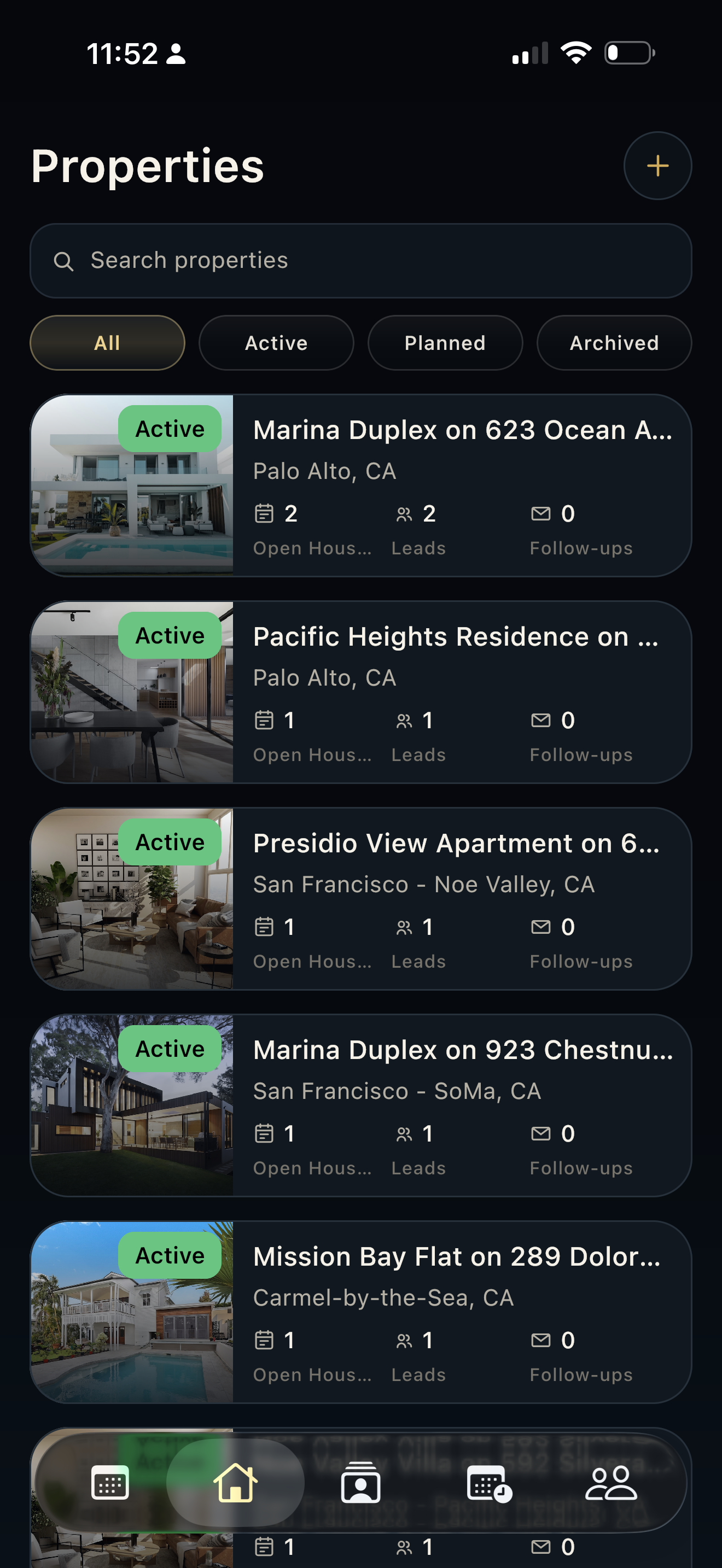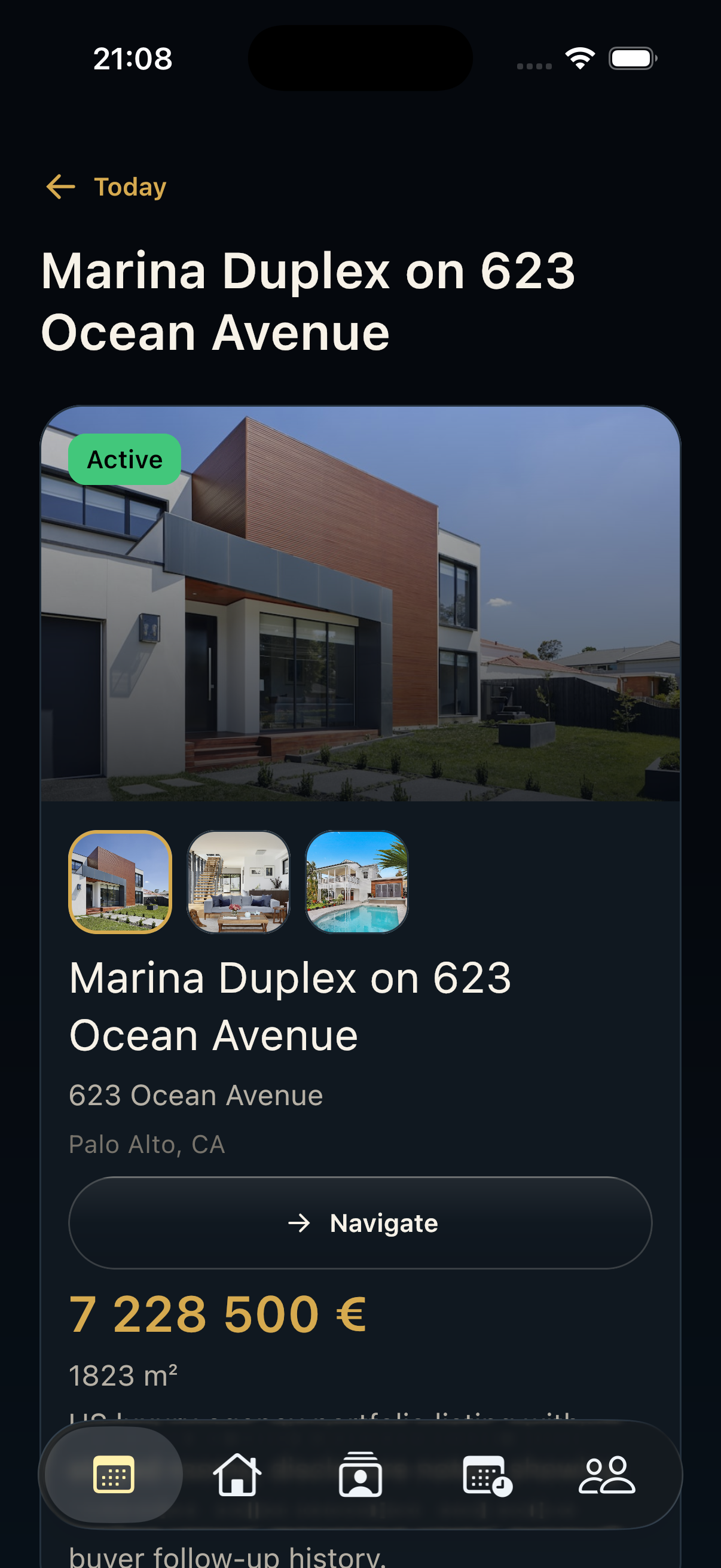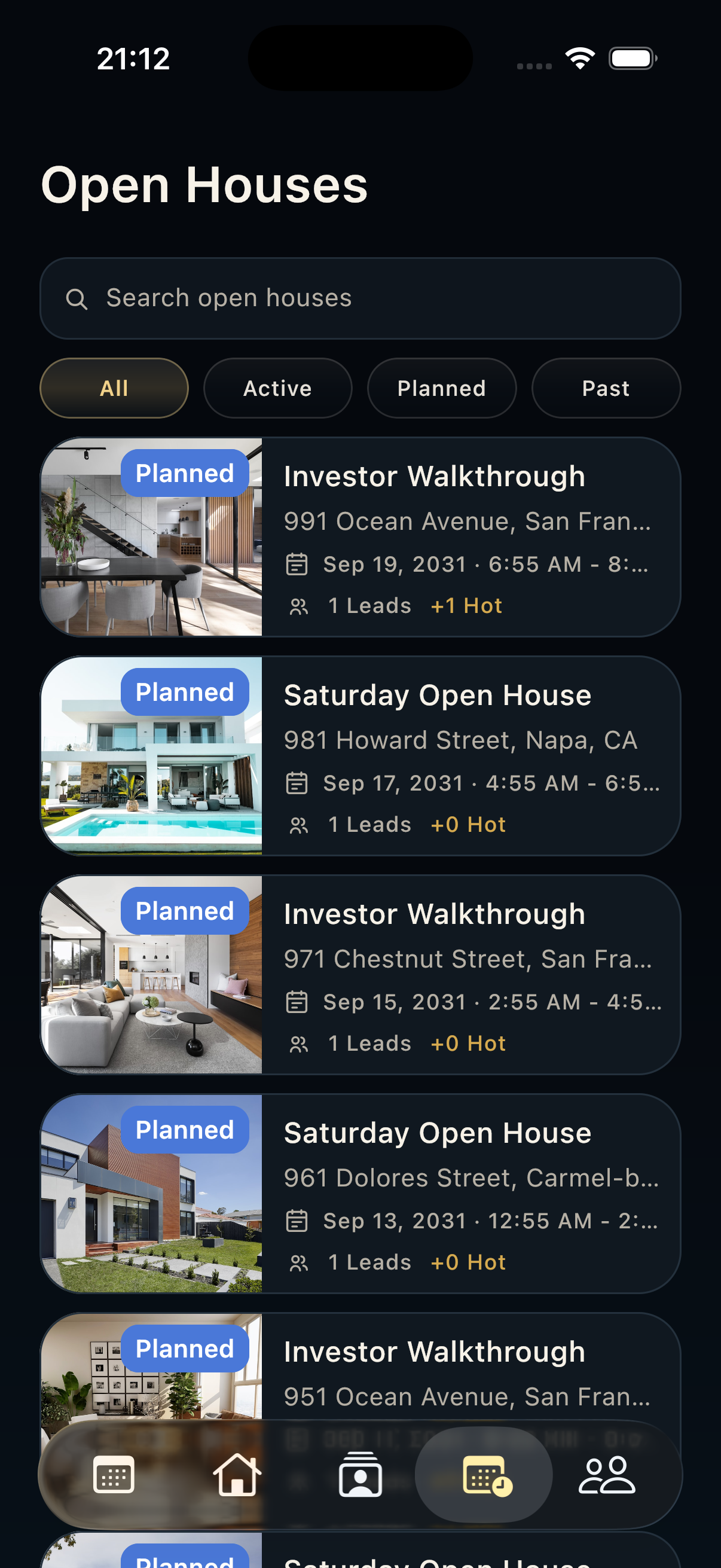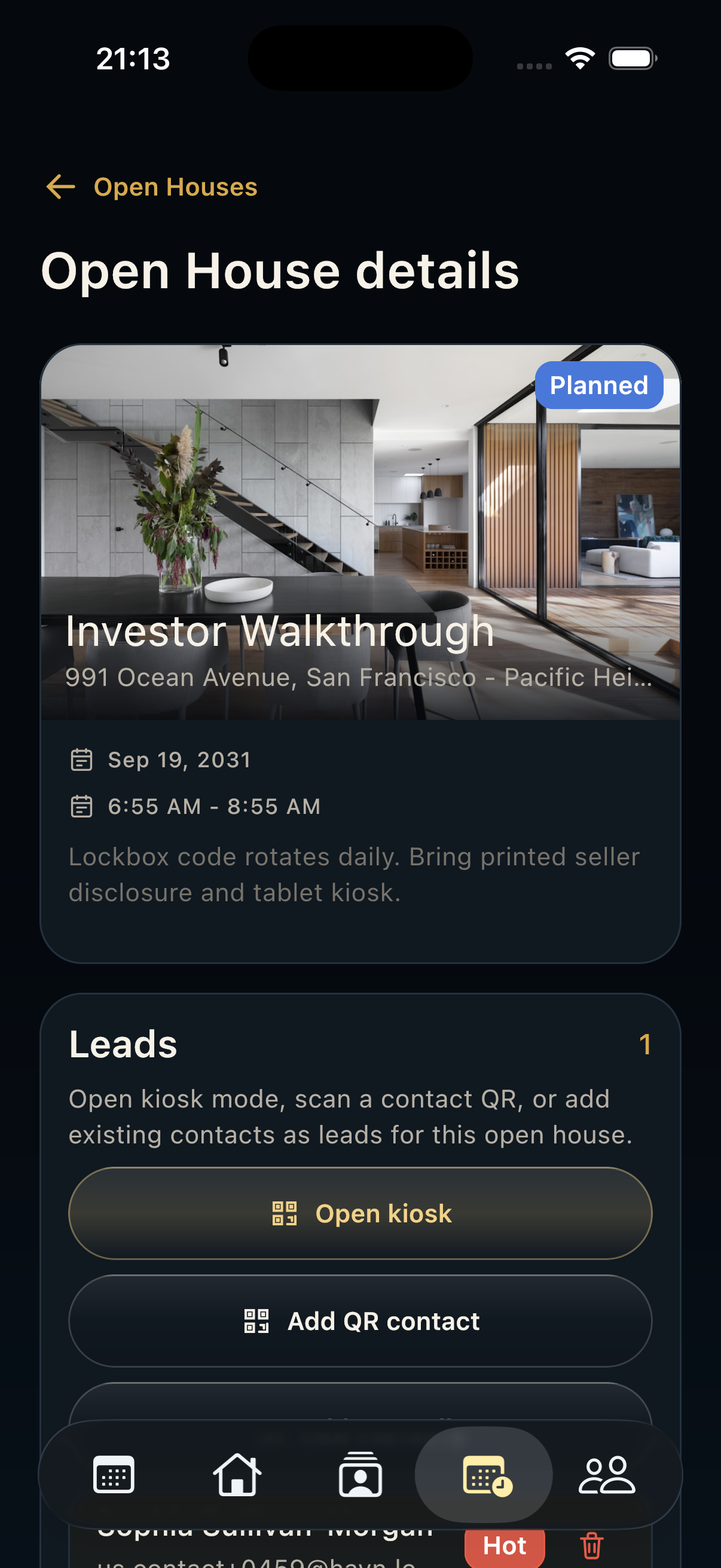
Steps
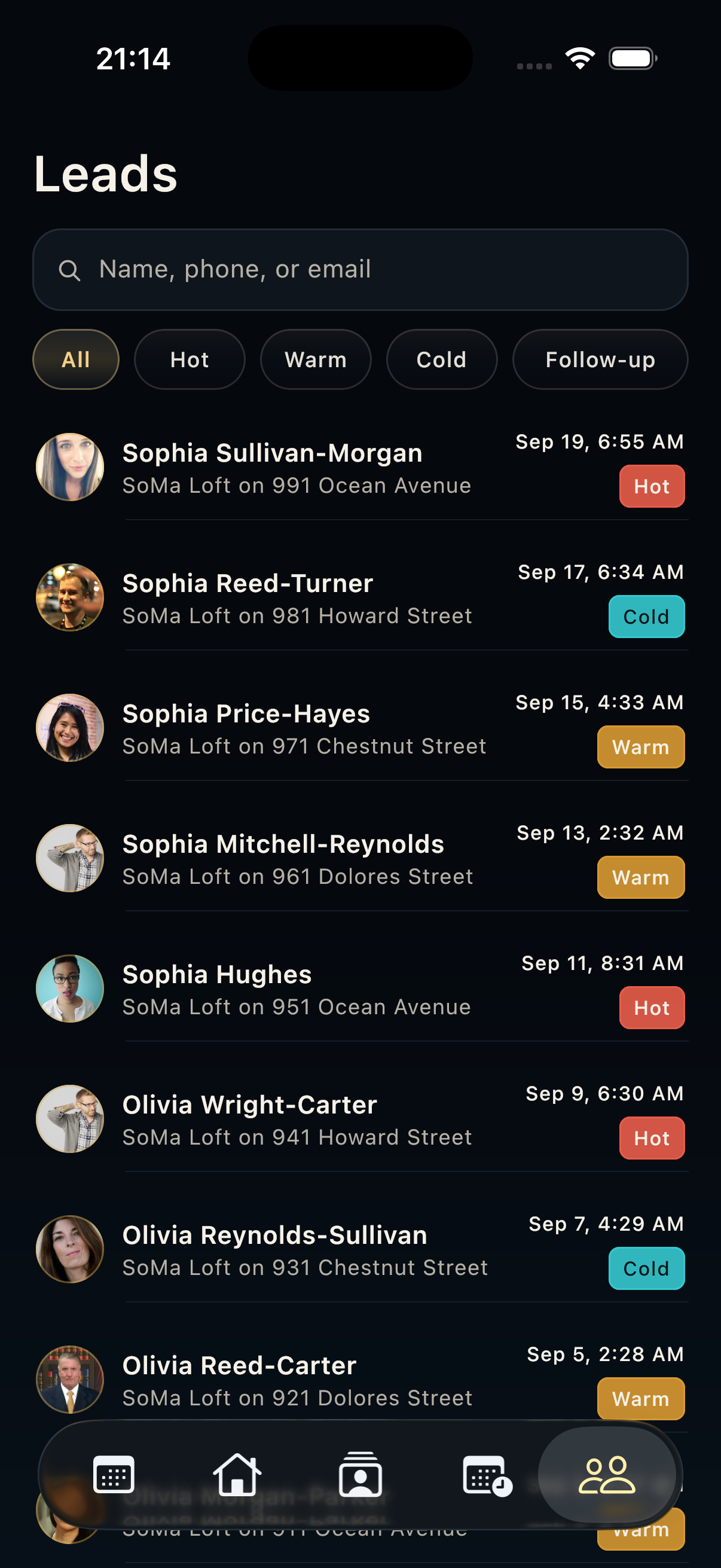
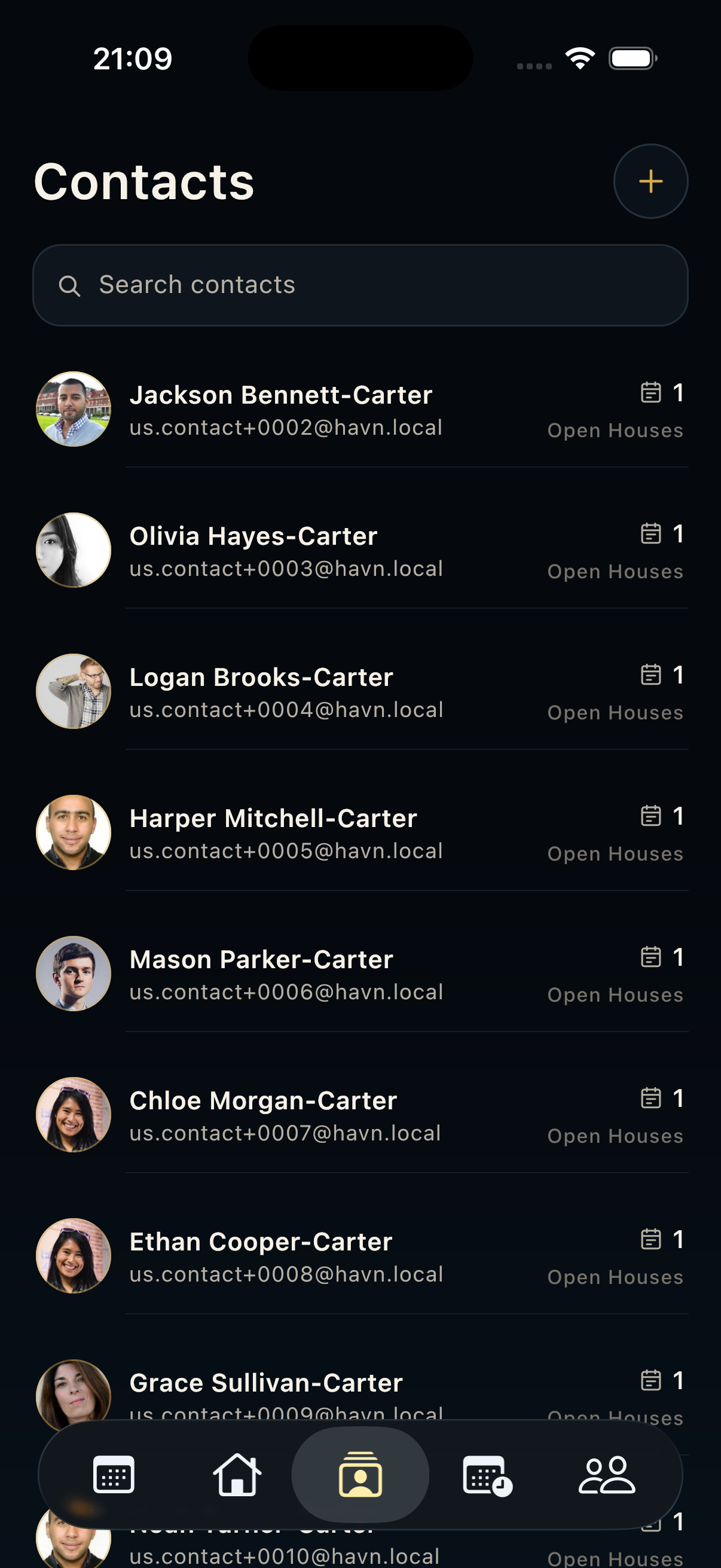
- Search by name, phone, email, or contact context to find an existing person.
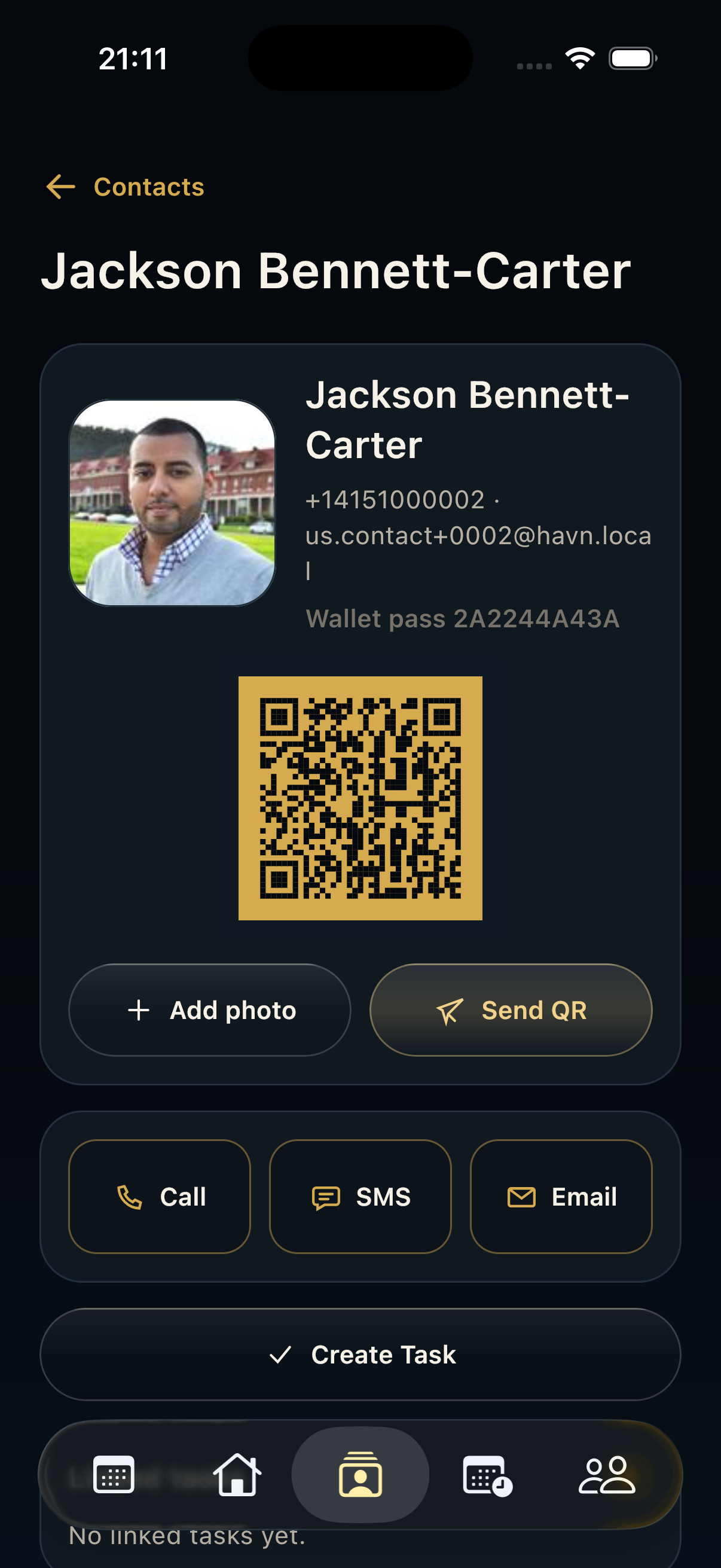
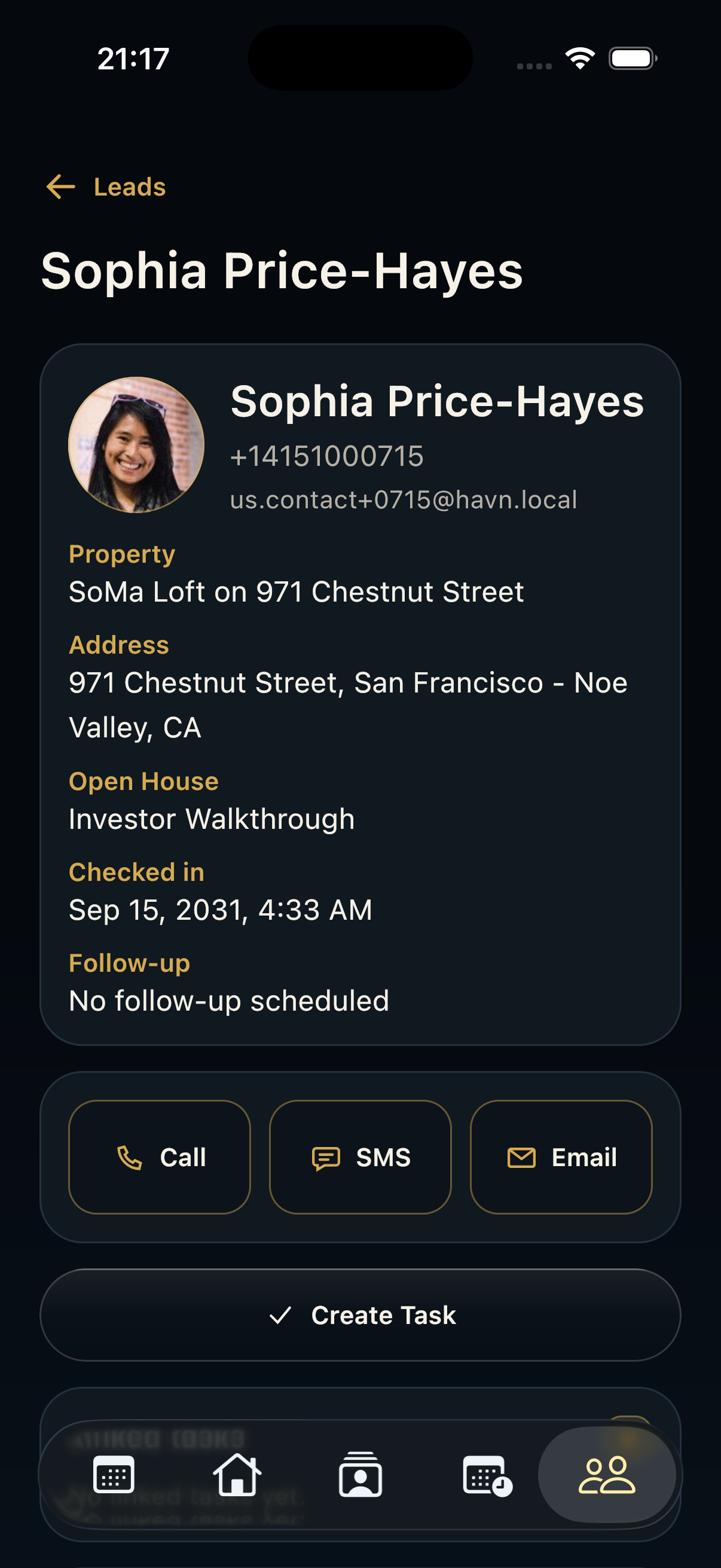
- Open a contact row to review profile photo, full name, phone, email, wallet pass or QR pass, comments, openings, and linked tasks.
- Add a contact manually when a visitor cannot use kiosk or QR sign-in.
- Use Contact detail for Send QR, Call, SMS, Email, Create task, comments, edit, or delete actions.
Good to know
- Use one contact record per person so notes, check-ins, leads, and tasks stay traceable.
- Confirm phone and email before sending a QR pass or follow-up.
- Keep comments professional because teammates may use them for future showings and reports.