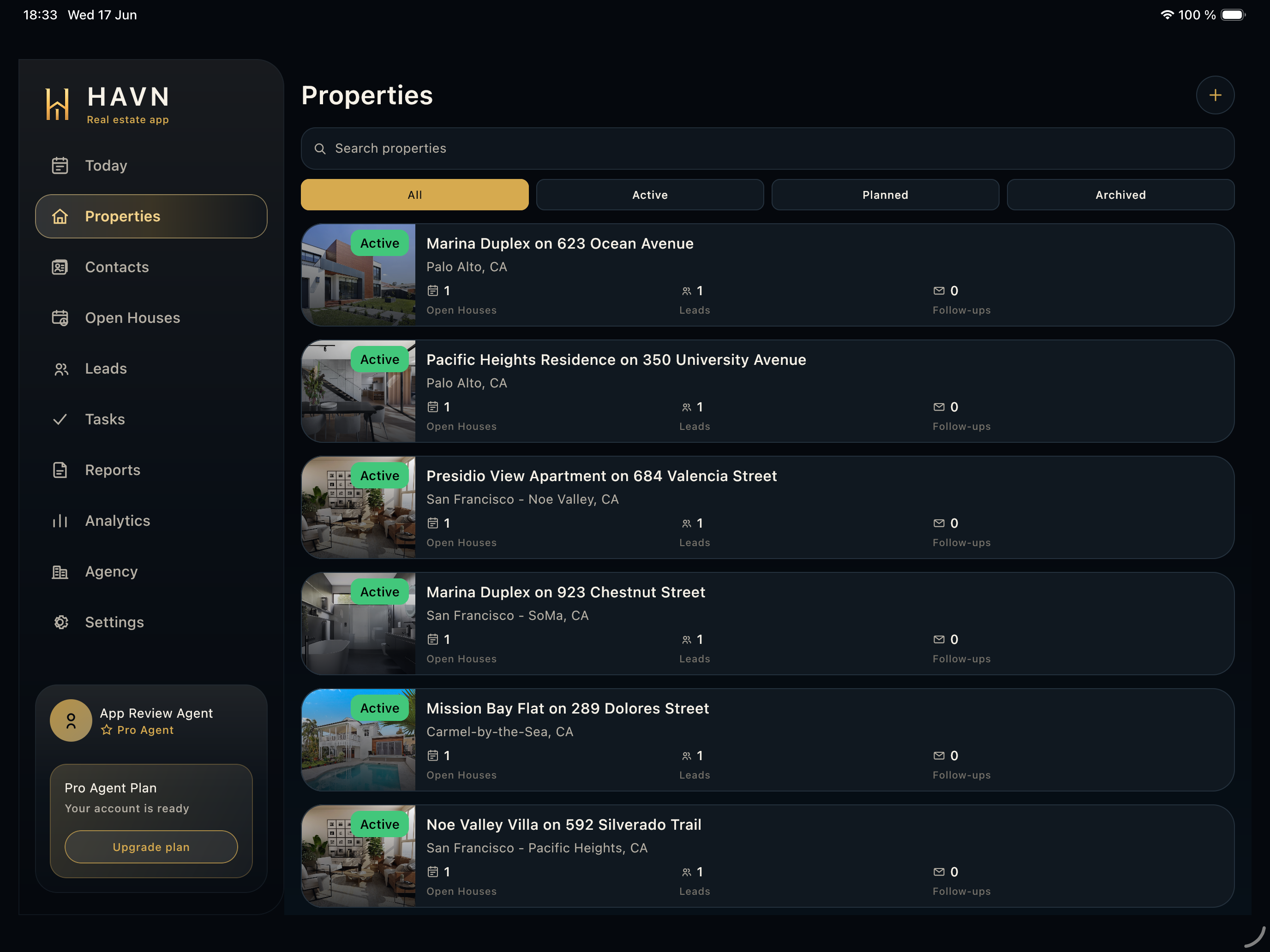
Steps
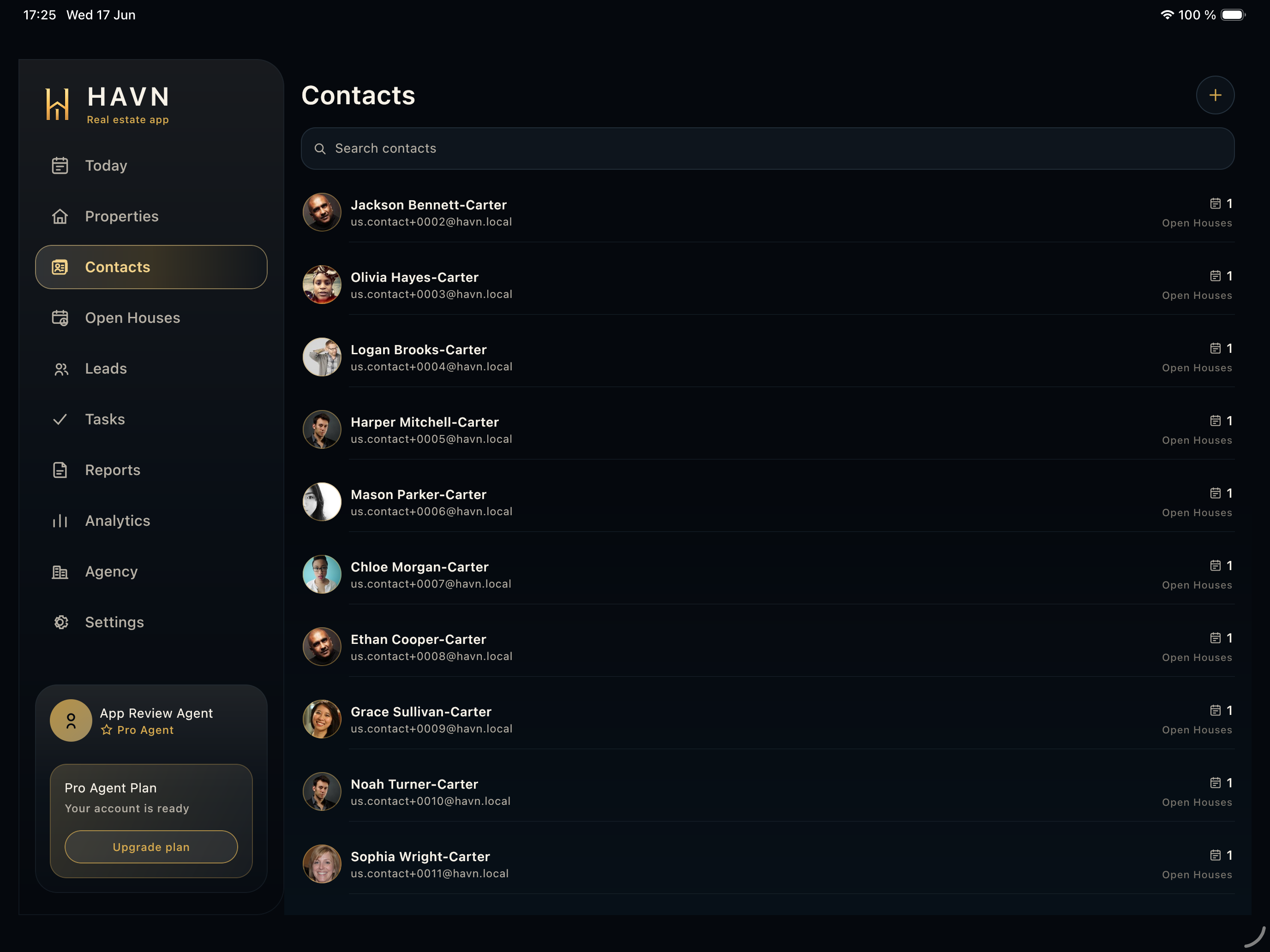
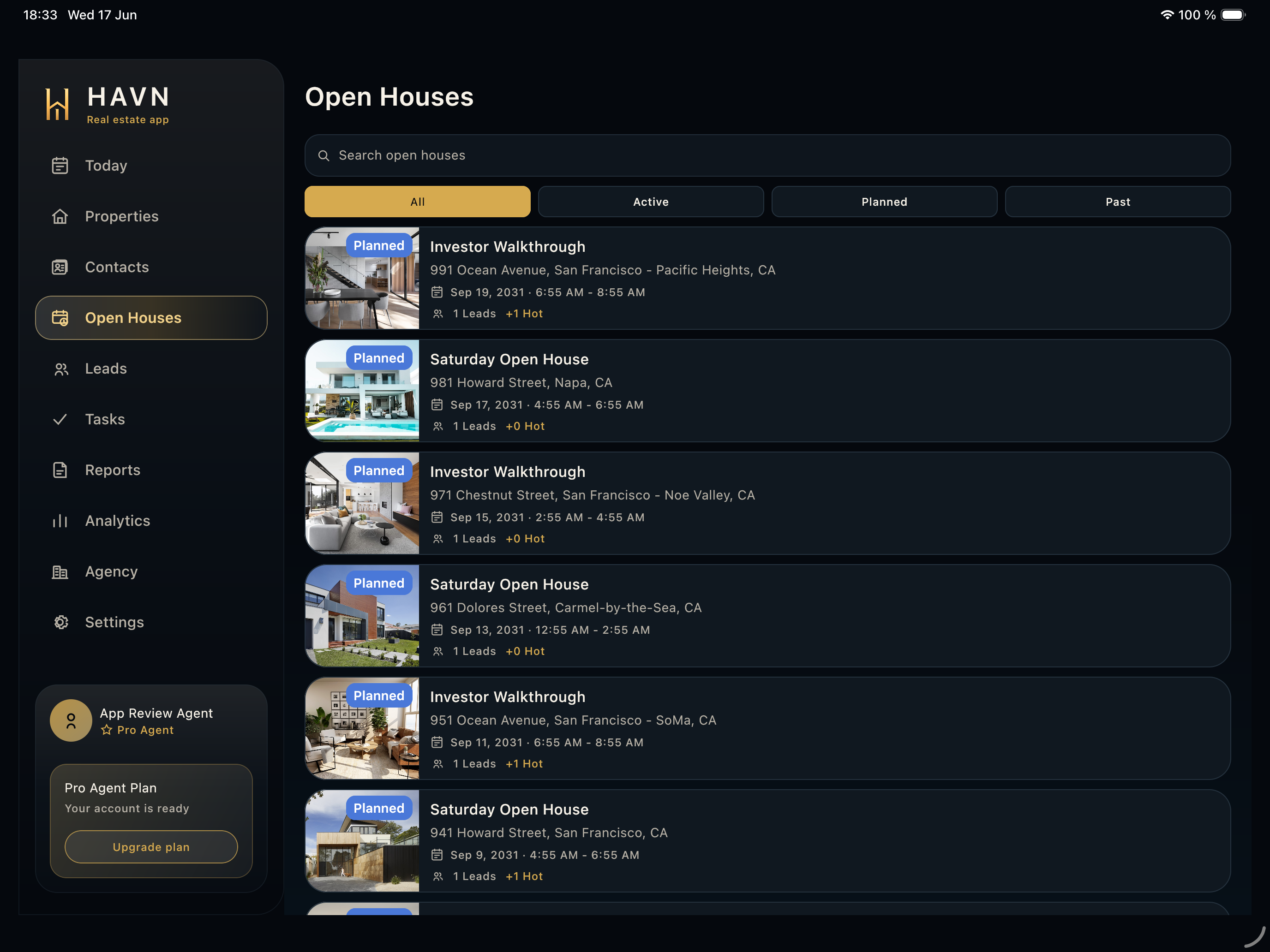
- Search by property title, address, city, or other listing context when the list is long.
- Use status filters such as All, Active, Planned, and Archived to narrow the table or card list.
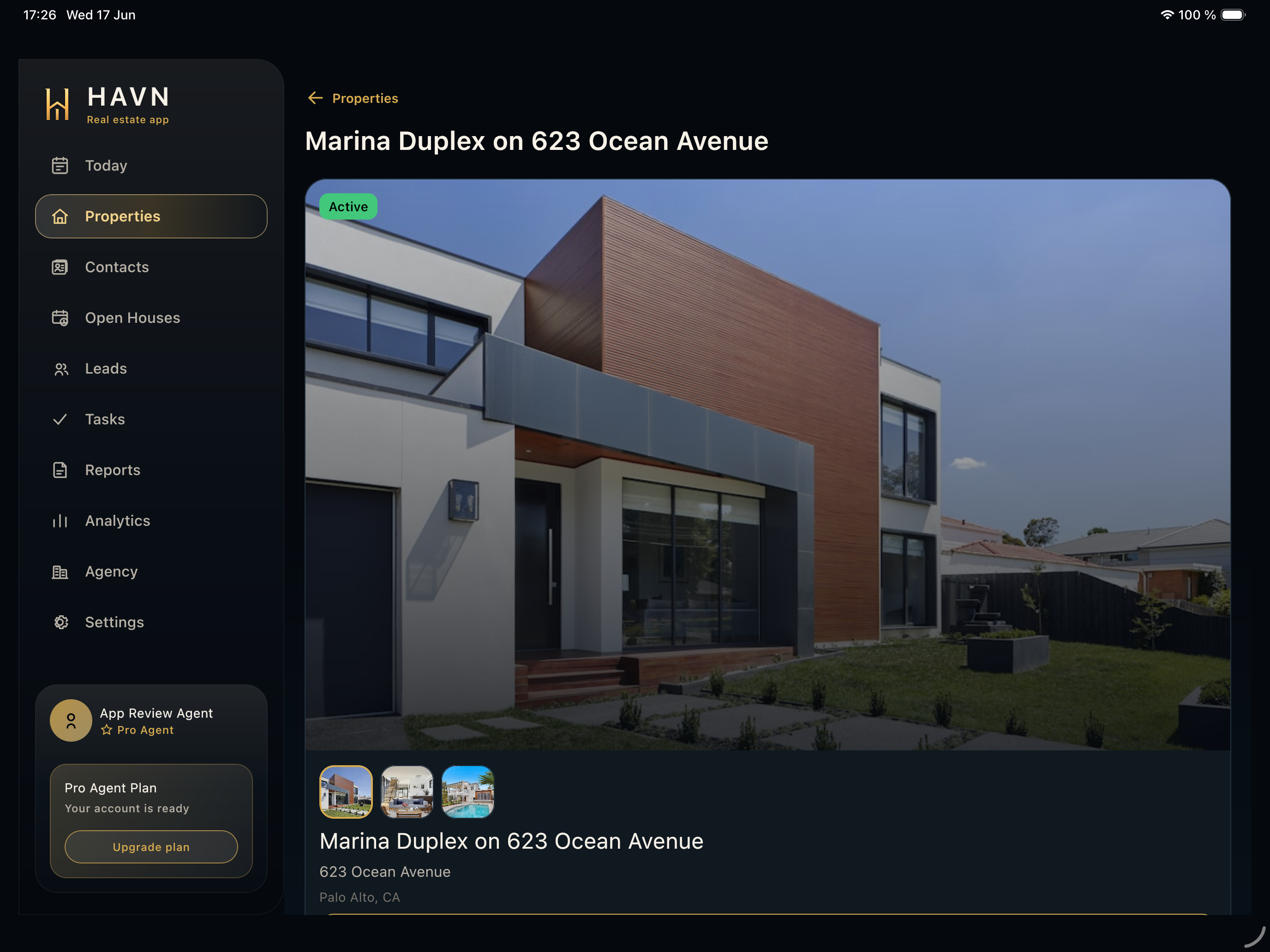
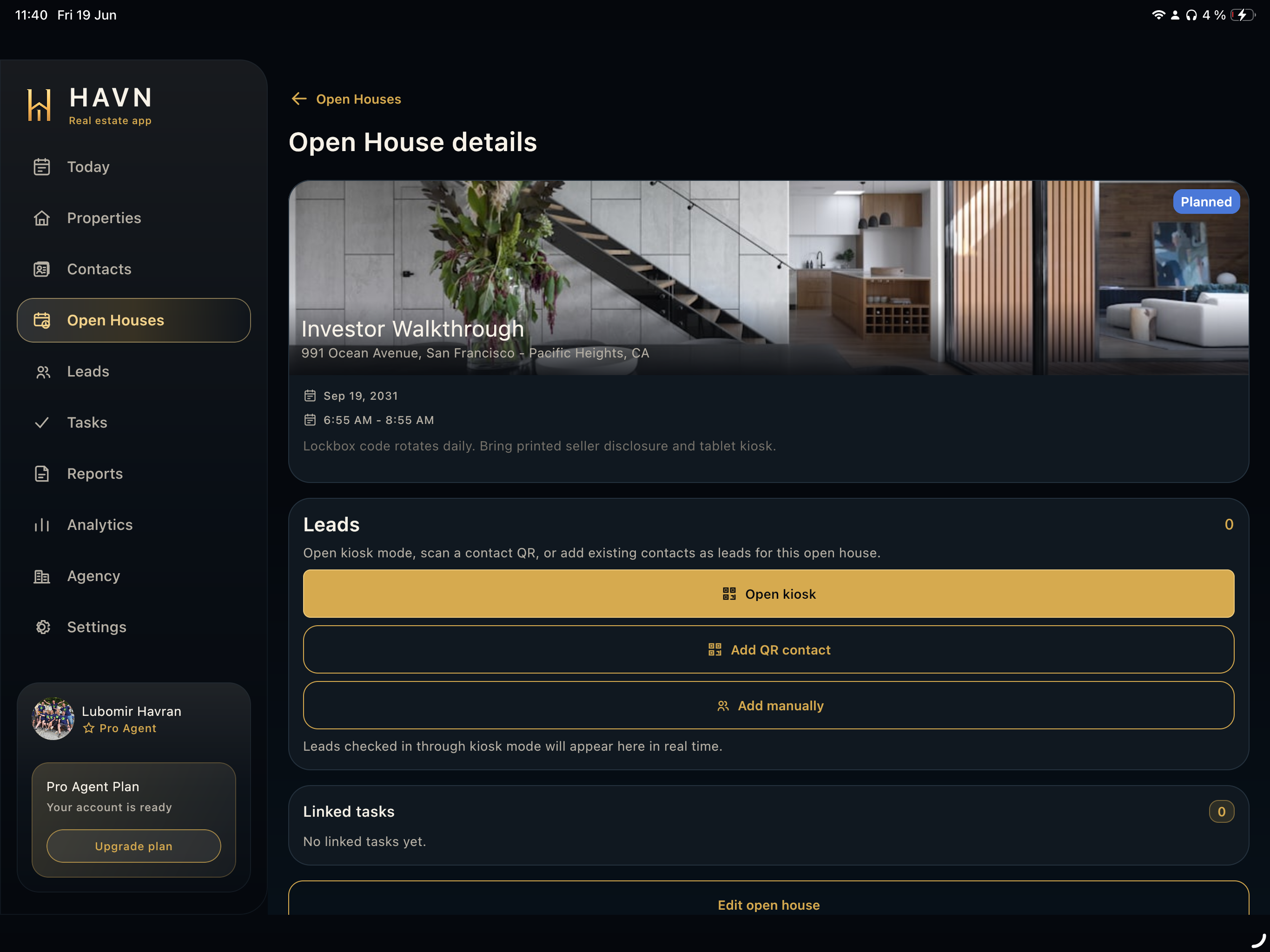
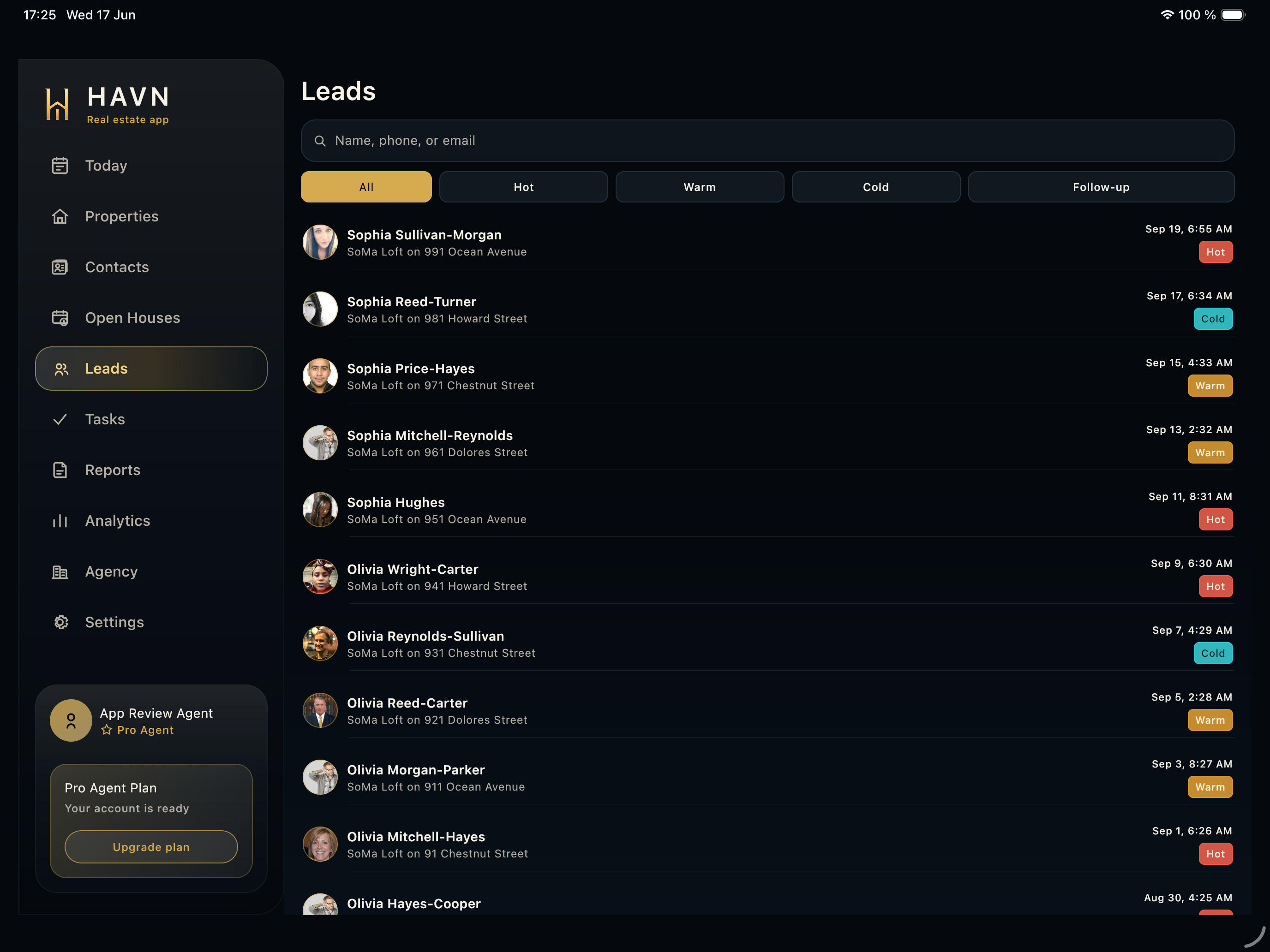
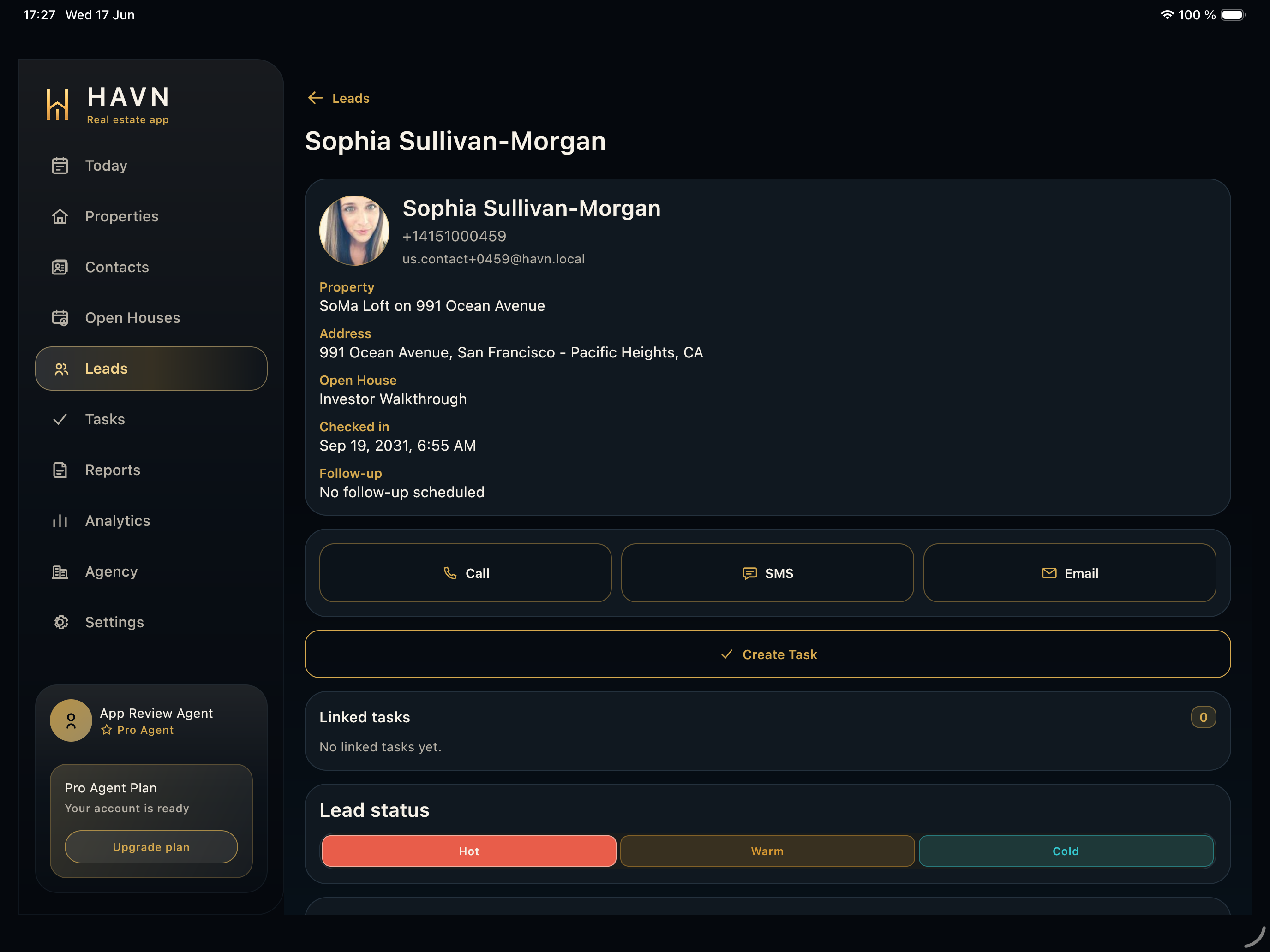
- Open a property row to review photos, status, address, price, property facts, open houses, leads, follow-ups, files, tasks, and report context.
- Use the plus action to create a property with address, city, status, price, facts, photos, owner contact, notes, and team access when available.
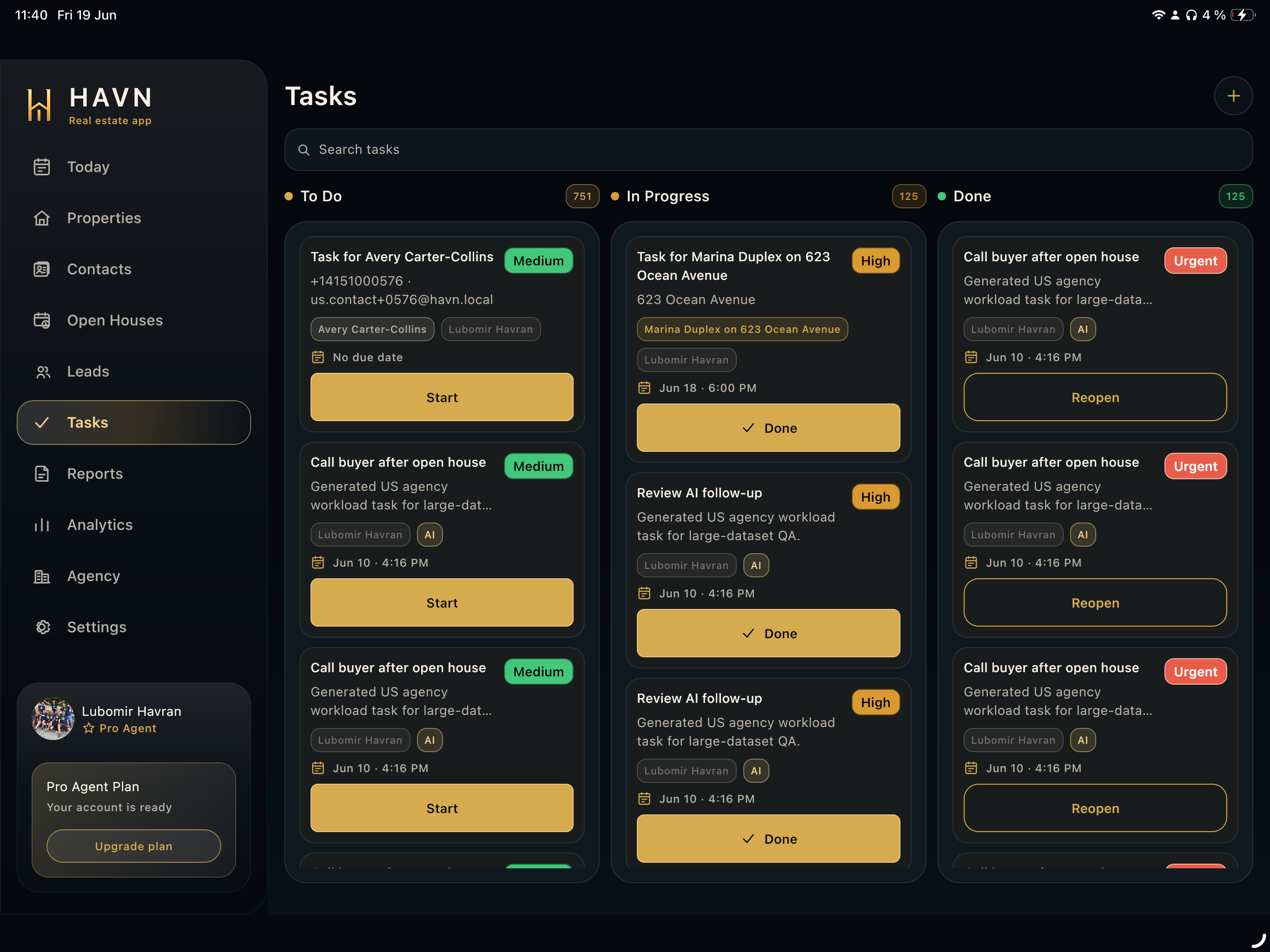
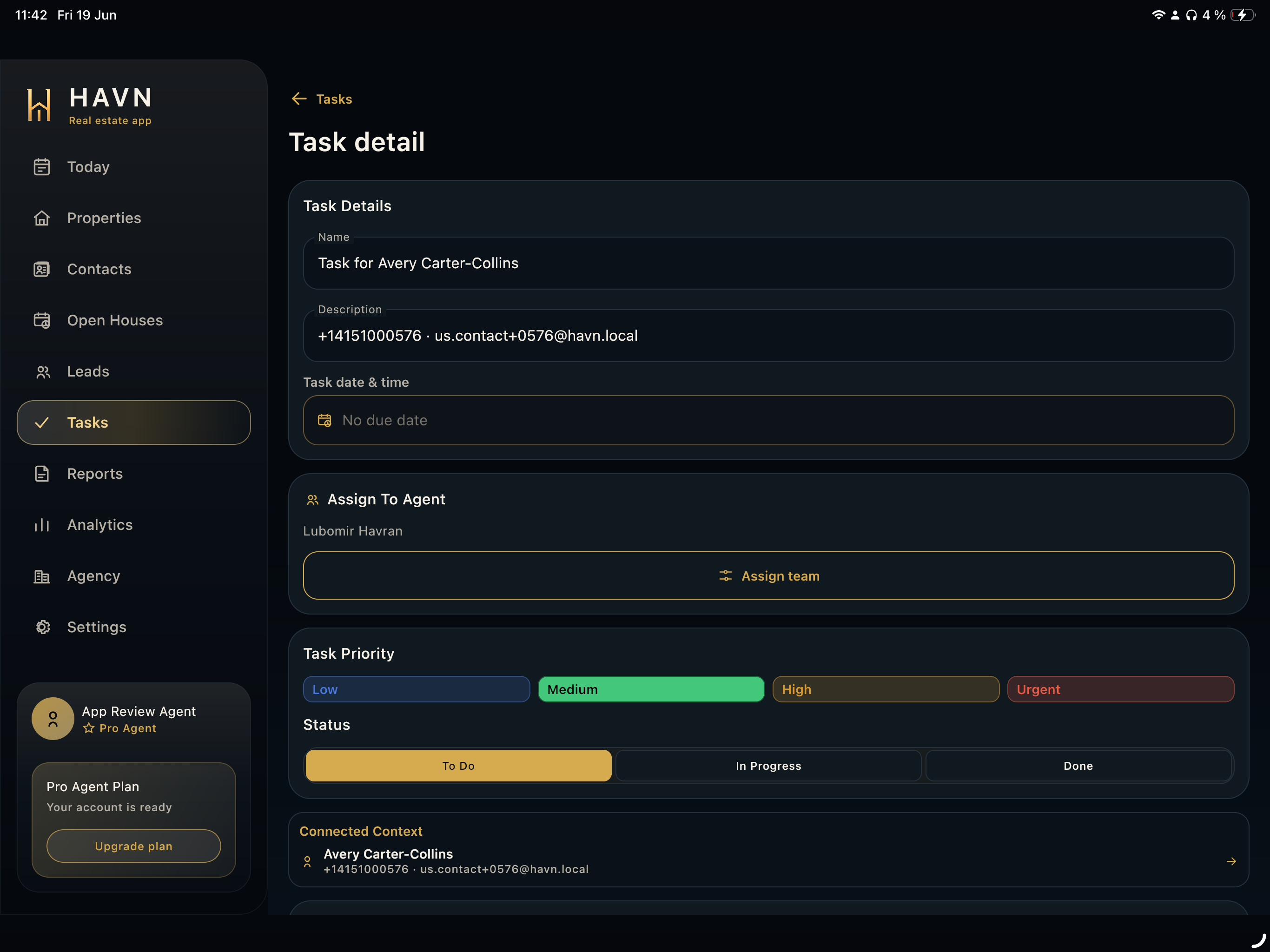
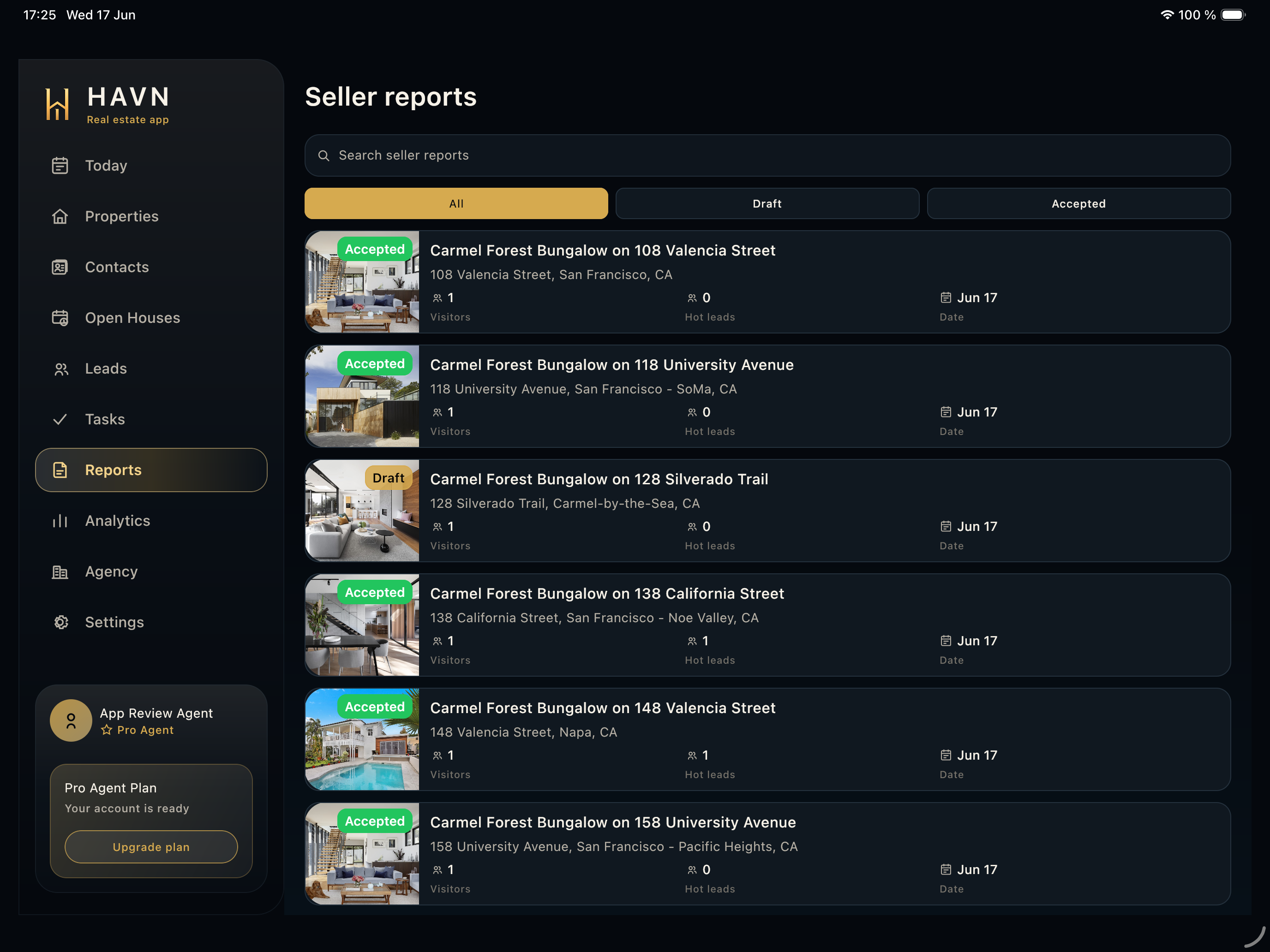
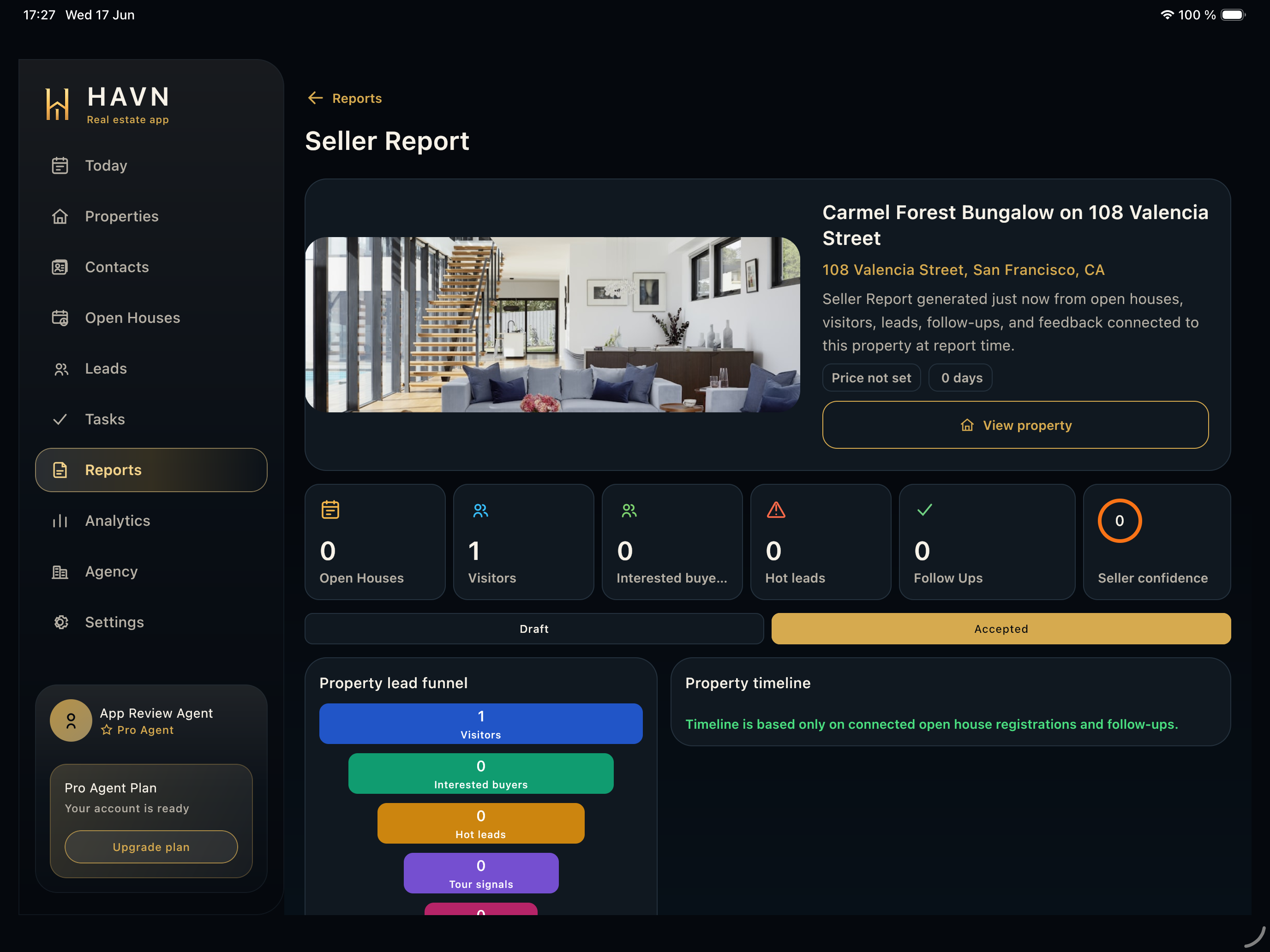
- Use property detail actions to schedule an open house, create a task, attach files, generate a seller report, edit the listing, or navigate to the address.
Good to know
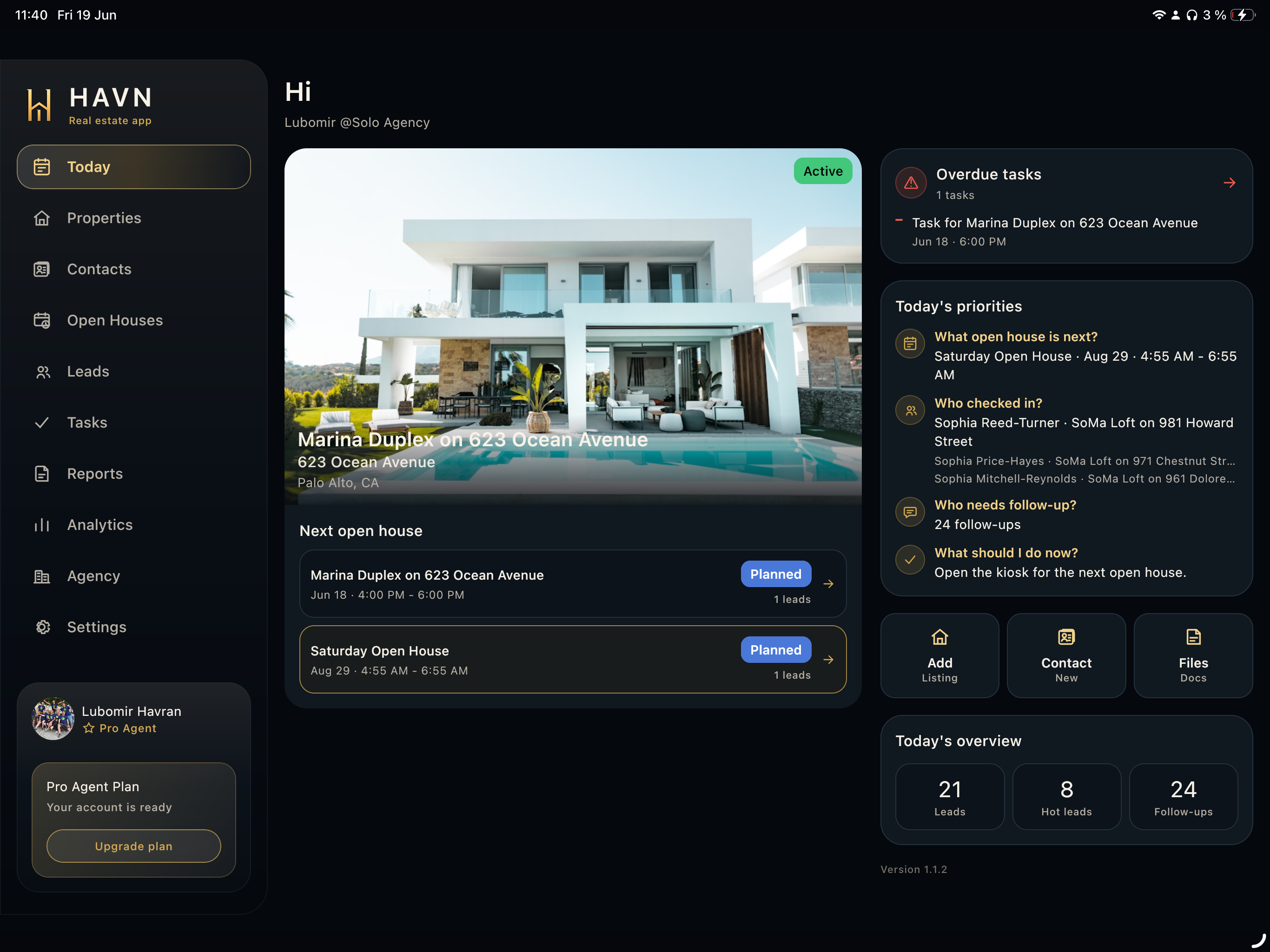
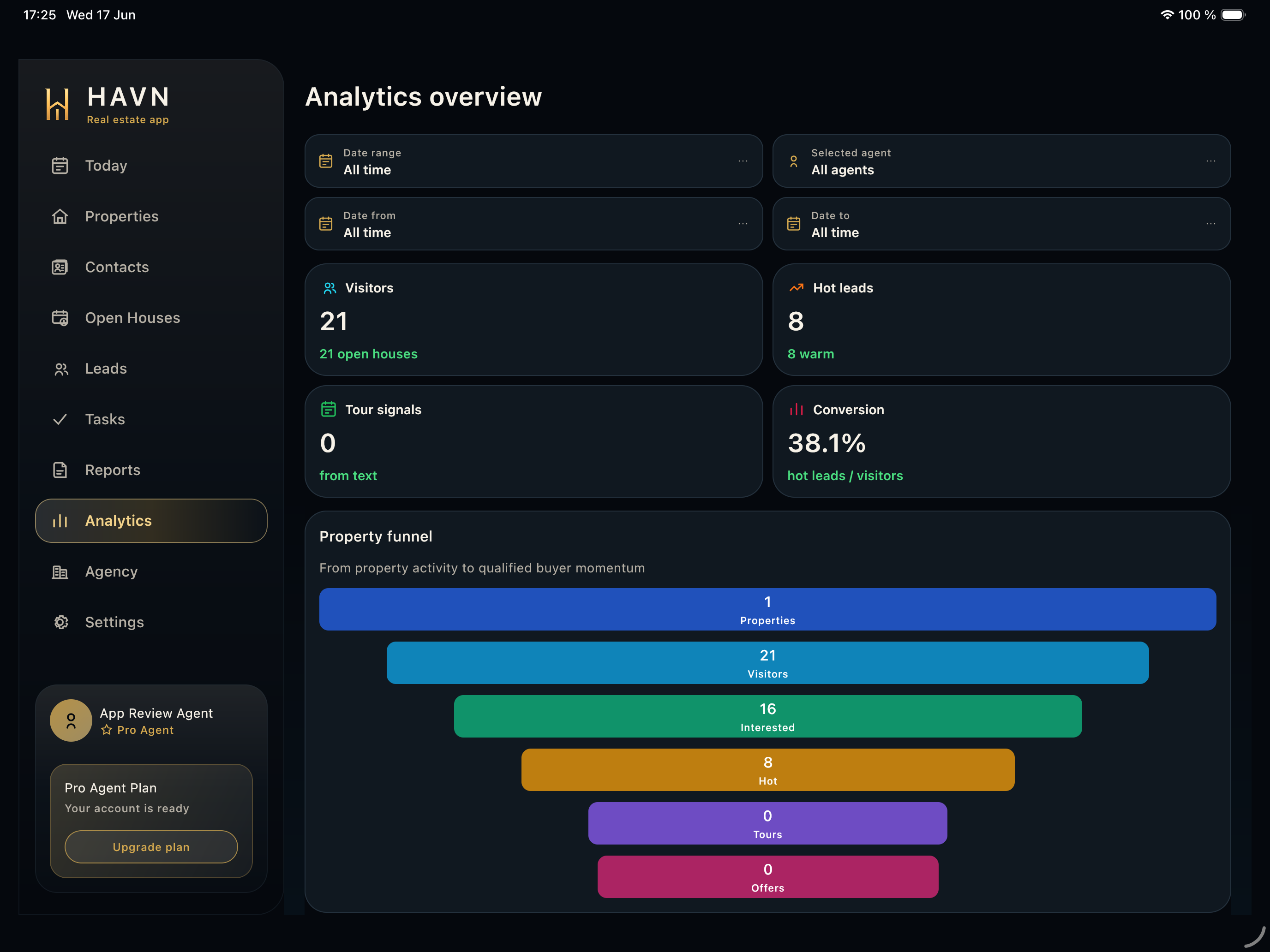
- Property data is reused by kiosk sign-in, lead records, seller reports, analytics, and Today, so keep listing details clean.
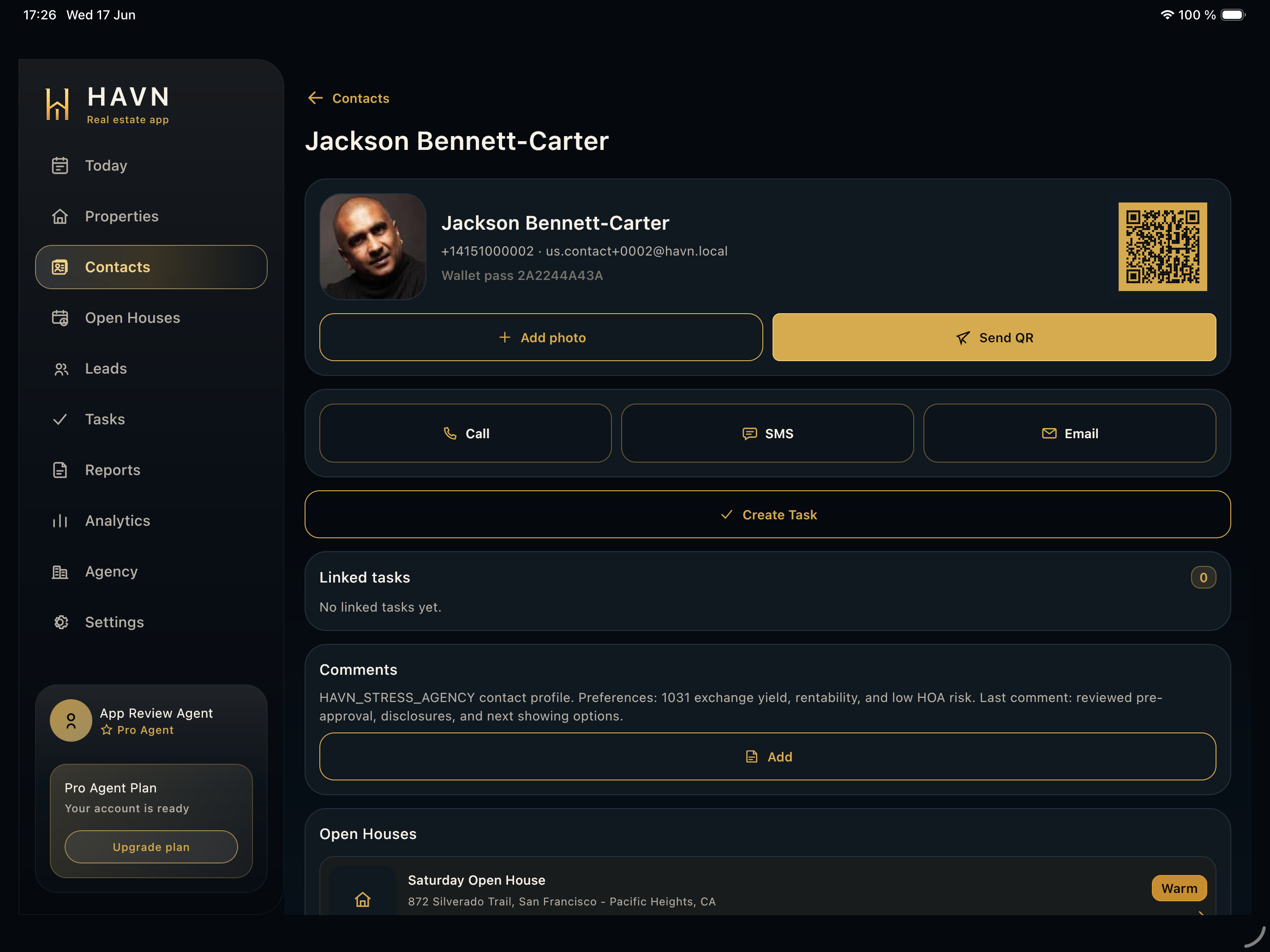
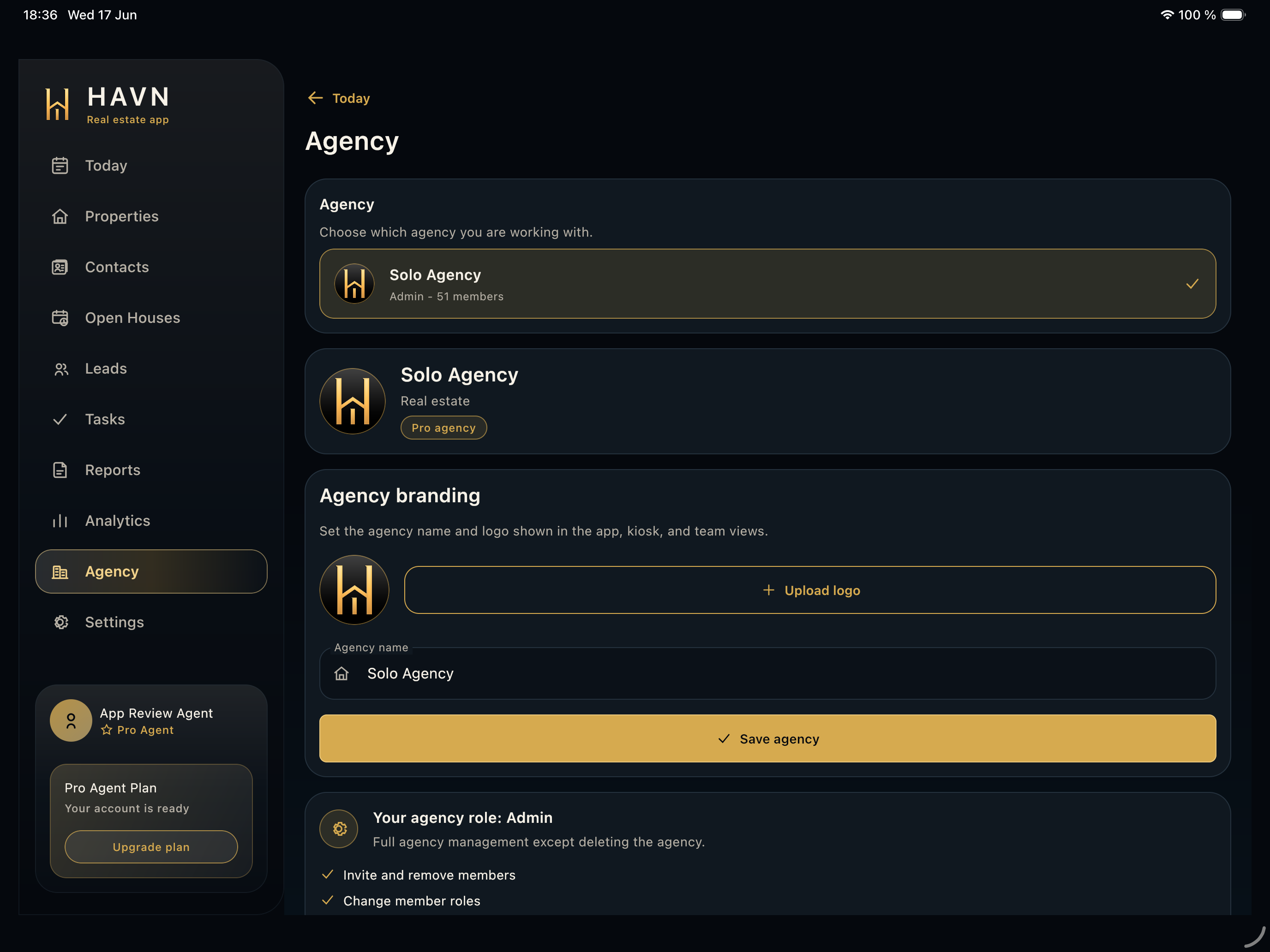
- Confirm owner and team access before assigning follow-up or generating seller-facing material.
- Set the right hero photo because Today, reports, and list rows use property photos heavily.