Steps
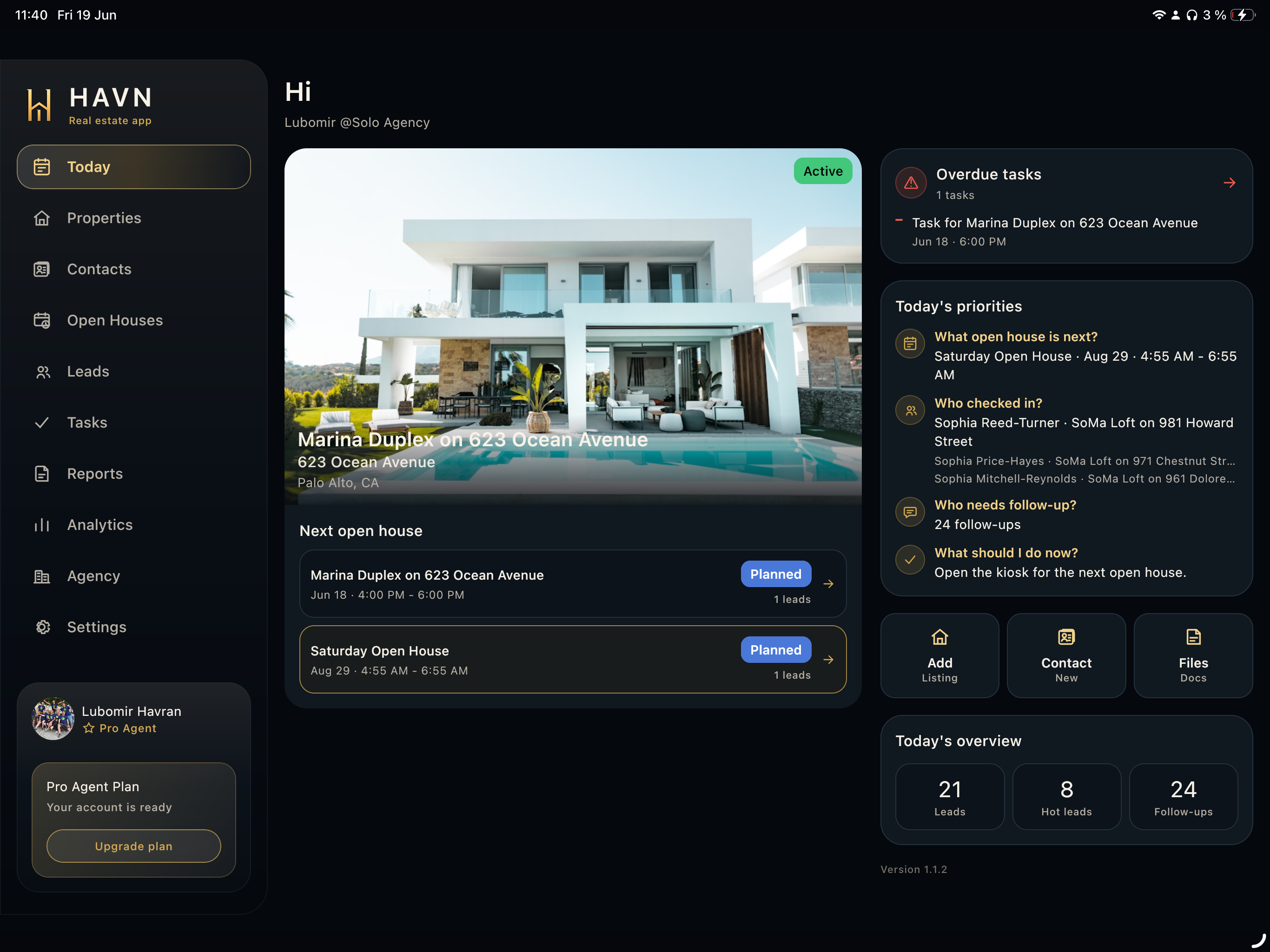
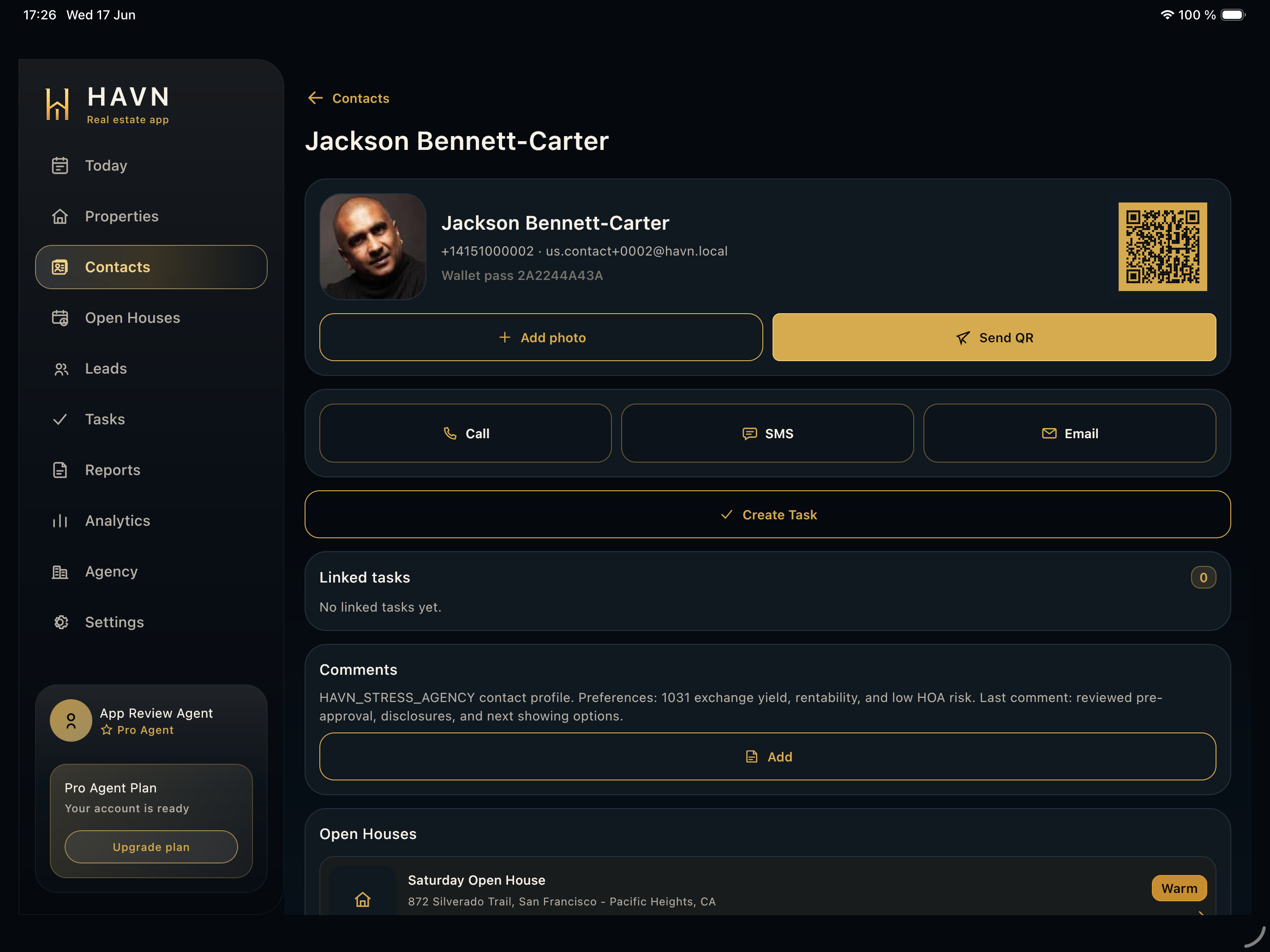
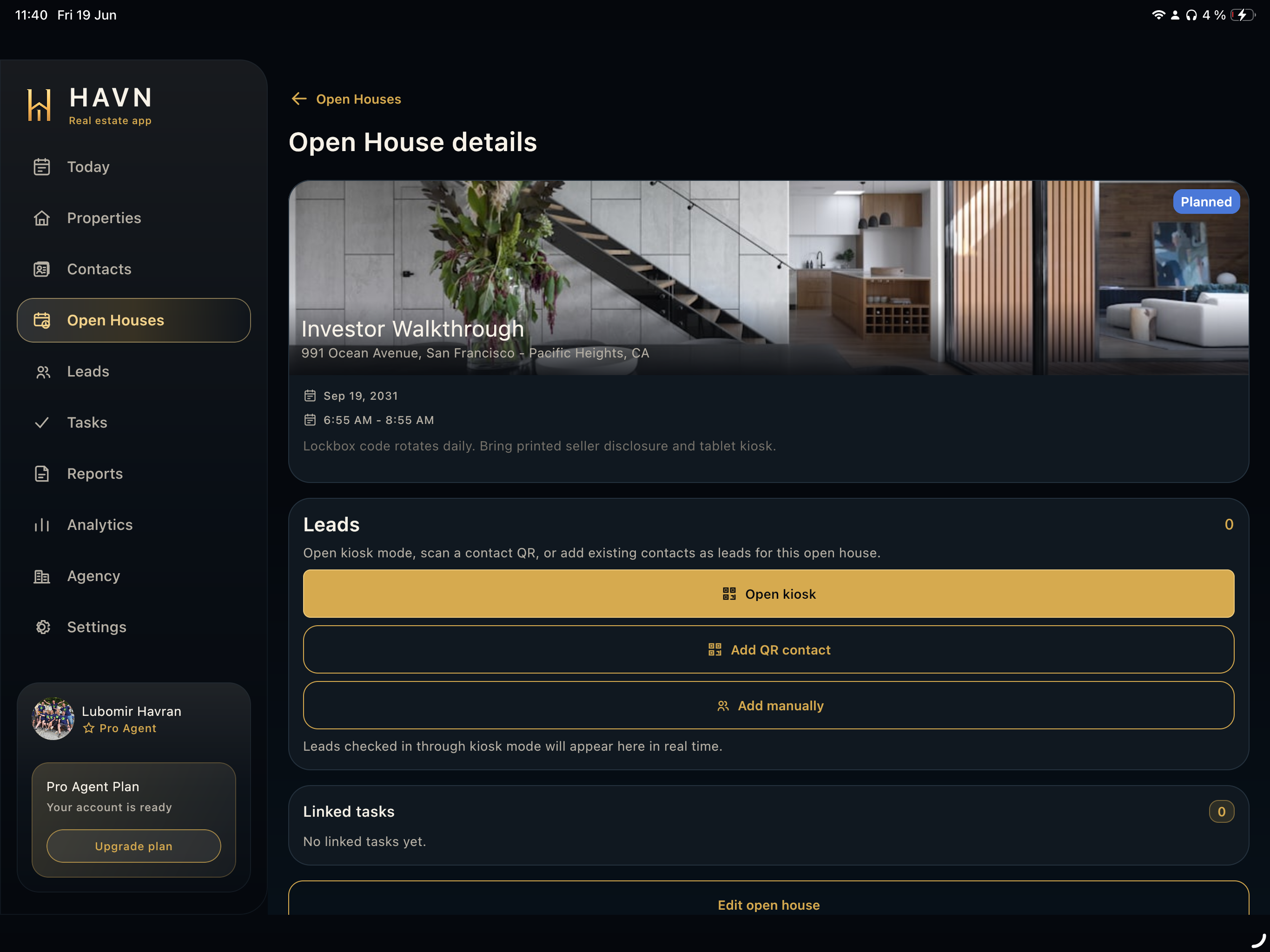
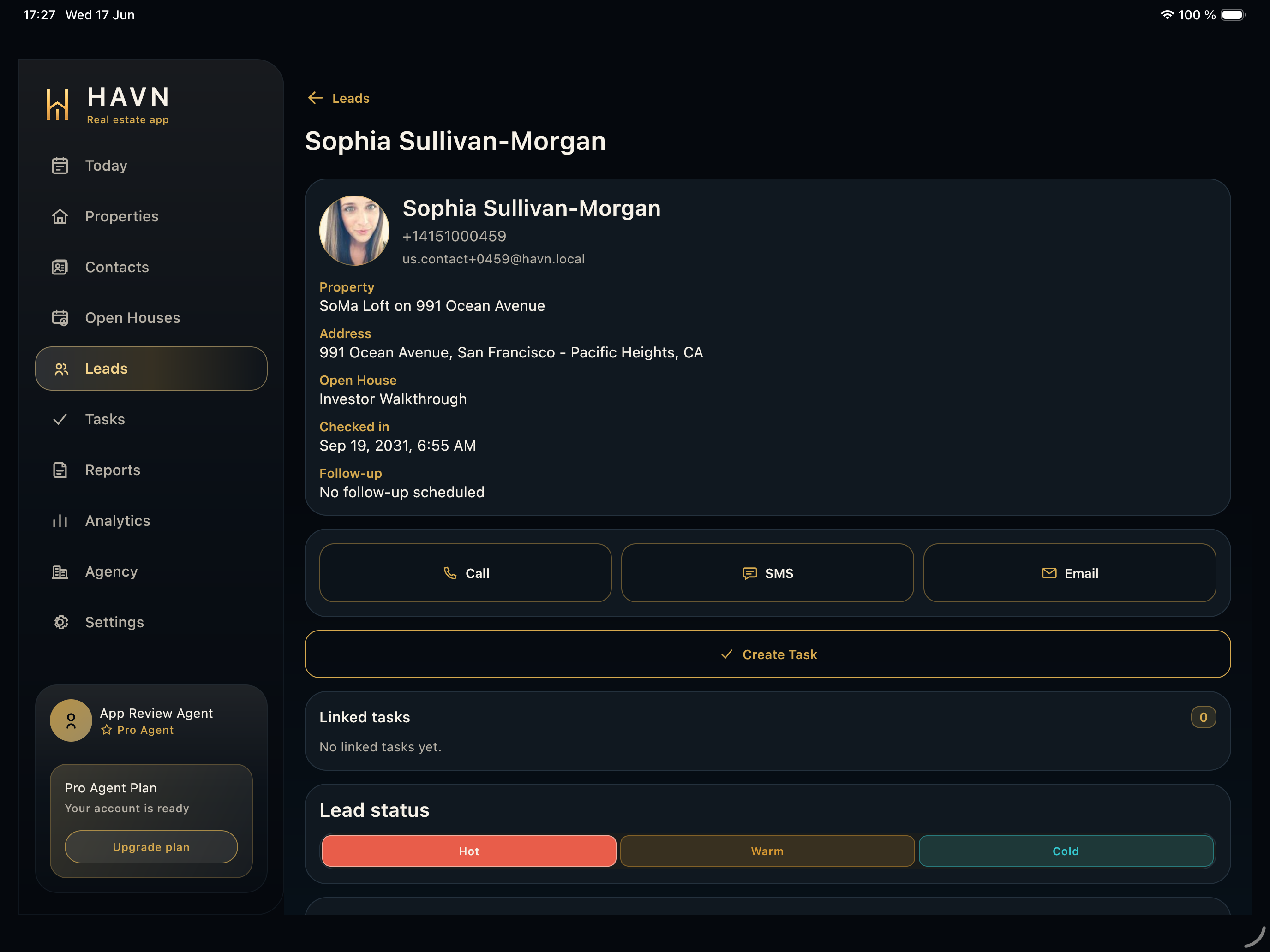
- Open Tasks from the sidebar, rail, Today action, or a connected contact, lead, property, or open-house detail.
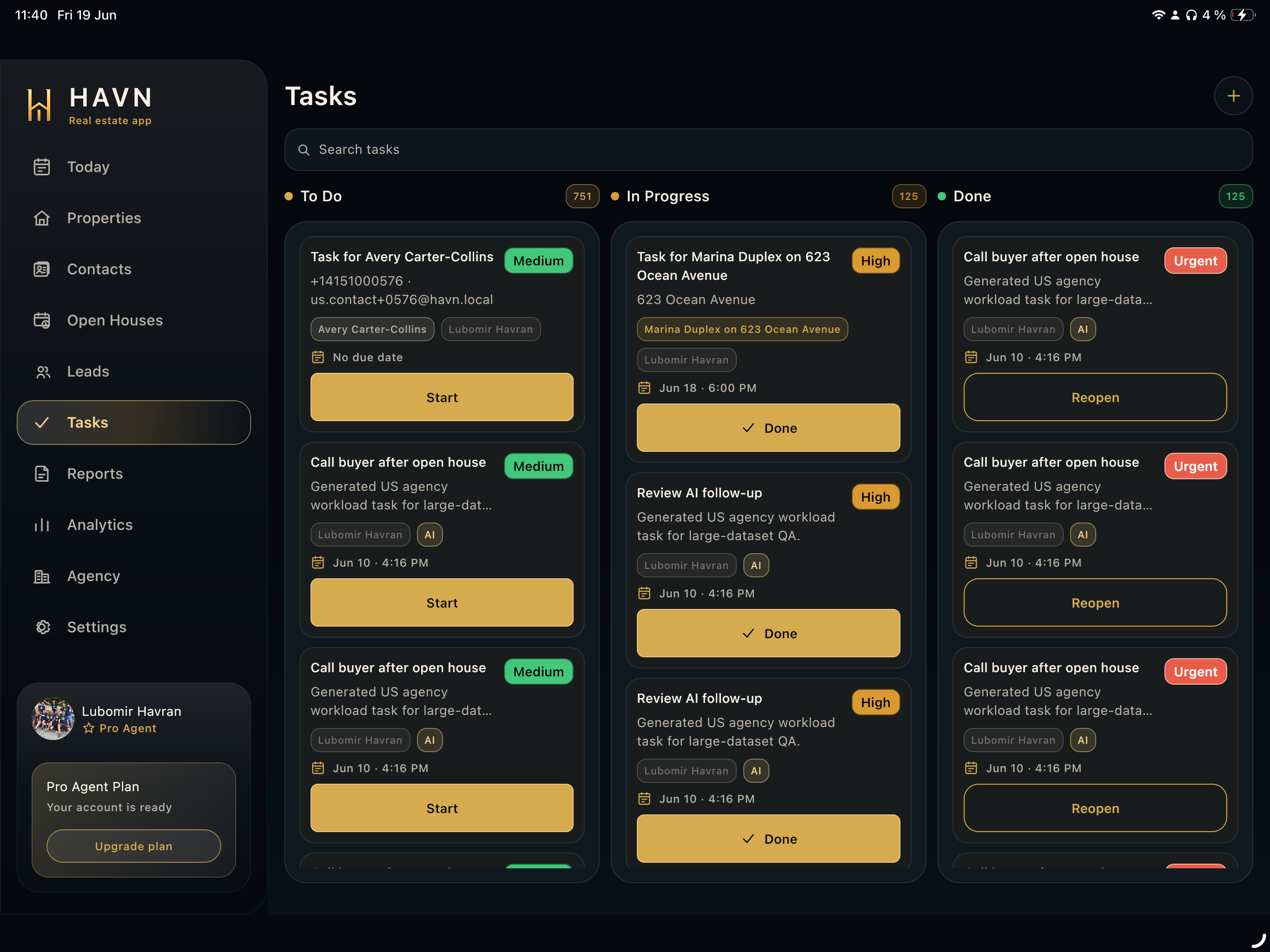
- Search tasks when the workload is large, then review To Do, In Progress, and Done columns or filters.
- Read each card for title, description, assignee, due date, priority, AI badge, and connected context.
- Use Start, Done, Reopen, or previous/next status actions only when the actual work state changes.
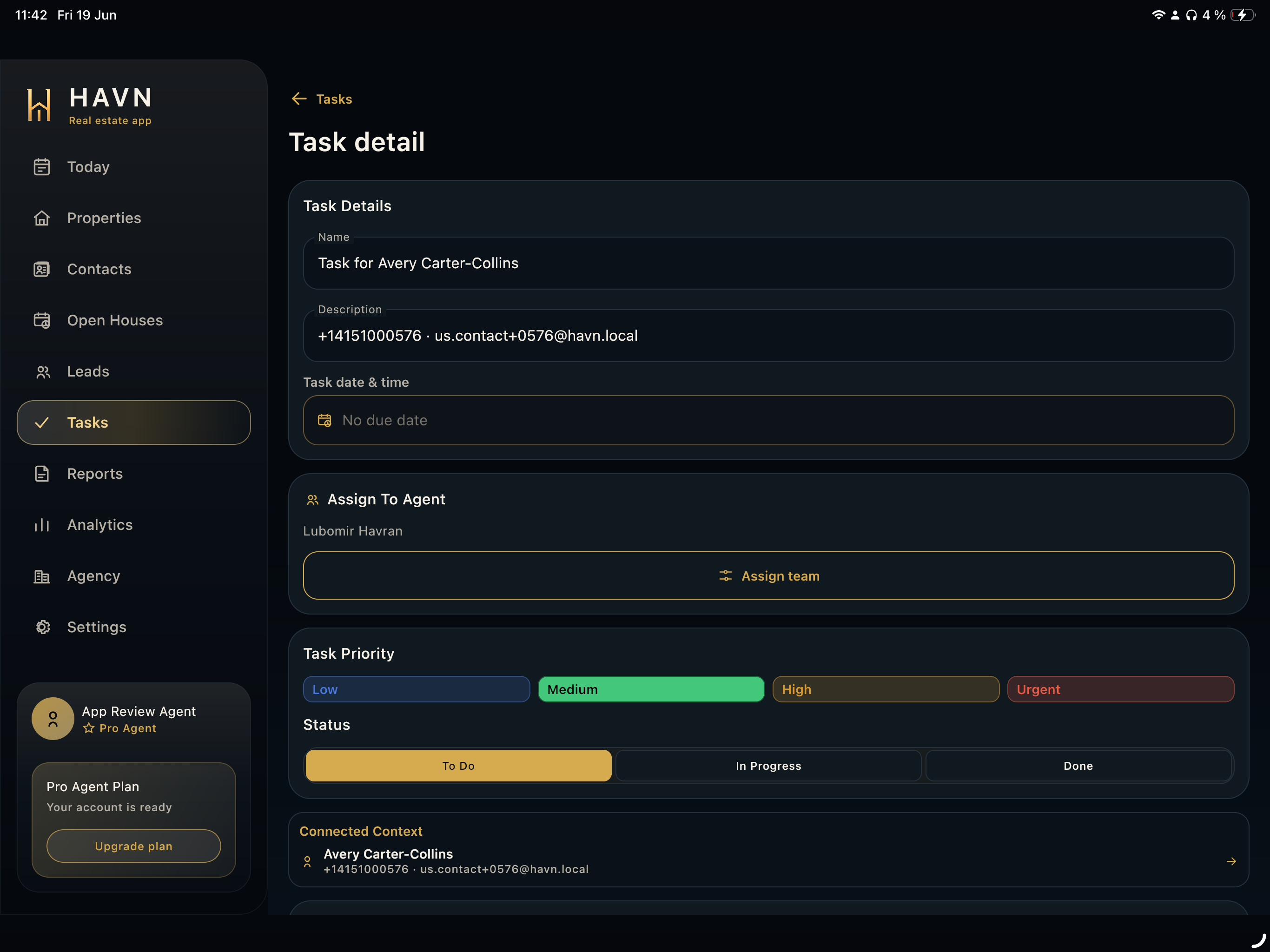
- Open Task detail or the editor to adjust name, description, due date and time, assigned agent, priority, status, visibility, notes, and linked context.
Good to know
- Priorities are Low, Medium, High, and Urgent; use Urgent only for work that truly needs immediate attention.
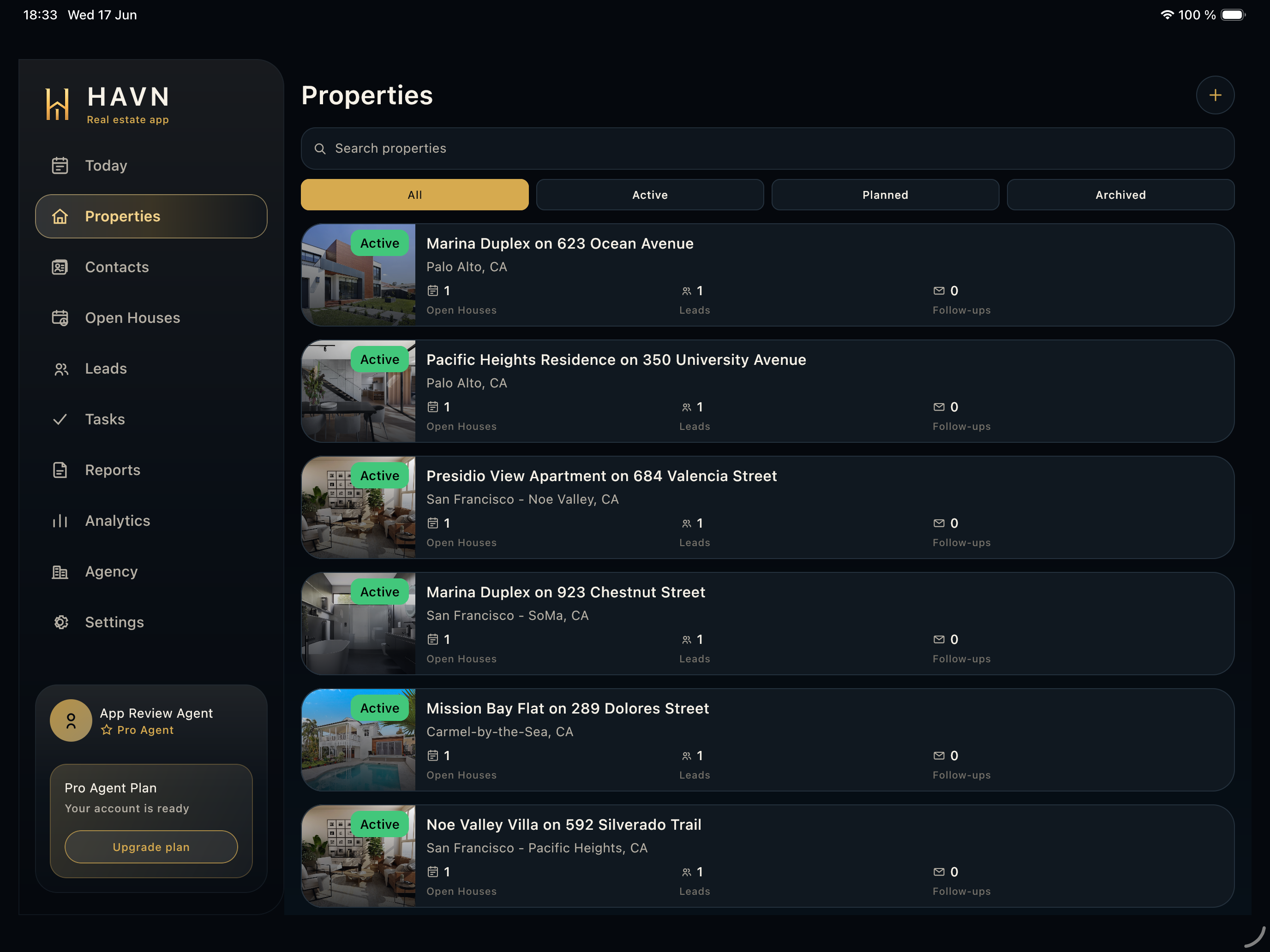
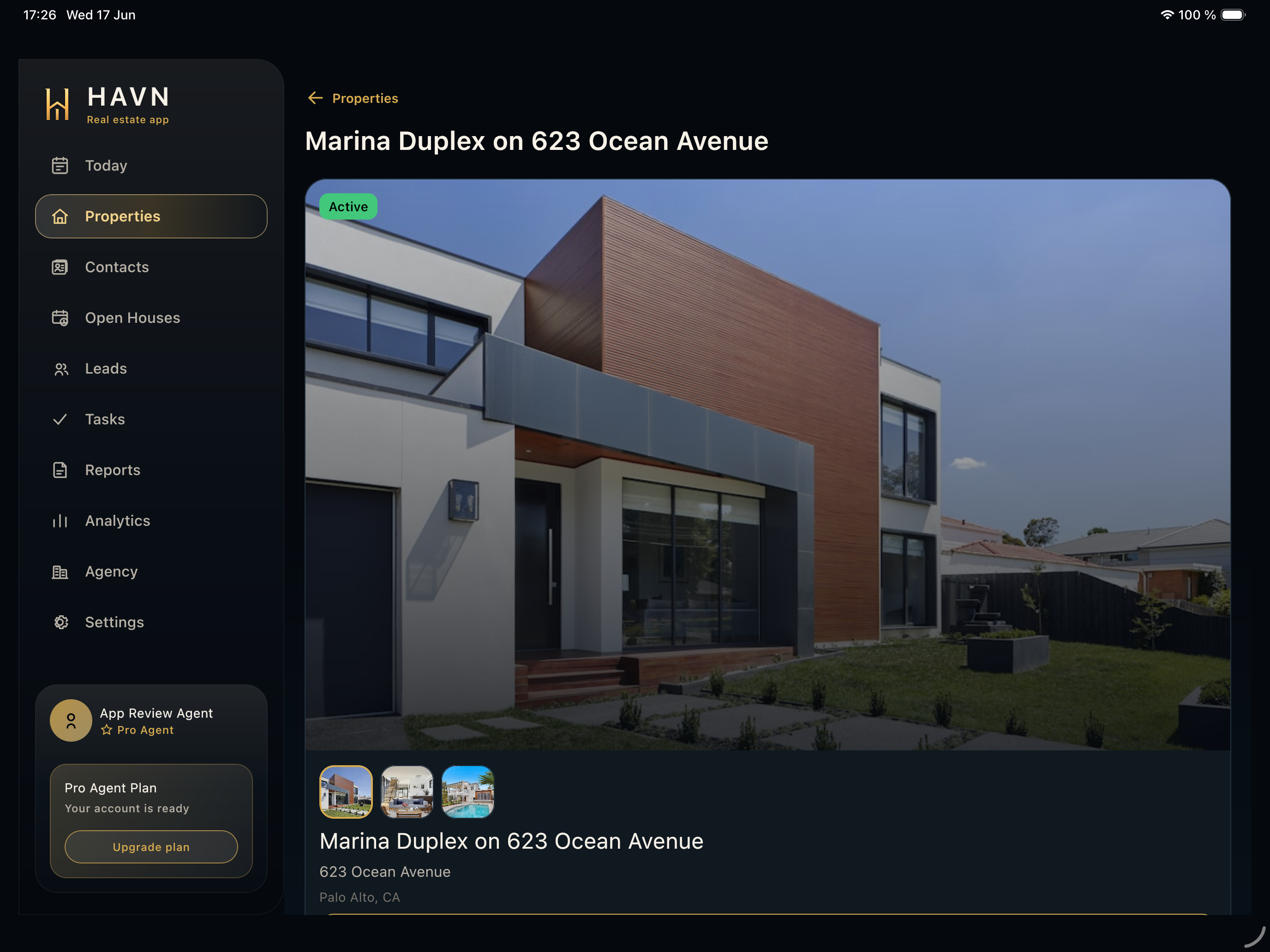
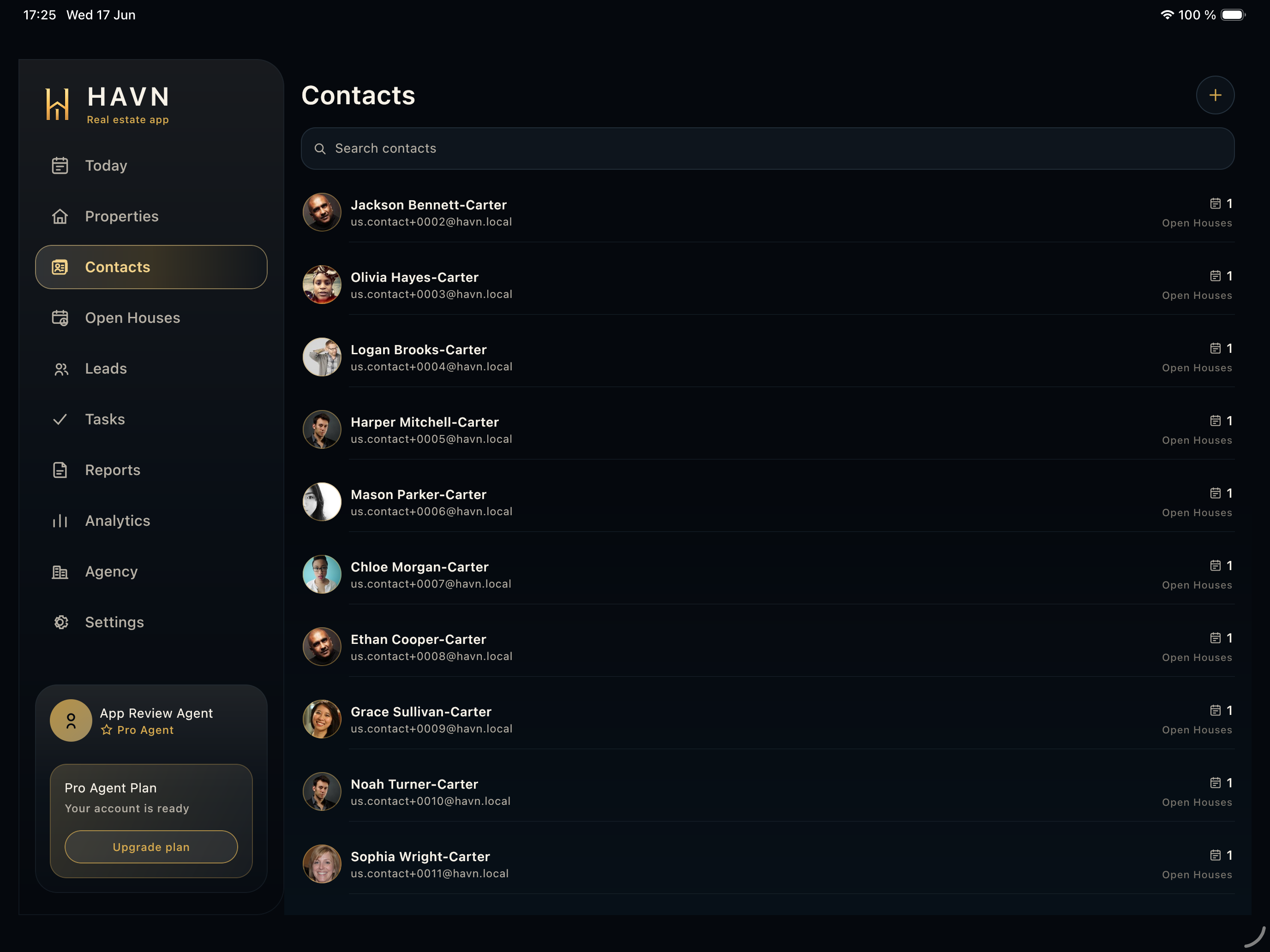
- Tasks are most useful when tied to the right property, contact, lead, or open house.
- AI-suggested tasks should be accepted only after the suggestion matches the real workflow.