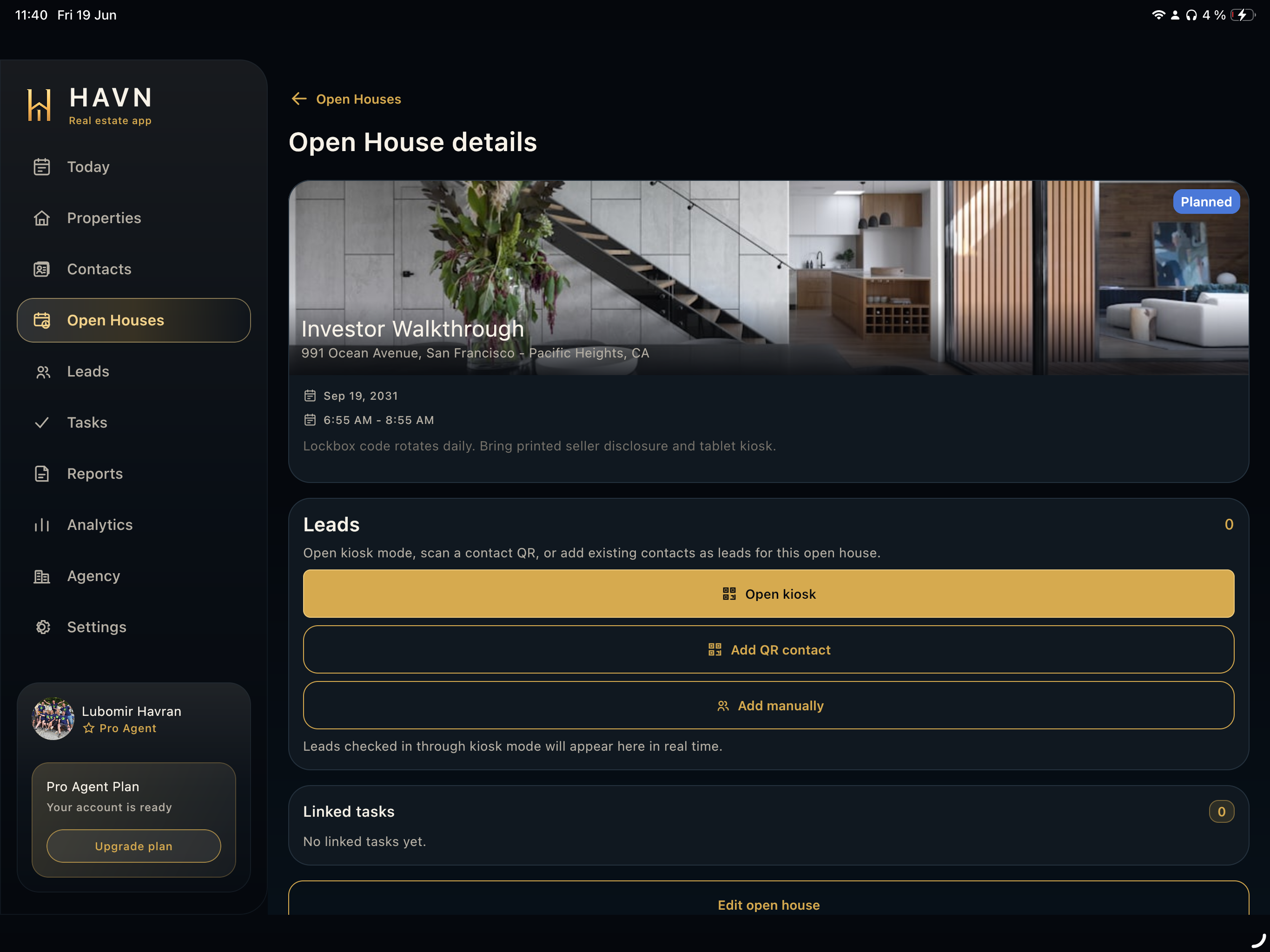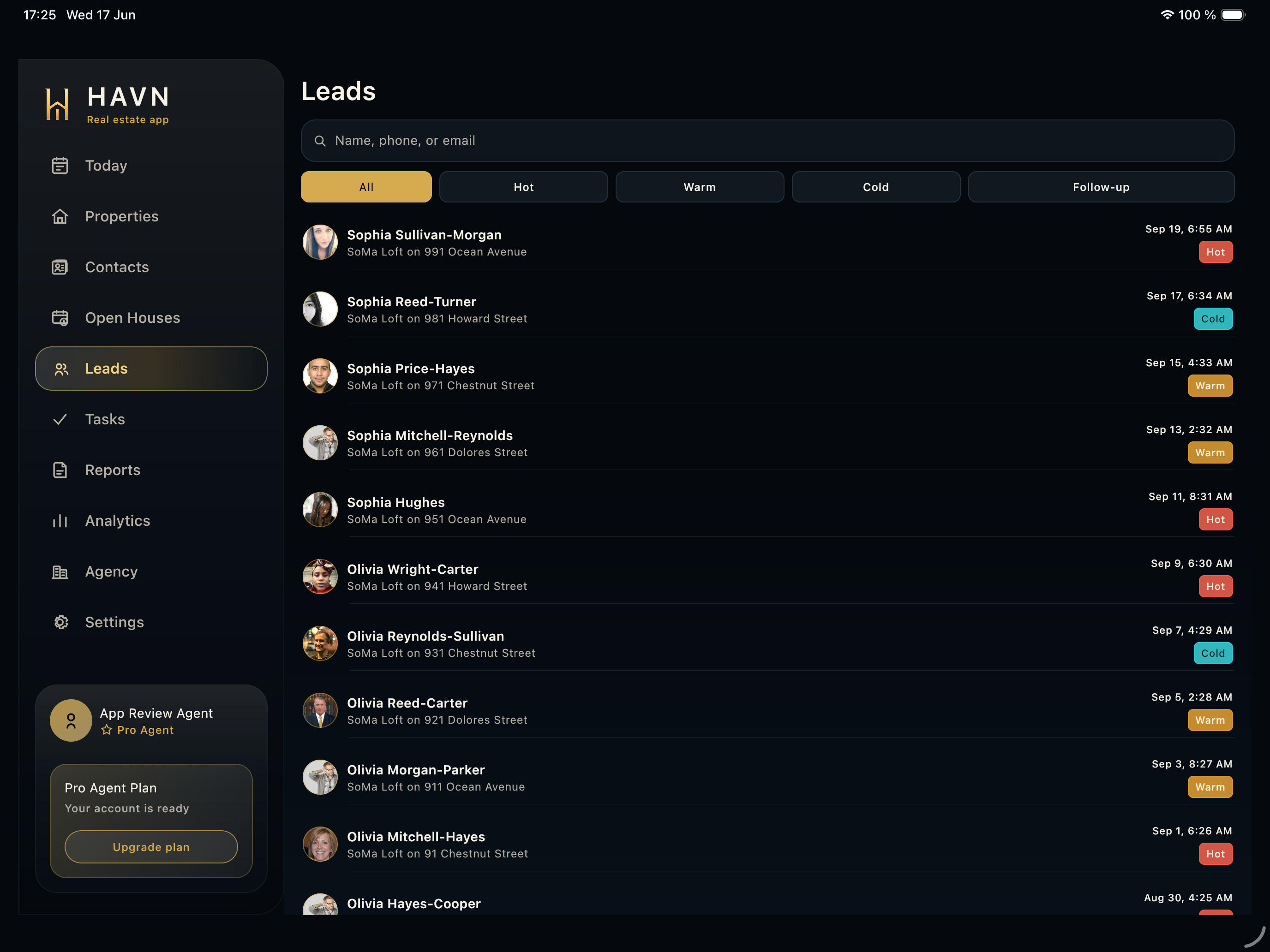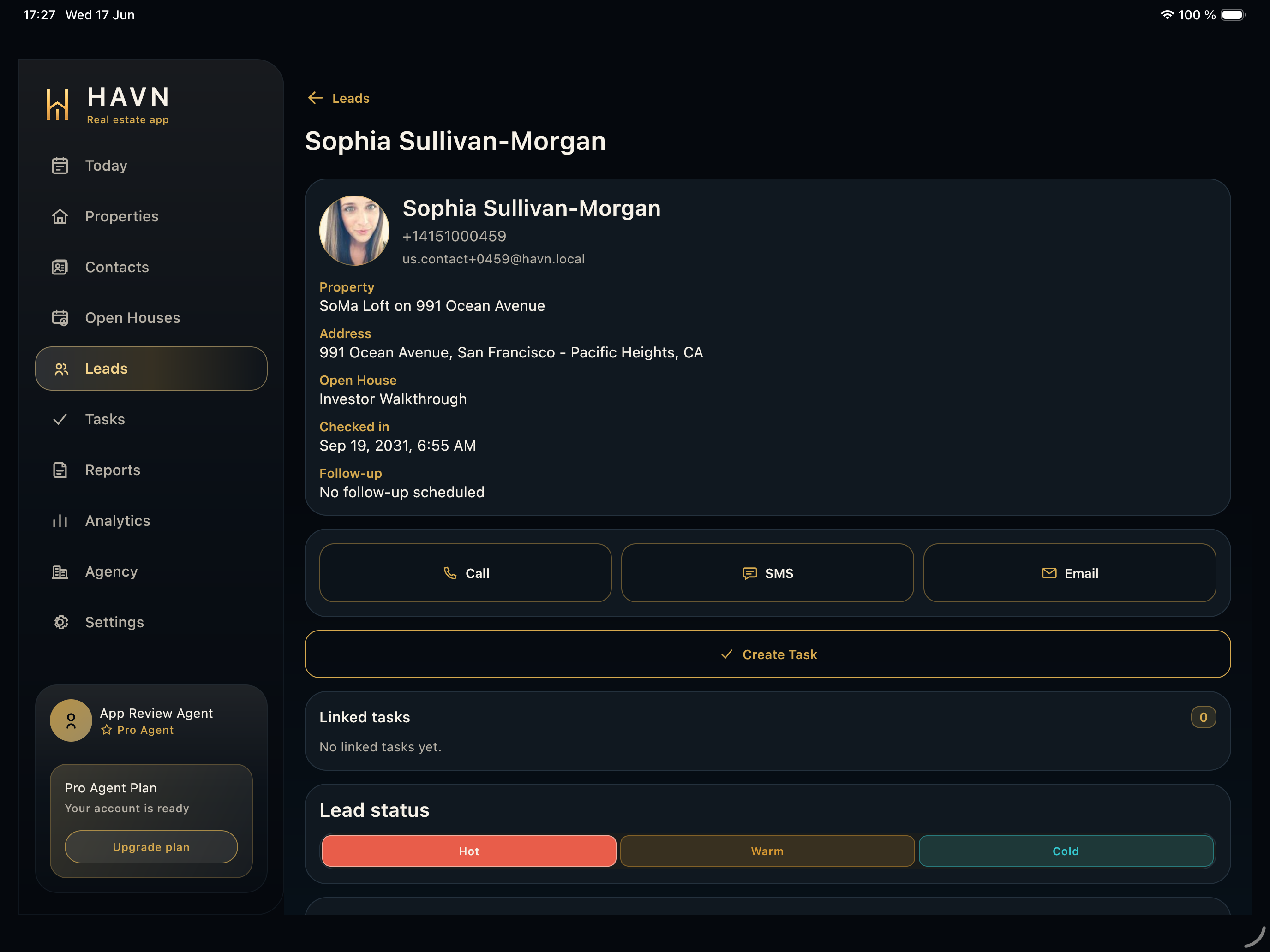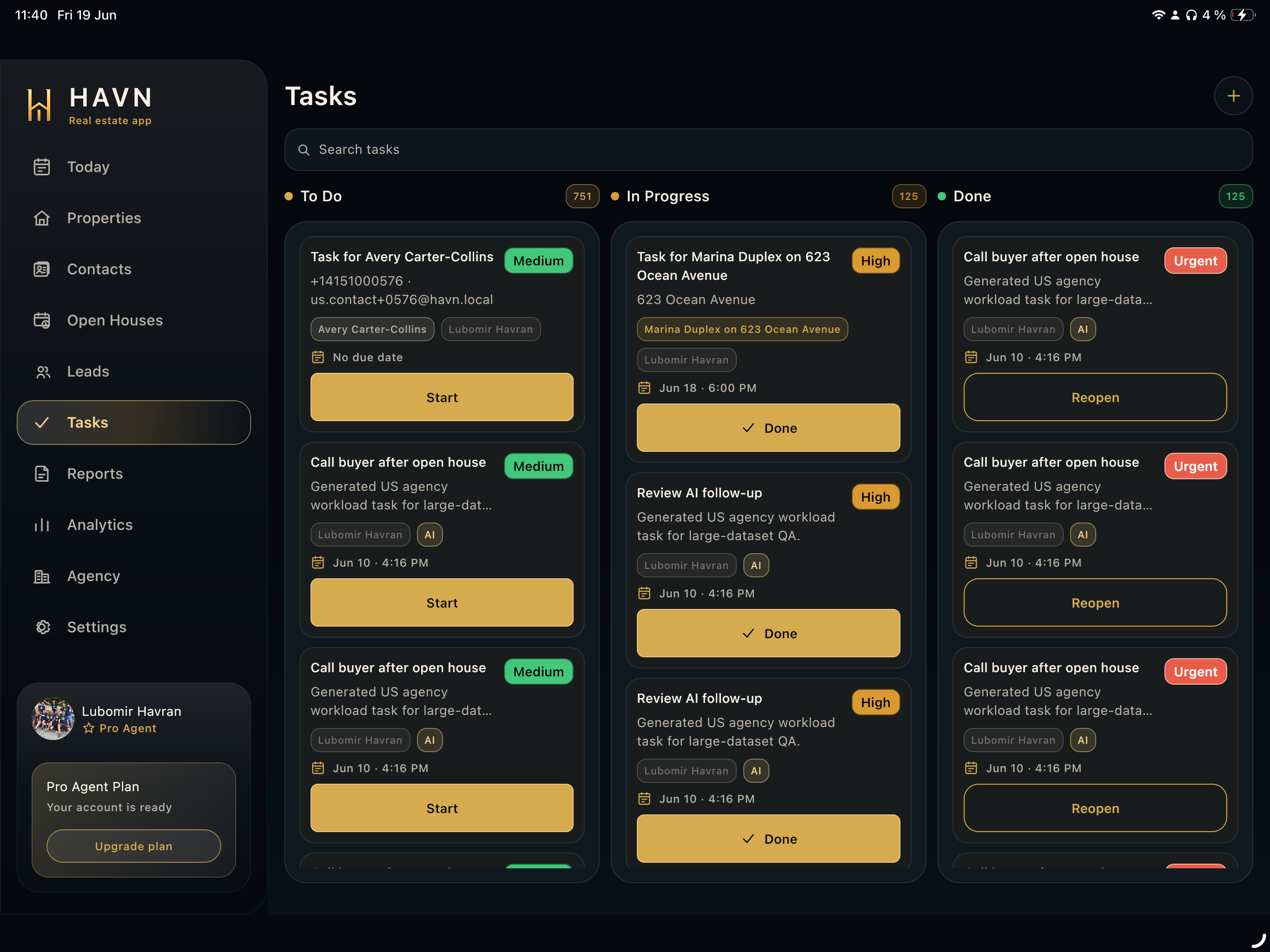
Steps
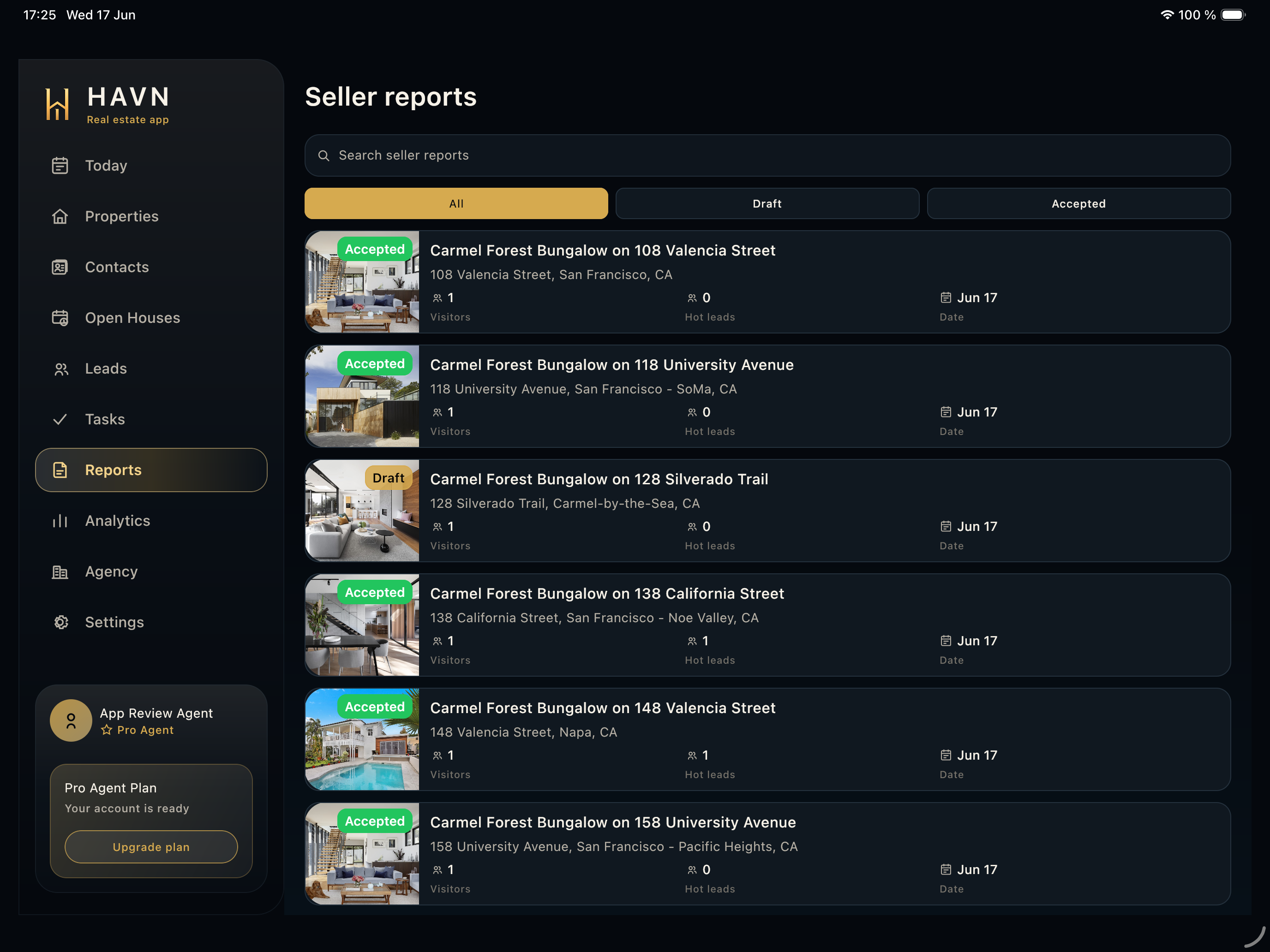
- Open Seller reports, then select the report you need to inspect.
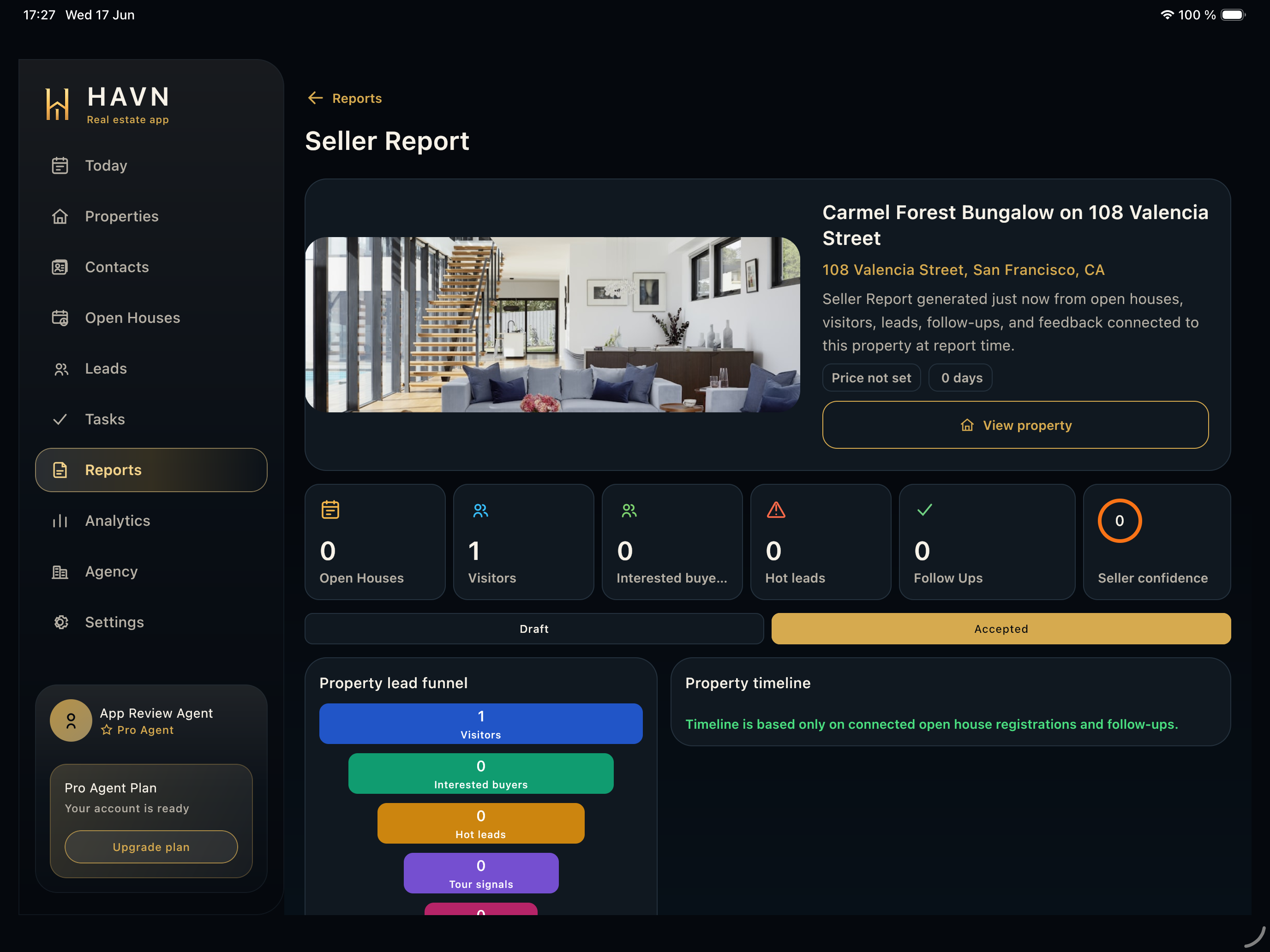
- Review property photo, title, address, generated summary, price context, days-on-market context, and report status.
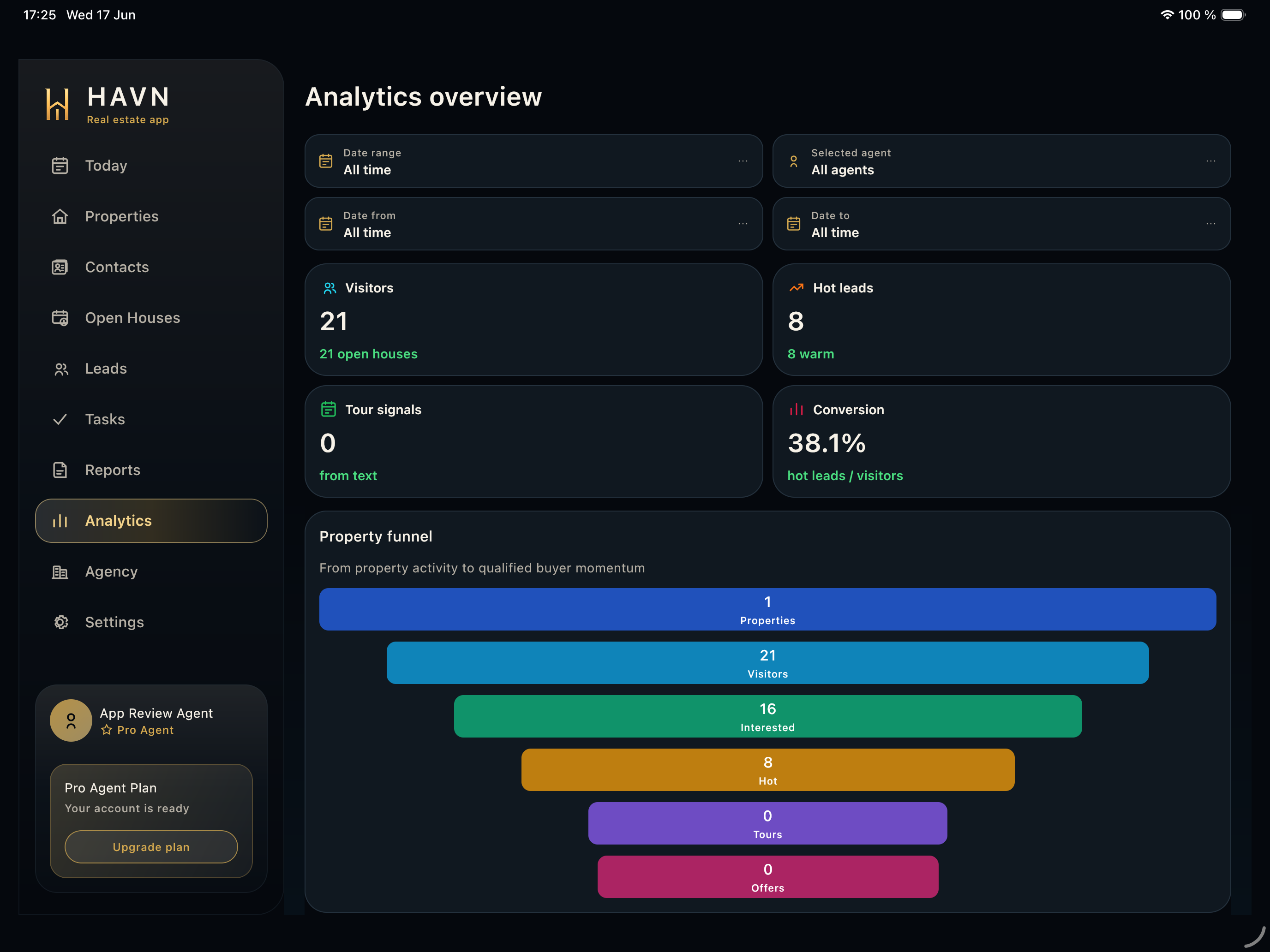
- Check open houses, visitors, interested buyers, hot leads, follow-ups, conversion, seller confidence, and timeline evidence.
- Review AI executive briefing, recommendations, property-performance evidence, and offer-readiness context before sharing.
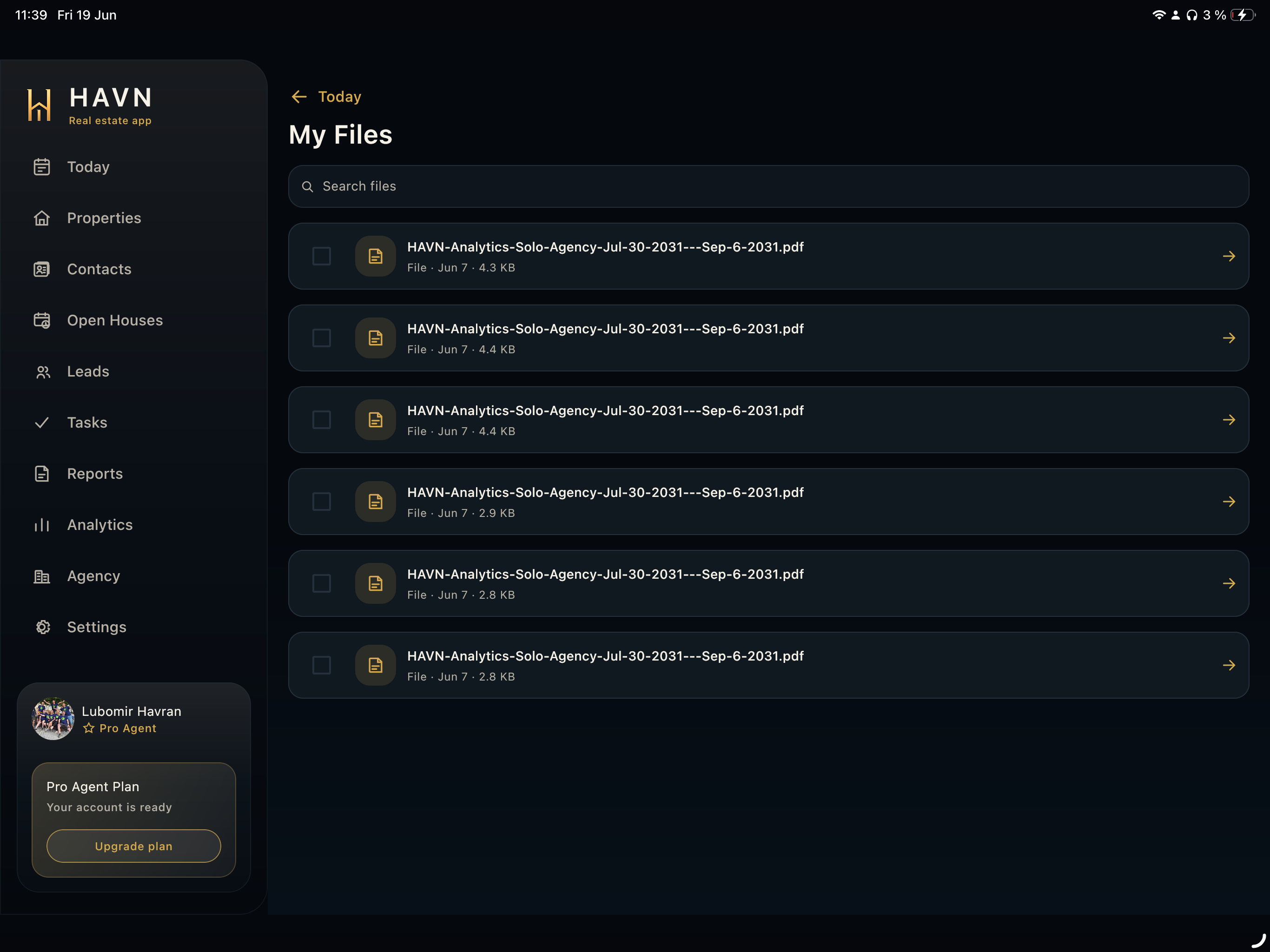
- Generate or preview the PDF, then send by email or SMS only after the content is checked.
Good to know
- Seller report detail should be factual and seller-ready before any export or share action.
- Use View property if the report raises a listing question.
- If source leads or notes are wrong, fix the underlying records before relying on the report.